If your organization uses a fixed writing or approval process, you can configure this in Docfield using template-level workflows. Workflows can only be configured at the template level and not directly within documents. Every new template includes a default workflow, which you can customize to match your own process. This workflow is then used within documents to manage, review, and approve documents step by step. Depending on the current workflow step, a document can either be editable or read-only.
Below, you can read how to adjust a workflow and how it works in documents.
This guide specifically focuses on using workflows within documents. Want to learn more about setting up and managing workflows within templates? Read the article about template workflows.
In this guide
Setting Up a Workflow for Documents
Assigning users to Workflow steps in the document
Using deadlines in the document
Completing Workflow steps in a document
Returning to a previous Workflow step
Assigning users to Workflow steps in the document
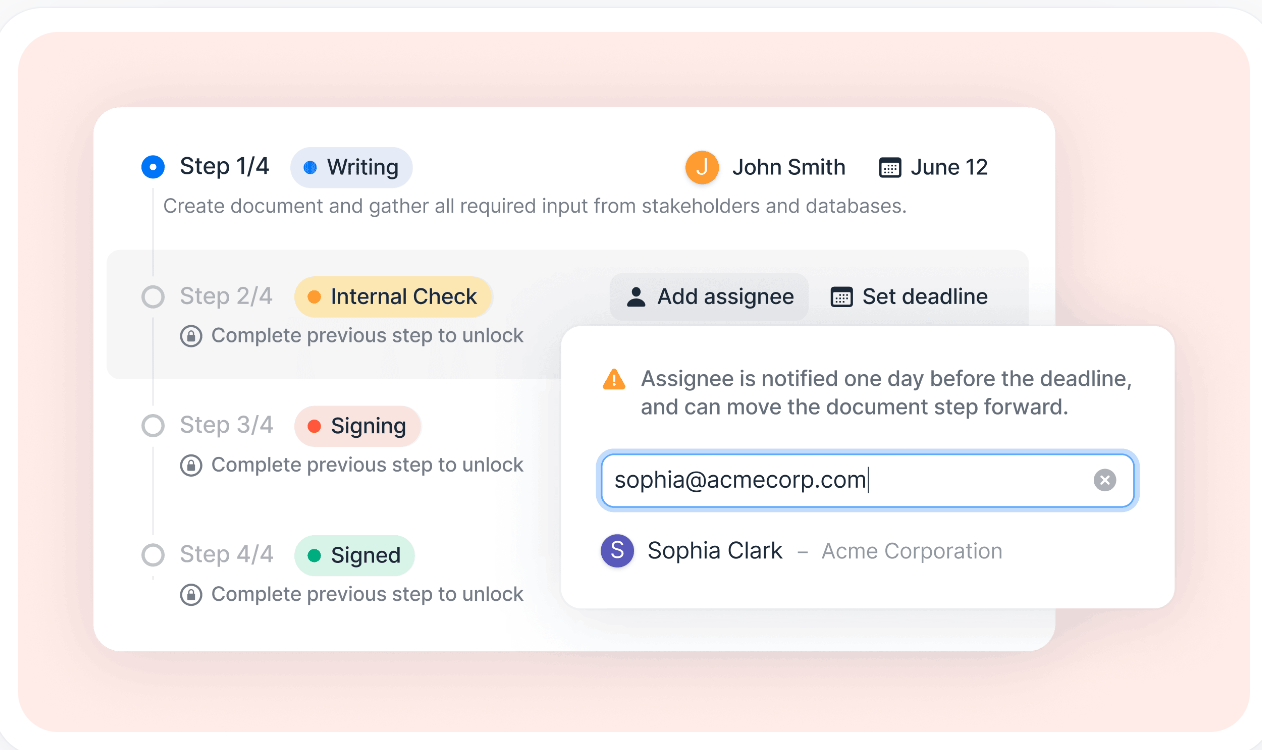
You can assign users to specific workflow steps. To do this, open the workflow overview of the document and click Set User next to the desired workflow step. Then select one or more users from the list. Assigned users automatically receive notifications when they are added to a workflow step, when the step deadline is approaching, and when the document leaves the workflow step.
Using deadlines in the document
With deadlines, you can clearly define when a workflow step must be completed. When a deadline is set, it is visible to all users who have access to the document. If users are assigned to the workflow step, they automatically receive a reminder two days before the deadline expires. Using deadlines is optional.
Setting a Deadline for an Individual Document
- Open the document.
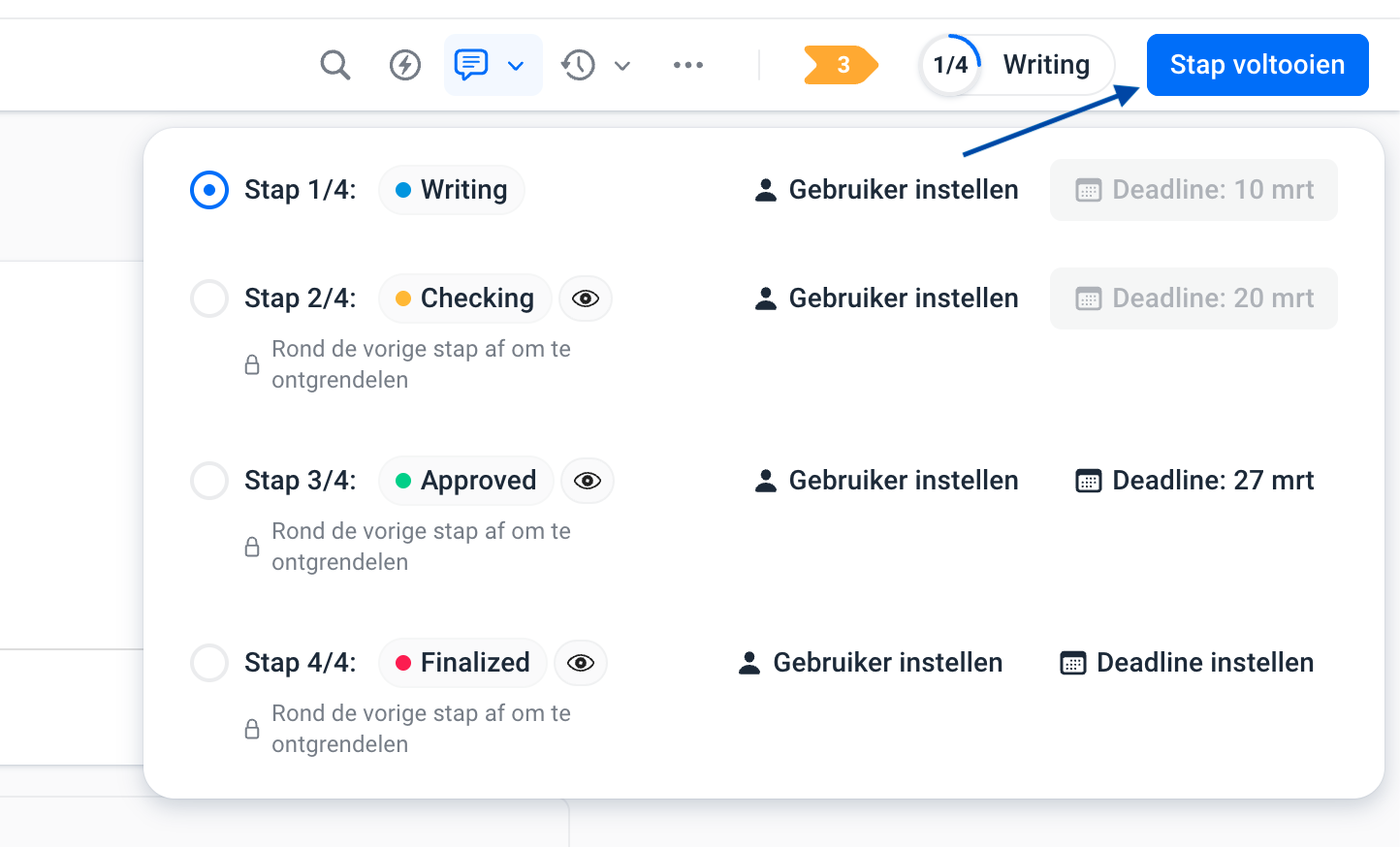
- In the top-right corner, click the name of the current workflow step, to the left of the Complete Step button.
- An overview of all workflow steps will open.
- On the right side of the desired workflow step, click Set Deadline or click the existing deadline.
- Select a date in the calendar.
The deadline is now set for this workflow step.
Completing Workflow steps in a document
To complete a workflow step and move the document to the next step, a user must have at least Full Access or Can Edit permissions.
Follow these steps:
- Open the document.
- In the top-right corner, next to the current workflow step, click Complete Step.
- The document is automatically moved to the next workflow step.
A document can only move to the next workflow step when all required items have been completed and approved. If there are still required items remaining, you can view them by clicking the yellow counter next to the workflow step. Resolve all items in the list until the indicator turns green.
When the document reaches the final workflow step, the Draft label is also removed from exported PDF files.
Was dit artikel nuttig?
Dat is fantastisch!
Hartelijk dank voor uw beoordeling
Sorry dat we u niet konden helpen
Hartelijk dank voor uw beoordeling
Feedback verzonden
We stellen uw moeite op prijs en zullen proberen het artikel te verbeteren