With the Template Workflow, you keep an overview of the status of your templates. You can see at a glance where a template is and who still needs to take action. This helps you collaborate better, prevent errors, and reach a final template faster.
In this guide
Set up workflow (for administrators)
What happens in read-only steps
Set up workflow (for owners)
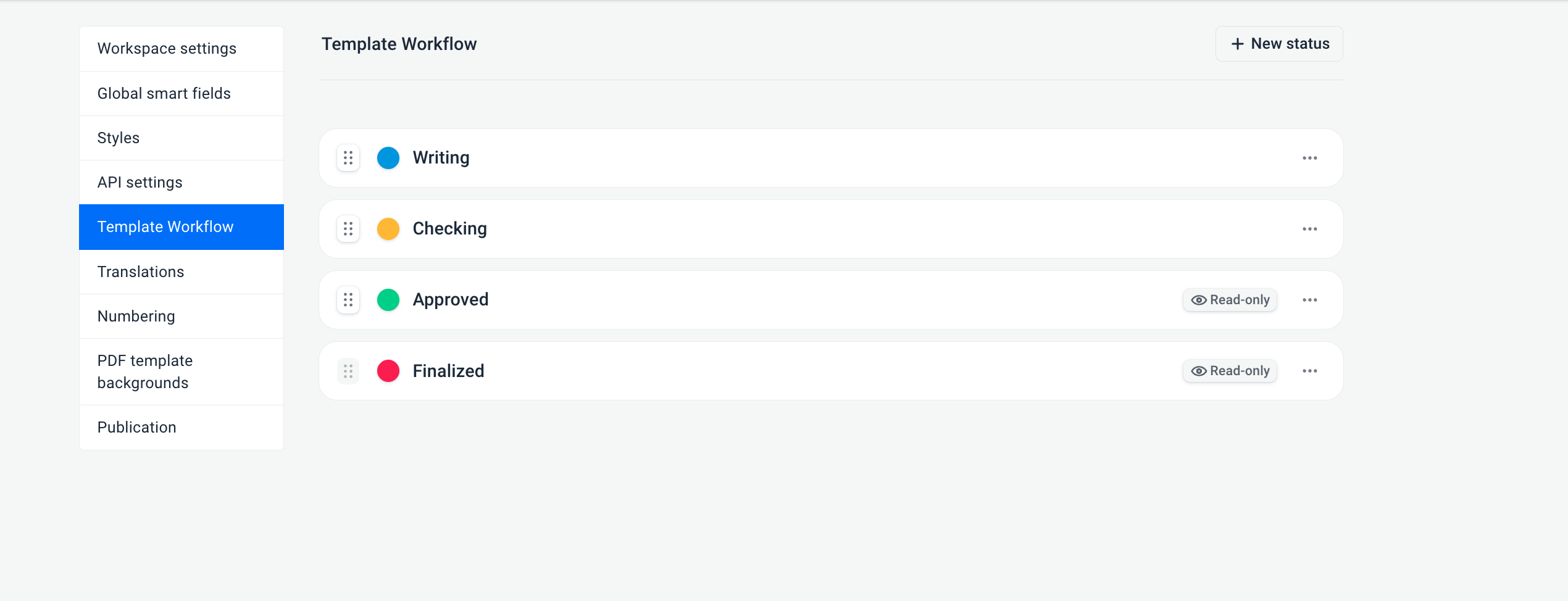
Adjust workflow status
Each template goes through the same steps by default. This workflow is automatically applied to all templates. The default steps are:
- Writing – The template is created or edited
- Checking – The template is reviewed
- Approved (read-only) – The template is approved and can no longer be edited
- Finalized (read-only) – The template is finalized and locked
You do not need to add this workflow yourself; it is applied automatically.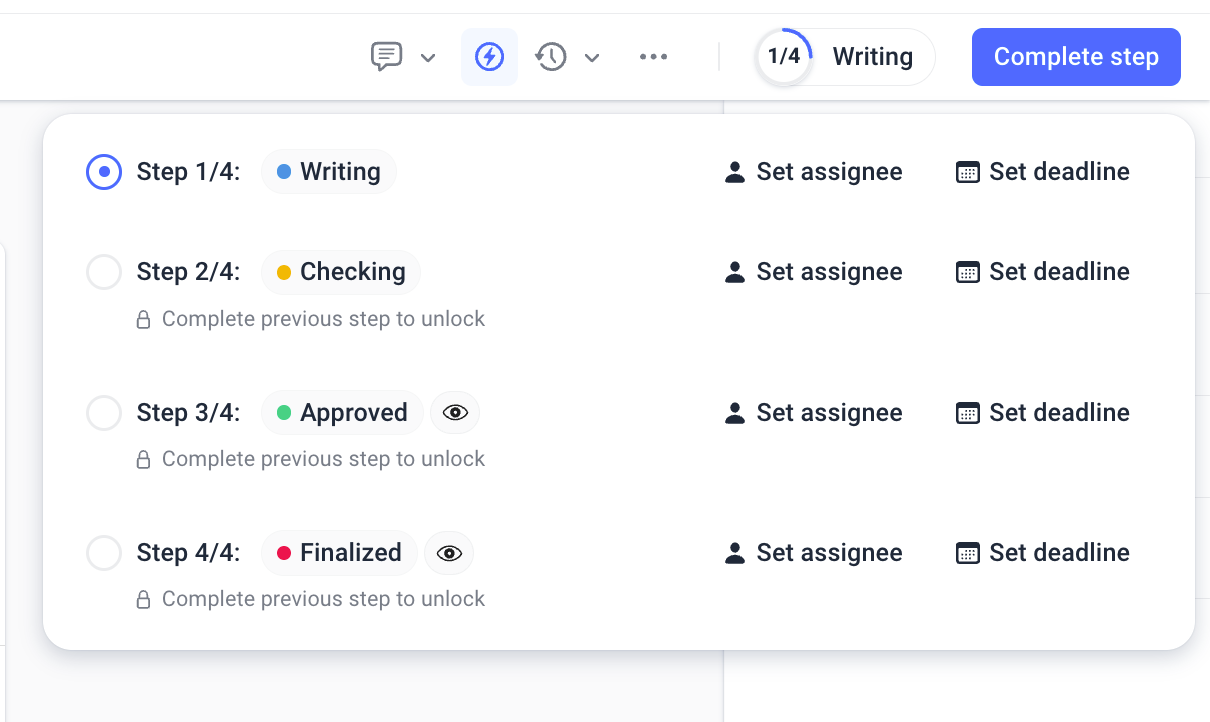
As a user, you can move a template to the next step, but also return it to a previous step if changes are still needed. You move forward via Complete step, and move back by clicking directly on the desired workflow step.
Is a template, for example, in Approved and do you want to make changes? Then set the workflow back to Writing, make your changes, and complete the step again. Only users with write permissions or higher can adjust the workflow. When you change a workflow step, involved users are automatically notified:
- Assigned users receive an email
- Any comments you add are included in the email
What happens in read-only steps
In workflow steps that are set as read-only, you can no longer make changes to the template. This means the content is locked to prevent approved templates from being accidentally modified.In this phase, you can no longer:
- Add, remove, or edit blocks
- Change numbering
- Modify translations
- Change attachments
- Edit the cover page
- Modify document workflows
- Change template settings (except title and folder)
- Edit or remove smart fields
- Modify sections
Add to Calendar
When a deadline is set in a workflow step, an option appears at the bottom to add it to your calendar. This allows you to easily save the deadline so you do not miss it. Follow these steps:
- Click Add to calendar
- A file is automatically downloaded
- Open this file to add the deadline to your calendar
This way, you always have important deadlines directly in your own agenda.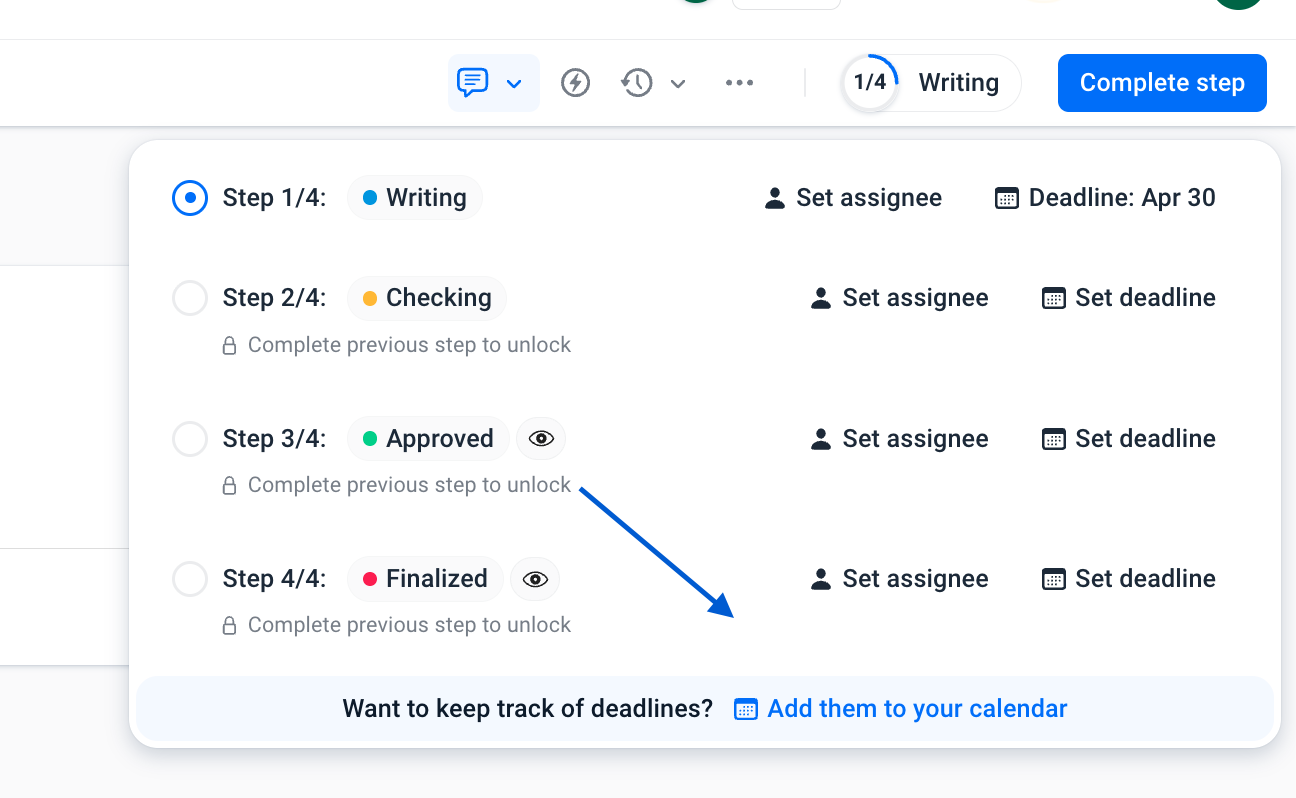
Was dit artikel nuttig?
Dat is fantastisch!
Hartelijk dank voor uw beoordeling
Sorry dat we u niet konden helpen
Hartelijk dank voor uw beoordeling
Feedback verzonden
We stellen uw moeite op prijs en zullen proberen het artikel te verbeteren