With the smart field type Formula, you can automatically calculate or adjust values based on other smart fields. This is useful for calculations, logic, and simple automation within documents. A formula can use text, number, and date smart fields and makes it possible to edit or combine existing data without having to adjust it manually.
In this guide
Built-in operators (Built-ins)
Functions in Smart field formulas
Examples of Smart field formulas
Built-in operators (Built-ins)
| Type | Operator | Example |
|---|---|---|
| Calculation | + - * / | {{Prijs}} * 1.21 |
| Compare | == > >= < <= | {{Leeftijd}} >= 18 |
| Logic | and / && | {{A}} > 0 && {{B}} > 0 |
or / || | {{Land}} == "NL" || {{Land}} == "BE" | |
not / ! | !{{Actief}} | |
| Boolean | true / false | IF(true, "Yes", "No") |
Functions in Smart field formulas
| Function | Description | Example |
|---|---|---|
| IF(condition, value_if_true, value_if_false) | Returns the first value if the condition is true, otherwise the second value. | IF(Aantal > 0, "Yes", "No") returns Yes if the amount is greater than 0. |
| OR(condition1, condition2, …) | Returns true if one of the conditions is true. | OR(true, false) → true |
| NOT(condition) | Inverts the value of a condition. | NOT(true) → false |
| MAX(value1, value2, …) | Returns the highest value. | MAX({{Score1}}, {{Score2}}) |
| MIN(value1, value2, …) | Returns the lowest value. | MIN({{PrijsA}}, {{PrijsB}}) |
| SUM(value1, value2, …) | Adds multiple values together. | SUM({{Prijs}}, {{BTW}}) |
| ROUND(value, [decimals]) | Rounds a number. | ROUND({{Bedrag}}, 2) |
| ROUNDDOWN(value, [decimals]) | Rounds a number down. | ROUNDDOWN({{Bedrag}}, 0) |
| ROUNDUP(value, [decimals]) | Rounds a number up. | ROUNDUP({{Bedrag}}, 0) |
| SQRT(value) | Calculates the square root of a number. | SQRT({{Oppervlakte}}) |
| LEFT(text, number) | Takes the first characters of a text. | LEFT({{Postcode}}, 4) |
| RIGHT(text, number) | Takes the last characters of a text. | RIGHT({{IBAN}}, 4) |
| MID(text, start, number) | Takes a part from the middle of a text. | MID({{Kenmerk}}, 2, 3) |
| SUBSTITUTE(text, search, replace) | Replaces text with other text. | SUBSTITUTE({{Email}}, "@bedrijf.nl", "") |
CONCAT(value1, value2, …) | Combines multiple texts or values into a single text. | IF({{FirstName}} != "", CONCAT({{FirstName}}, " ", {{LastName}}), "") |
-> Option list choices cannot currently be used in formulas.
Set up a Smart field Formula
For example, you want to automatically display text in a document based on a value. For example, if the number of participants is greater than 10, you show "Large group". Otherwise, you show "Small group".
Step 1: Create Smart fields
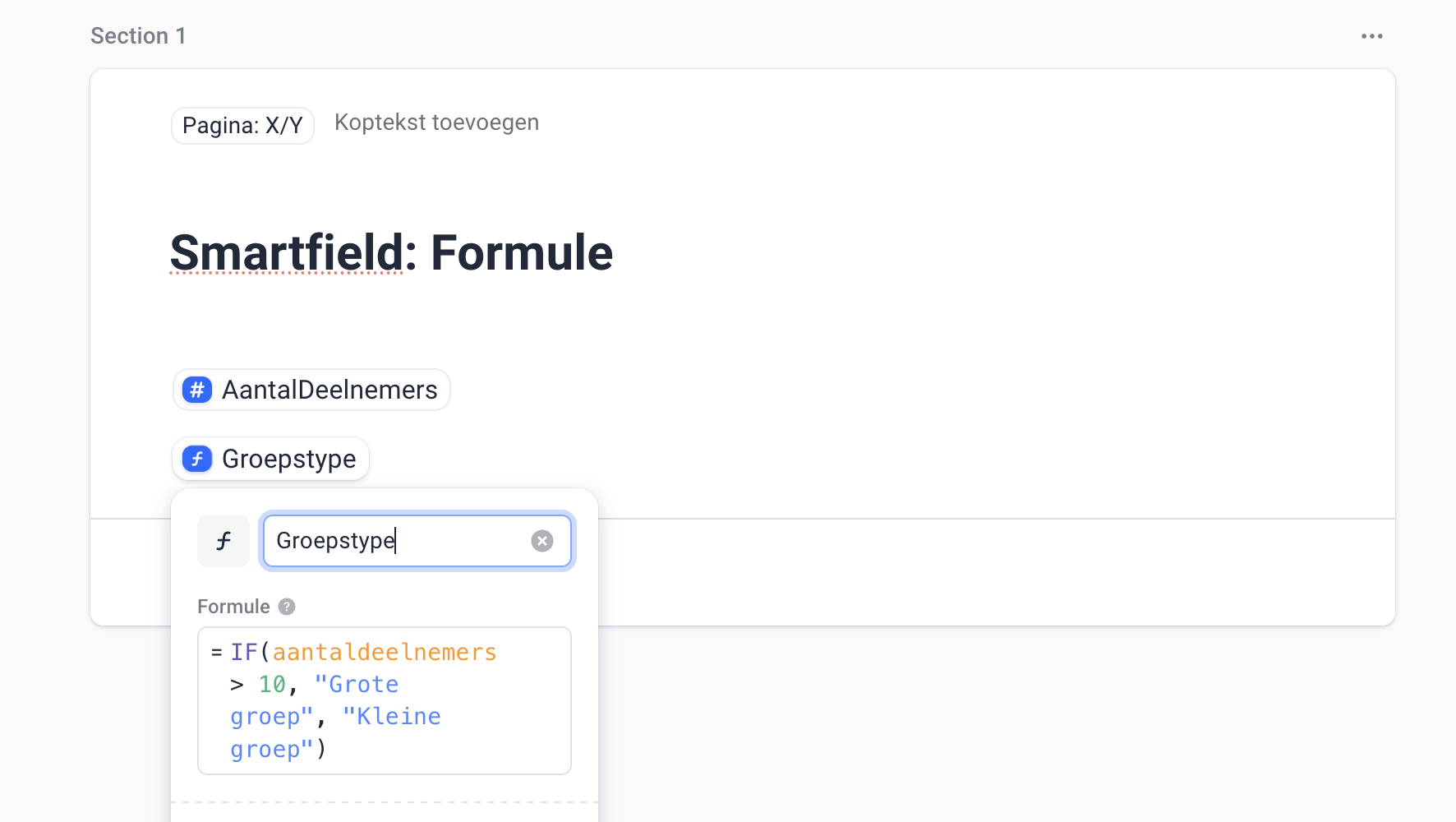
First, create the following smart fields:
- aantalDeelnemers → type Number
- Groepstype → type Formula
Step 2: Enter the formula
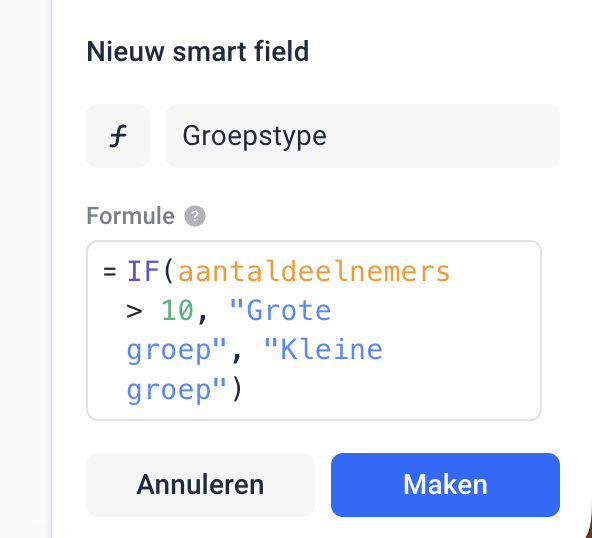
Open the smart field Groepstype (type Formula) and enter the following formula.
e.g.: IF({{aantalDeelnemers}} > 10, "Large group", "Small group")
Step 3: Place Smart fields in the template
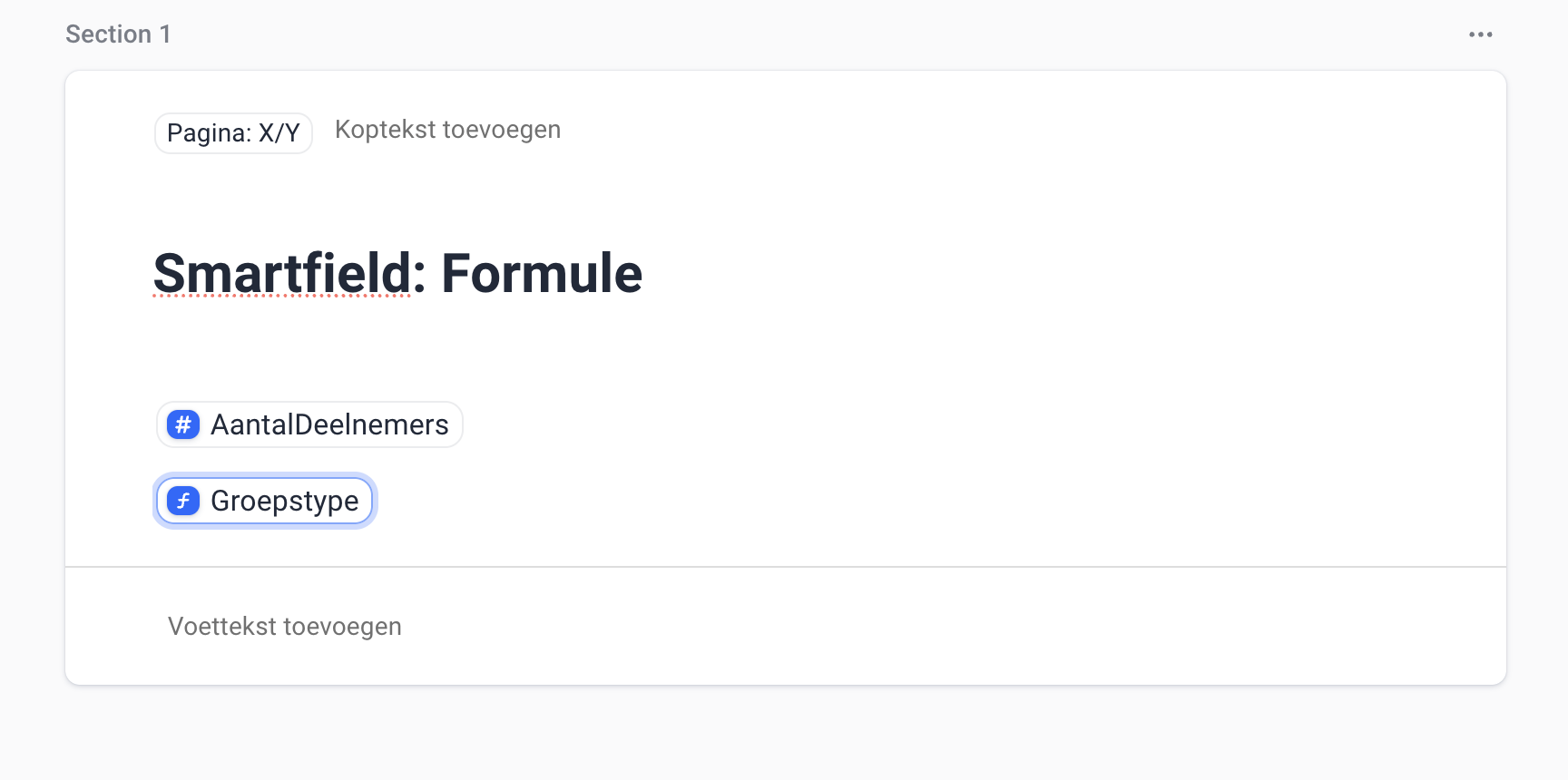
Place both smart fields in the template
- Number of participants: {{AantalDeelnemers}}
- Group type: {{Groepstype}}
Step 4: Enter the value in the document
In the document, enter the value for AantalDeelnemers.
e.g.: 12
Result in the document
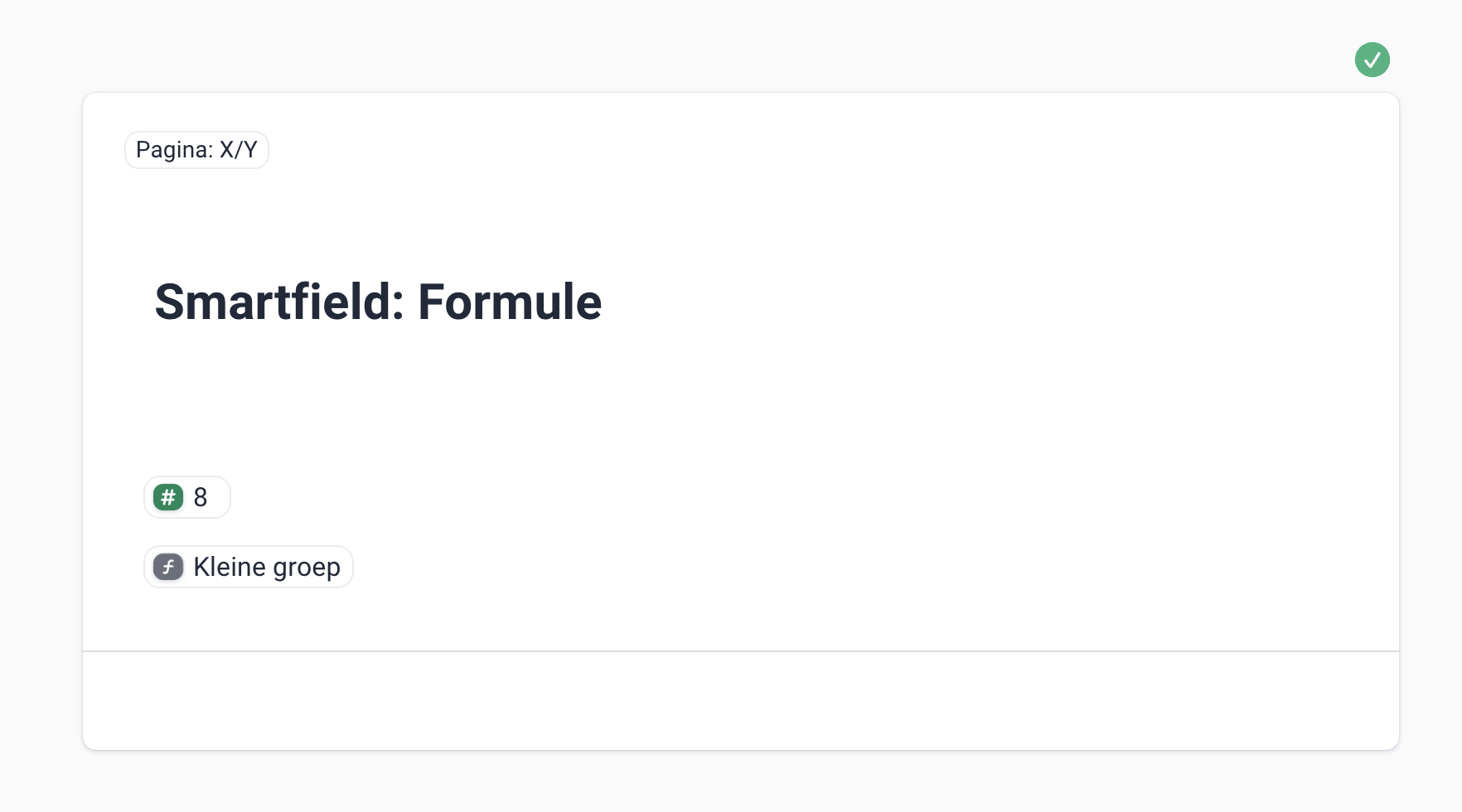
The formula is calculated automatically.
Number of participants: 12 → Group type: Large group
Number of participants: 8 → Group type: Small group
Examples per Type
Date
You can also create a formula based on filled-in Smartfield dates, for example to calculate the number of days or months.
- For the number of days you can use:
ROUND(enddate - startdate, 0) - For the number of months:
(enddate - startdate) / 30 - For the rounded number of months:
ROUND((enddate - startdate) / 30, 0)
Examples of Smart field formulas
With IF(Aantal > 0 && Status = "Approved", "Yes", "No"), Yes is only shown if both conditions are met.
With Amount × 0,21, VAT of 21 is calculated automatically for an amount of 100.
With Amount + (Amount × 0,21), the total 121 is calculated for an amount of 100.
With
CONCAT({{FirstName}}, " ", {{LastName}})the values Jan and Jansen are combined into Jan Jansen.With ROUND(Total amount, 2), the value 123,456 is rounded to 123,46.
With IF(Score ≥ 6, 1, 0) a score of 7 returns 1, and a score of 5 returns 0.
With ROUNDUP(Amount, 0), an amount is always rounded up.
With SUBSTITUTE(Email, "@bedrijf.nl", "") the username is extracted from an email address.
With SUM(Price1, Price2, Price3), multiple amounts are automatically added together.
With End date + 30, an end date is automatically calculated that is 30 days after the start date.
Was dit artikel nuttig?
Dat is fantastisch!
Hartelijk dank voor uw beoordeling
Sorry dat we u niet konden helpen
Hartelijk dank voor uw beoordeling
Feedback verzonden
We stellen uw moeite op prijs en zullen proberen het artikel te verbeteren