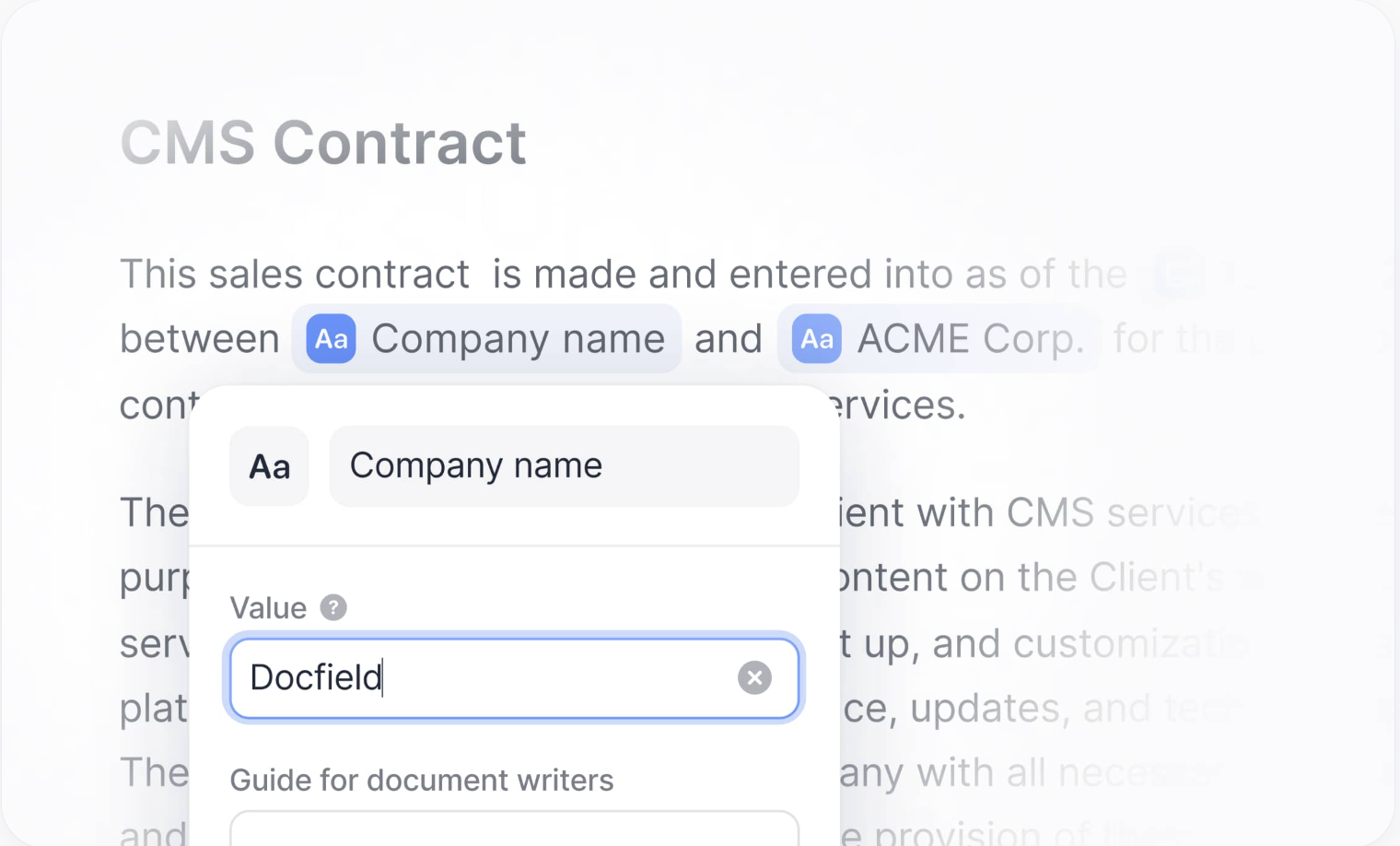
Smart fields make it possible to edit documents easily and in a controlled way. They ensure that writers can only change predefined words or terms. Once a value is entered, it is automatically applied in all the correct places in the document. This prevents errors and ensures consistent texts. Smart fields are mainly used for short pieces of text, such as names, email addresses, or place names. You can use them in fixed texts, editable texts, and choice options. This way, you only have to enter information, such as a company name in a contract once, and it will automatically be updated everywhere the smart field is used.
In this guide
Using and deleting Smart fields
Using Smart fields in conditional logic
- Standard Smart fields
You can create standard smart fields yourself. You use them for data that has a value in every document or that comes up often, such as a name, date, or reference.
- Global Smart fields
Global smart fields can only be created by owners. They work the same as standard smart fields, but are available in all templates within the environment. This is useful when you want to use the same fields in multiple templates without having to create them again each time. Read more about global smart fields here.
- Automatic Smart fields
Automatic smart fields are automatically filled in with information that is already known. Think of the document title, creation date, or author.
- Automatic Smart fields for programs
These smart fields are automatically filled in with program-related information that is already known. Read more about Automatic Smart fields for programs here.
Create a Smart field
You can create smart fields in three ways, depending on your workflow.
1. Create Smart fields in advance
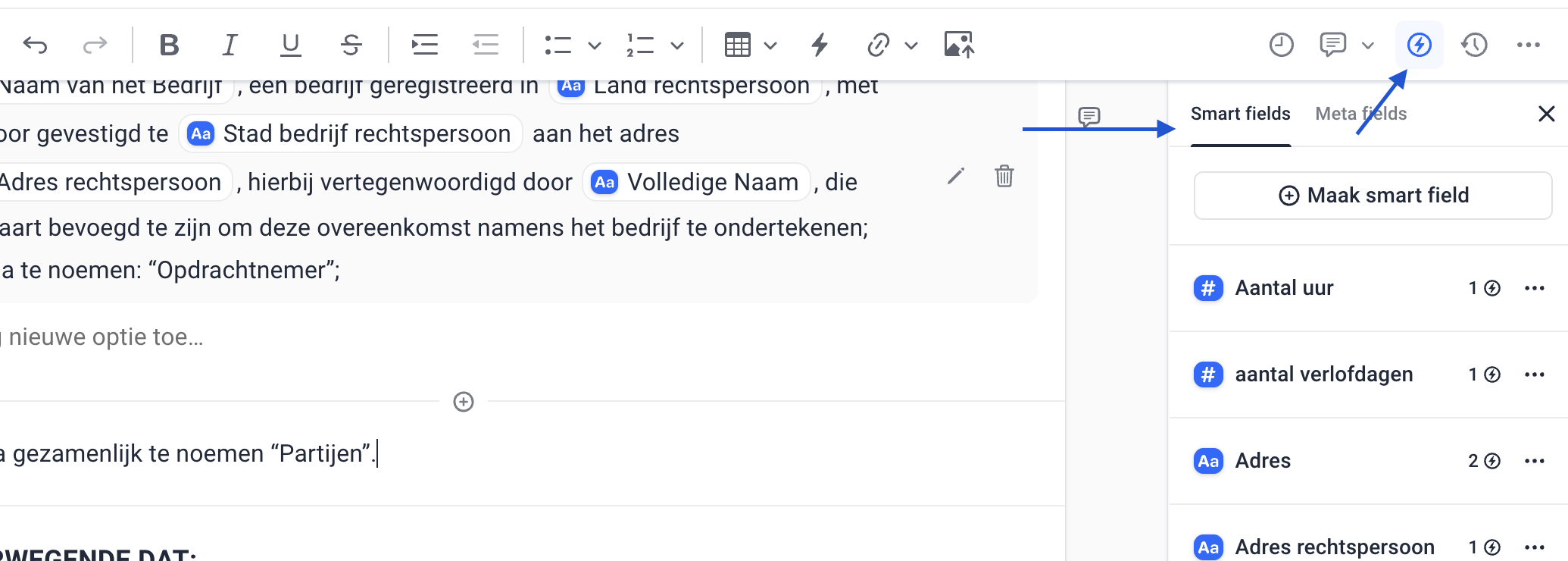
You can manage and edit smart fields via the smart fields sidebar, which you can open by clicking the lightning icon in the top-right corner. At the top of the list you will find the option 'Create smart field'; choose this option to create a new smart field.
This smart field is not yet used directly in the template. You can add it later by clicking the smart field icon in a text block and selecting the smart field from the list.
2. Add a Smart field via a text block
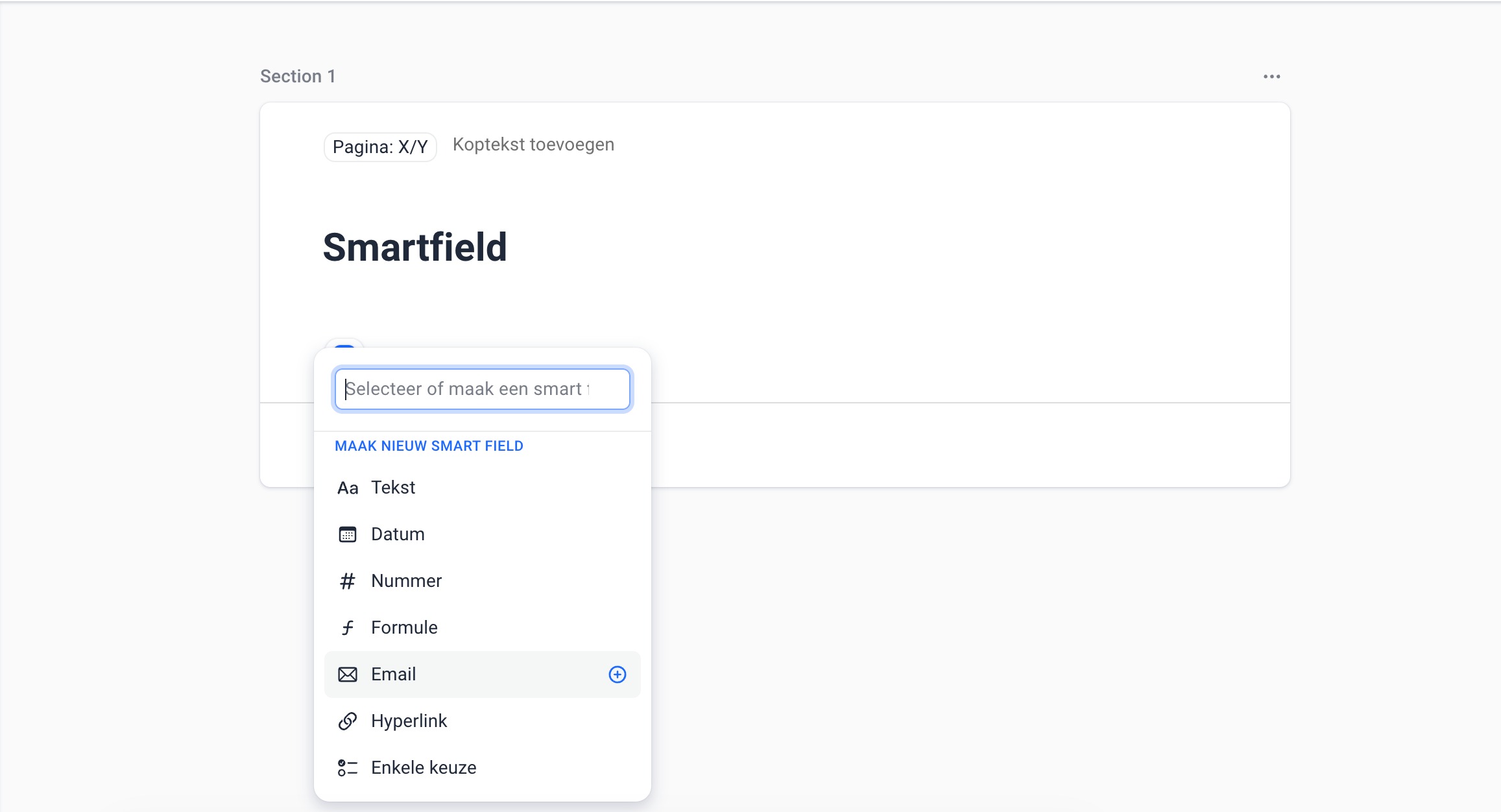
Place your cursor in a spot in the text block, and then select the lightning icon in the top middle of the toolbar. After that, you can choose one of the desired smart field types (standard, global, or automatic); you can also create a new smart field here.
3. Create a Smart field from selected text
Select a word or text and click the lightning icon. The selection is automatically converted into a standard smart field.
Smart field types
When creating a smart field, you choose the type of information that may be entered. This ensures consistent input in the document. The name of the smart field is always text, but the value must comply with the selected type.
The following smart field types are available:
- Text – For plain text or a combination of letters and numbers.
- Date – For dates in the format DD-MM-YYYY.
- Number – For numeric values, such as 4.1. Letters are not allowed.
- Formula – Use this type to create calculations with number smart fields.
- Email – For email addresses.
- Hyperlink – For websites or URLs.
- Single choice – To select one option from a predefined list of choices.
Rename a Smart field
All smart fields you have created can be found in the smart fields tab. Click the smart field icon in the top-right corner to open the overview. You can change the name of a smart field via a text block or via the smart fields tab. The change is automatically applied everywhere this smart field is used in the template.
Using and deleting Smart fields
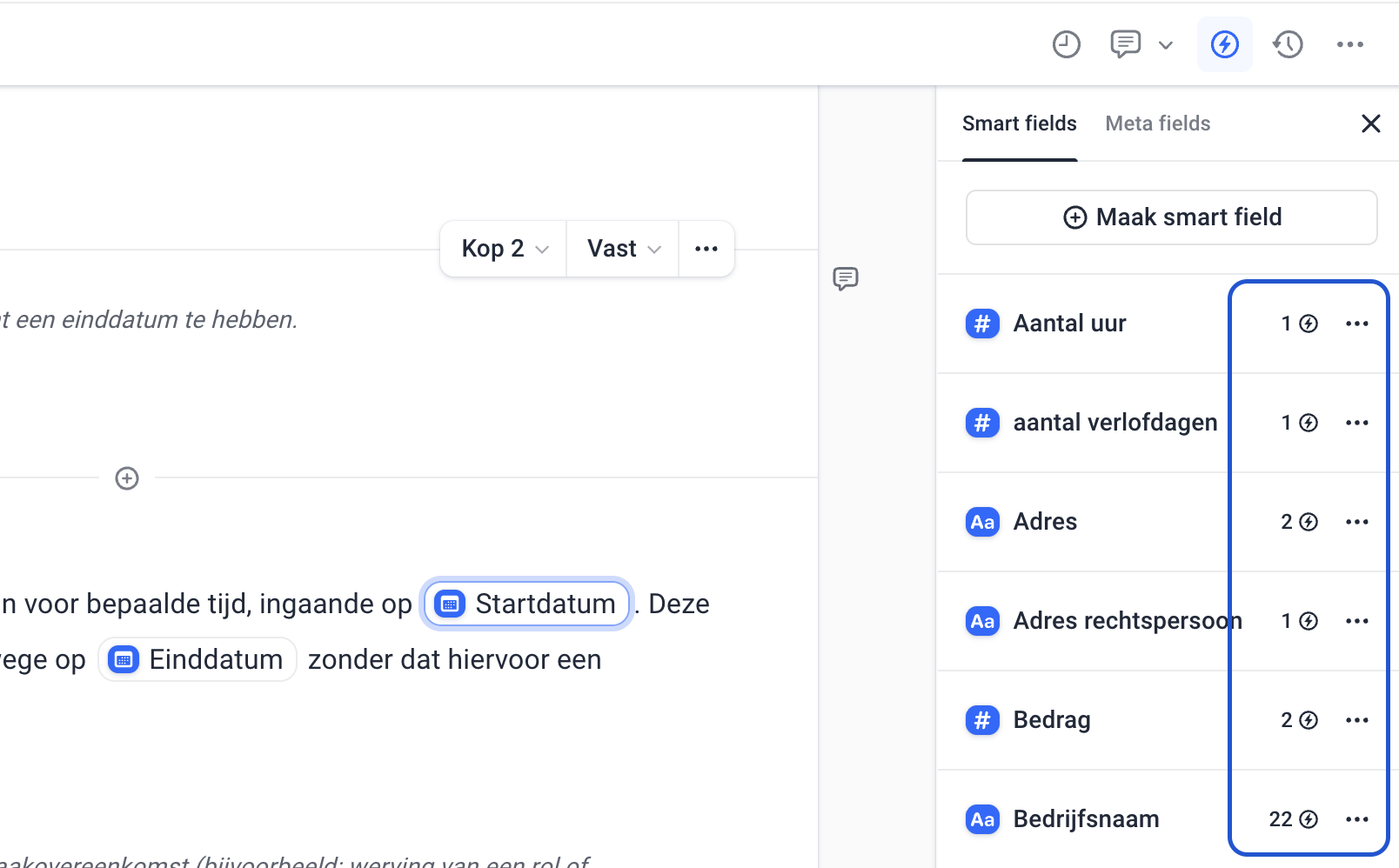
In the overview, you can see for each smart field whether it is being used:
- If there is a number next to a smart field, then this field is used in the template. The number indicates how many times the smart field occurs. A smart field that is in use cannot be deleted.
- If there is no number, then the smart field is not used and can be deleted.
If you want to delete a smart field completely, click the three dots (… ) next to the field in the overview and choose Delete smart field.
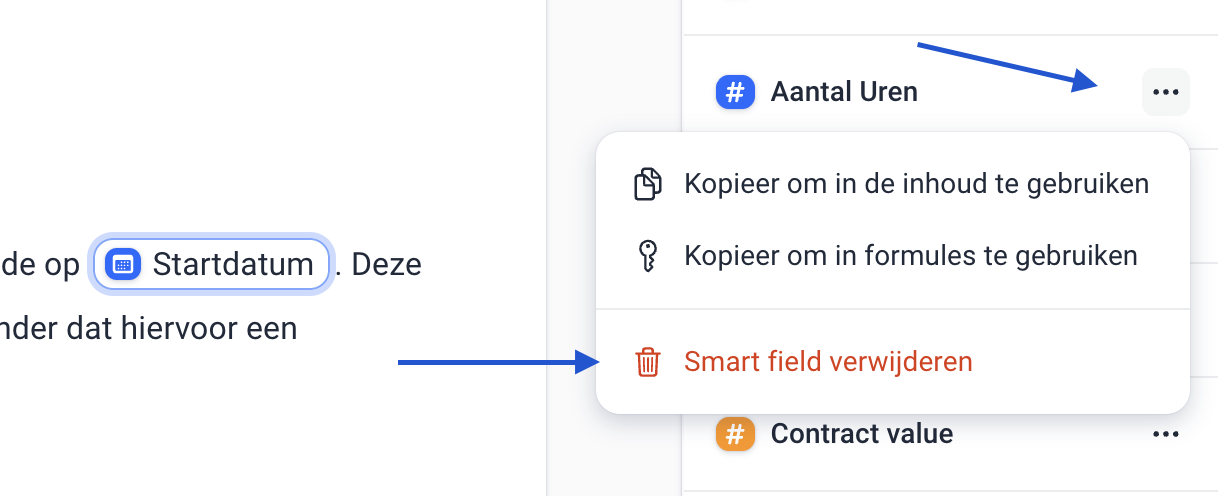
Note: if you only remove a smart field from a text block, the smart field will still exist in the overview. This does not affect the template or document.
Using Smart fields in conditional logic
Do you want a block in a document to be displayed only when a certain condition is met? Then you can use conditional logic in combination with smart fields. With conditional logic, you can determine that specific blocks are automatically shown or hidden, depending on the value entered in a smart field. This can be, for example, a selected option, but also an entered number or text. Read this guide to learn how to set up and use conditional logic with smart fields.
Smart fields in Documents
When you open a document, the values of the smart fields are still empty. You can fill them in in two ways: via the text blocks or via the smart fields tab.
Filling in Smart fields via text blocks
Click the smart field in a text block and enter the value that applies to this document. This only works for fixed text blocks. All smart fields with the same name are automatically filled in with the same value.
Filling in Smart fields via the smart fields tab
Click the smart field icon in the top-right corner to open the smart fields tab. Enter the desired value here. Here too, all smart fields with the same name are automatically updated.
Was dit artikel nuttig?
Dat is fantastisch!
Hartelijk dank voor uw beoordeling
Sorry dat we u niet konden helpen
Hartelijk dank voor uw beoordeling
Feedback verzonden
We stellen uw moeite op prijs en zullen proberen het artikel te verbeteren