This guide explains how to correctly configure the publication page. Once the publication page has been successfully set up, you can further configure it using the steps below, such as customizing the branding and settings.
Accessing the publication page
The publication page can be accessed via:
- The URL sent by email.
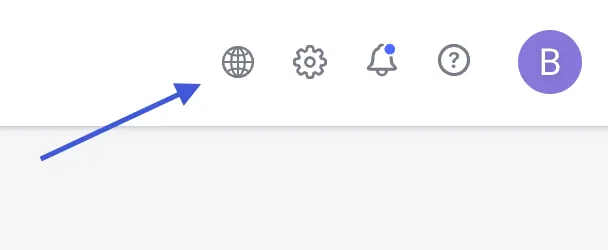
- The globe icon in the top-right corner of the navigation bar.
When you open the page, no documents will be visible to the educational institution yet. Published documents will appear here later. On the publication page, you can filter documents by:
- Faculty
- Academic year
- Level
- Programme
- Language
Changing the settings
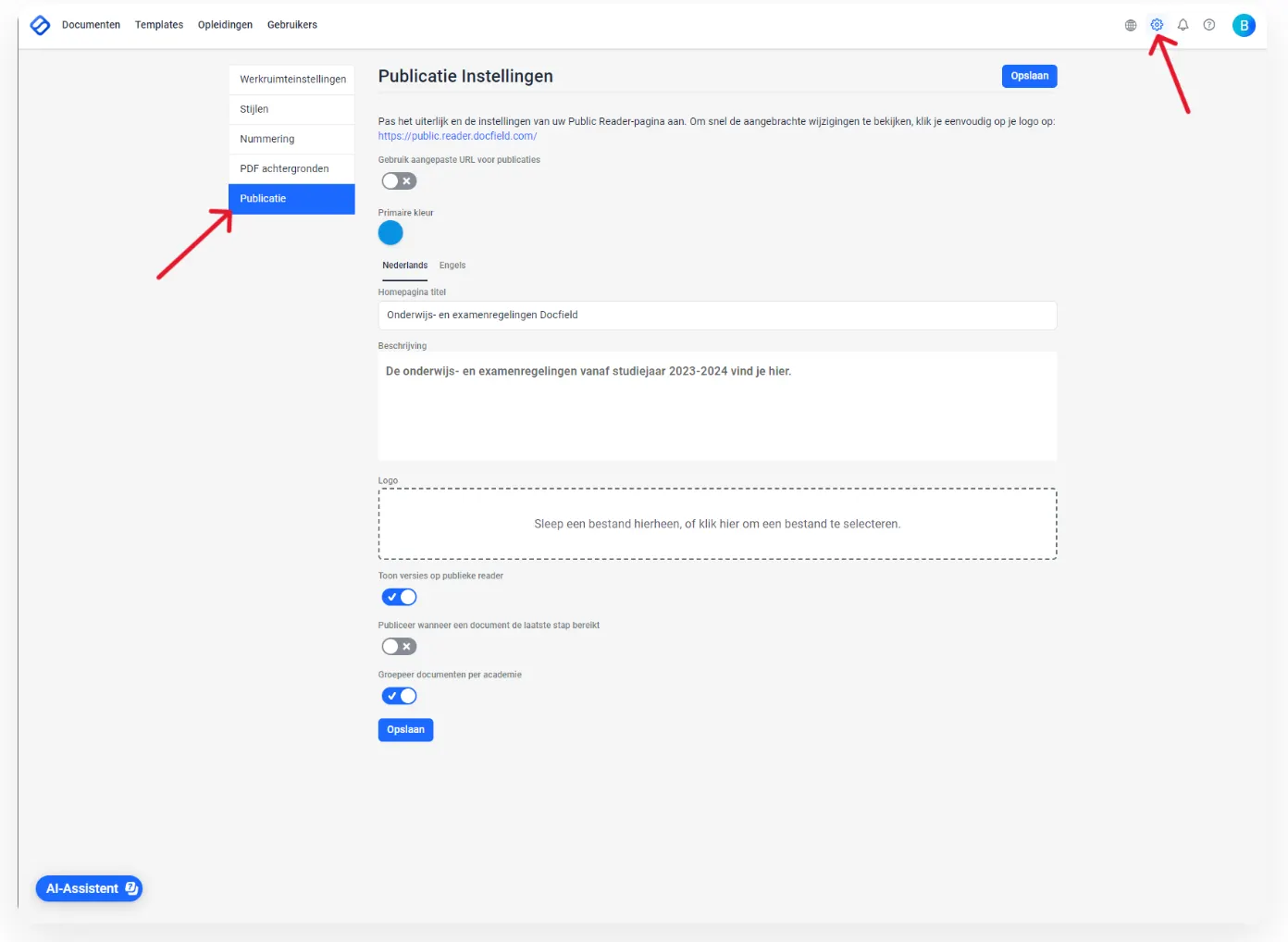
The publication page settings can be changed via Settings > Publication. Only owners can modify these settings. The following settings are available:
Basic settings
- URL - You do not need to change this. It has already been configured correctly by us.
- Color - This is the text color of the document title on the publication page. You can change this color to match your organization's branding.
- Homepage title and description - The title is displayed at the top of the publication page, and you can add your own description that will be visible on the homepage.
Additional options
- Show versions in the public reader - If this option is enabled, previous versions of a document remain visible when a new version is published.
- Automatically publish at the final step - When this option is enabled, documents are automatically published once they reach the final step of the workflow. When this option is disabled, documents must be published manually after the final step by clicking the Publish button. This can be done by users with full access or edit permissions for the document.
- Group documents by faculty - With this option, documents on the publication page are grouped by faculty.
Publishing documents
Once a document has been completed, it can be published by clicking the Publish button after the final workflow step in the document (provided this option is enabled in the settings). Only one document can be published at a time.
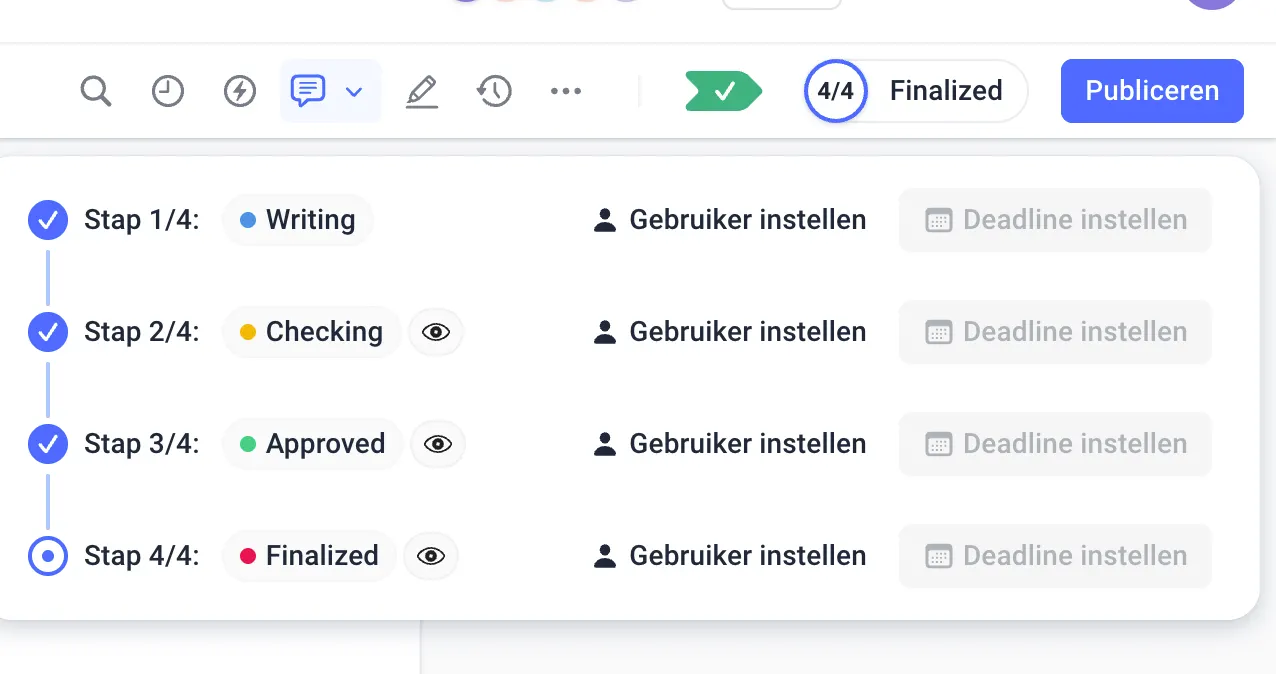
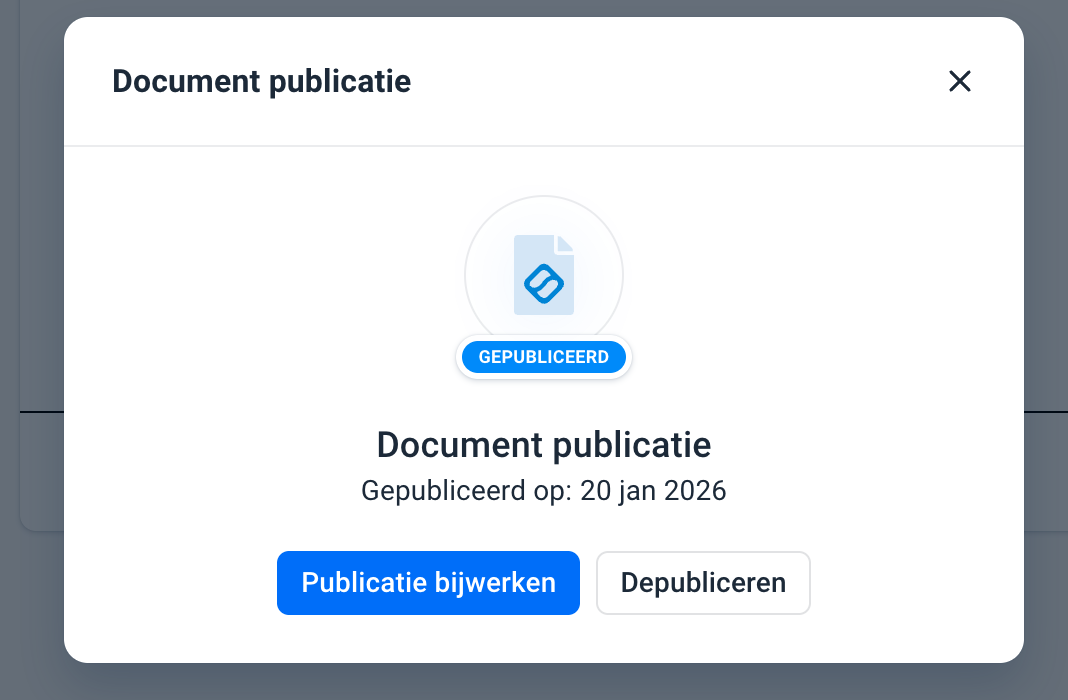
If you want to make changes after publication, you can edit the document. After saving, the Update publication button will appear. Clicking this button automatically updates the published version.
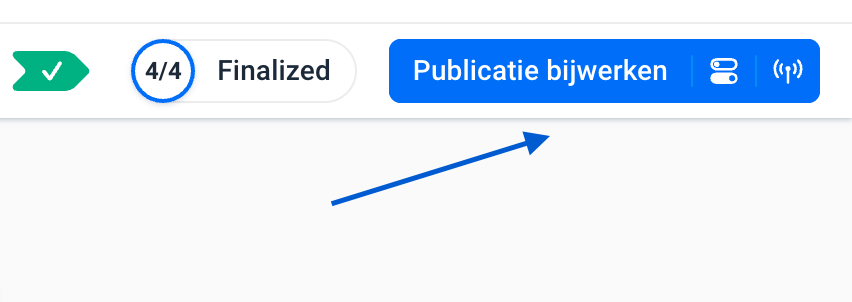
If you want to remove a published document from the publication list, click Manage publication next to the workflow step in the document, and then click Unpublish.
```
Was dit artikel nuttig?
Dat is fantastisch!
Hartelijk dank voor uw beoordeling
Sorry dat we u niet konden helpen
Hartelijk dank voor uw beoordeling
Feedback verzonden
We stellen uw moeite op prijs en zullen proberen het artikel te verbeteren