In Docfield, documents remain linked by default to the template from which they were created. Changes to the template are therefore automatically applied to all linked documents. Sometimes this is not desirable, for example when a document is being reviewed or negotiated by an external party. To prevent changes to the template from being applied during this period, you can automatically disconnect a document from the template via a workflow step.
In this guide
Automatically disconnect a document
Automatically disconnect a document
A document is not disconnected manually, but automatically as soon as a predefined workflow step is reached. Follow the steps below:
- Open the desired template.
- Go to the workflow.
- Create a new workflow step or edit an existing step.
- Enable the Disconnect document from template option.
- Save the workflow.
From that moment on, every document that reaches this workflow step is automatically disconnected from the template. A template can contain a maximum of one workflow step that disconnects a document.
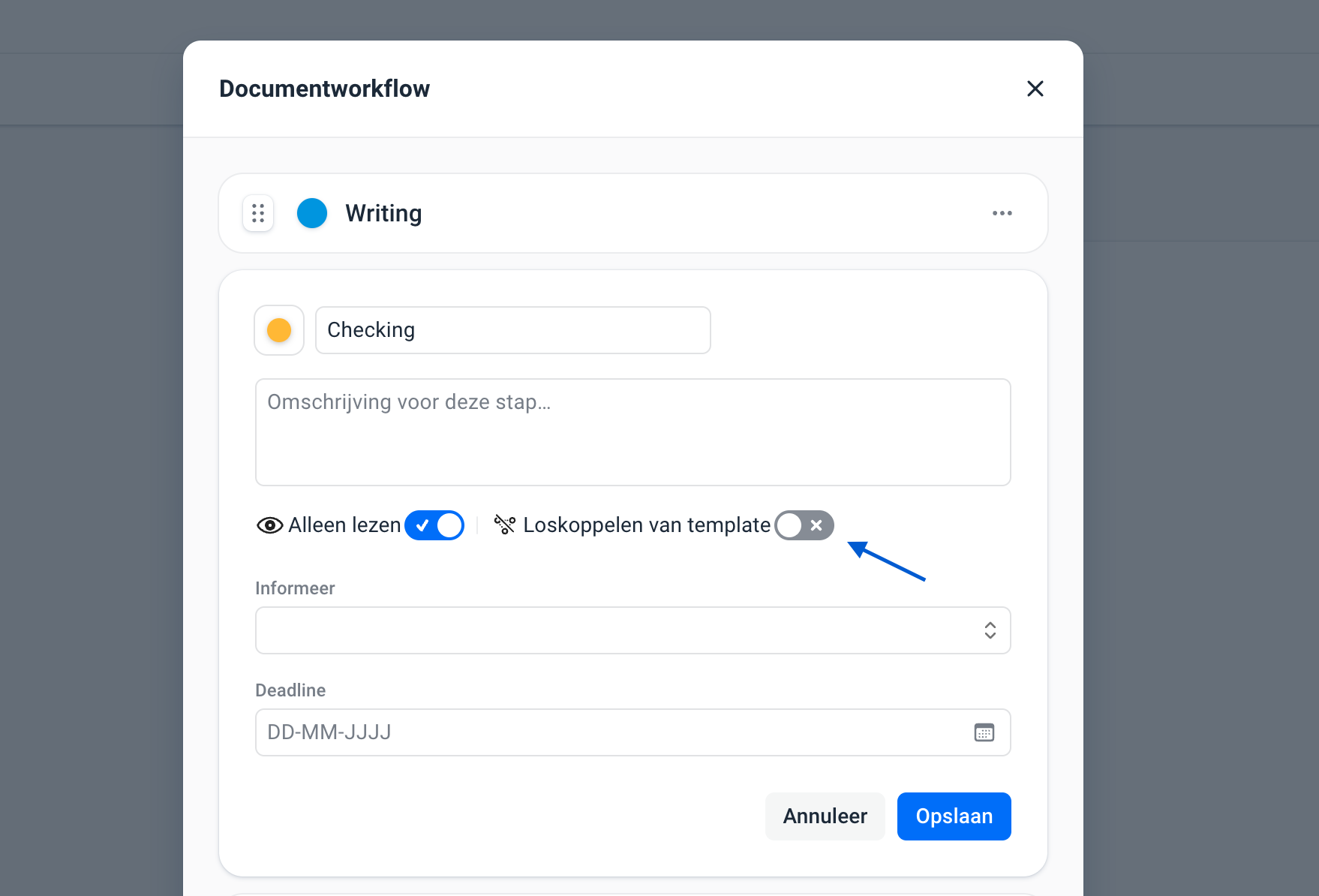
Consequences of disconnecting
Once a document reaches the configured workflow step, it is disconnected from the template. From that moment on, content changes in the template are no longer automatically applied to the document. The content of the document therefore remains the same, even if the template is changed later. Before the document is disconnected, a warning appears. This warning states that the action is permanent and that the document can no longer be returned to an earlier workflow step afterwards.
After you have disconnected a document, you can no longer reconnect it. If you still want to do this, create a copy of the document. Copies are automatically placed back in the first step and linked again.
Warning when disconnecting
When a user moves the document to a workflow step that disconnects the document, a confirmation appears first. This states that:
- the document is permanently disconnected from the template;
- changes in the template will no longer be applied;
- returning to an earlier workflow step is not possible.
The user can then choose to confirm or cancel the action.
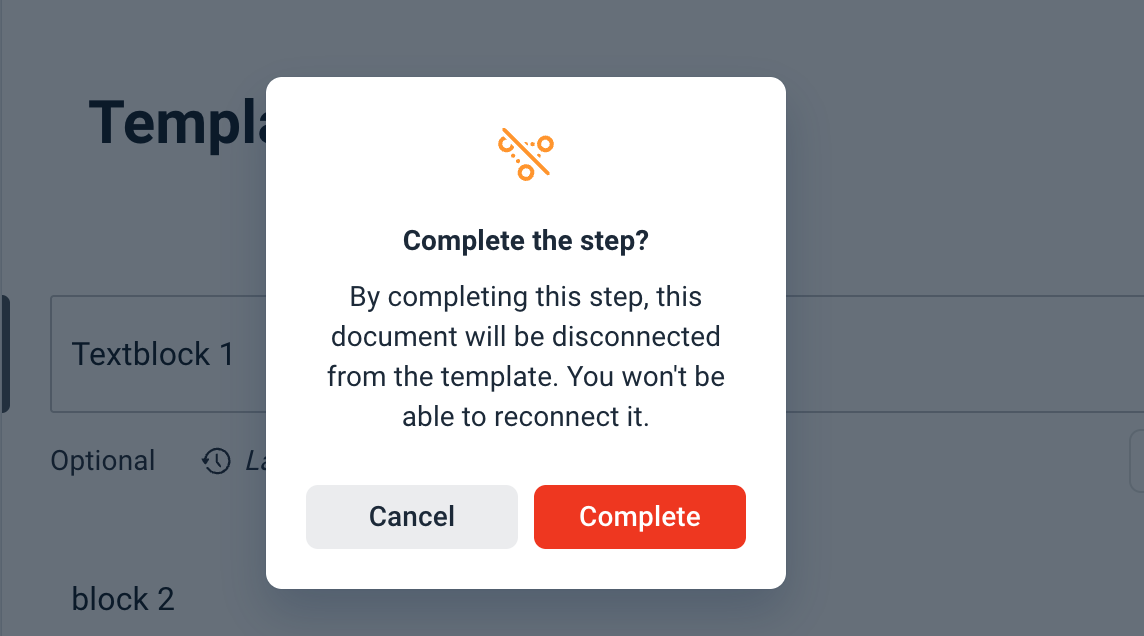
Recognize a disconnect step
Workflow steps that disconnect a document have a visual indicator. This allows you to immediately see at which step the document is disconnected from the template. In the template you will see this indicator at the workflow step where the option Disconnect from template is enabled.
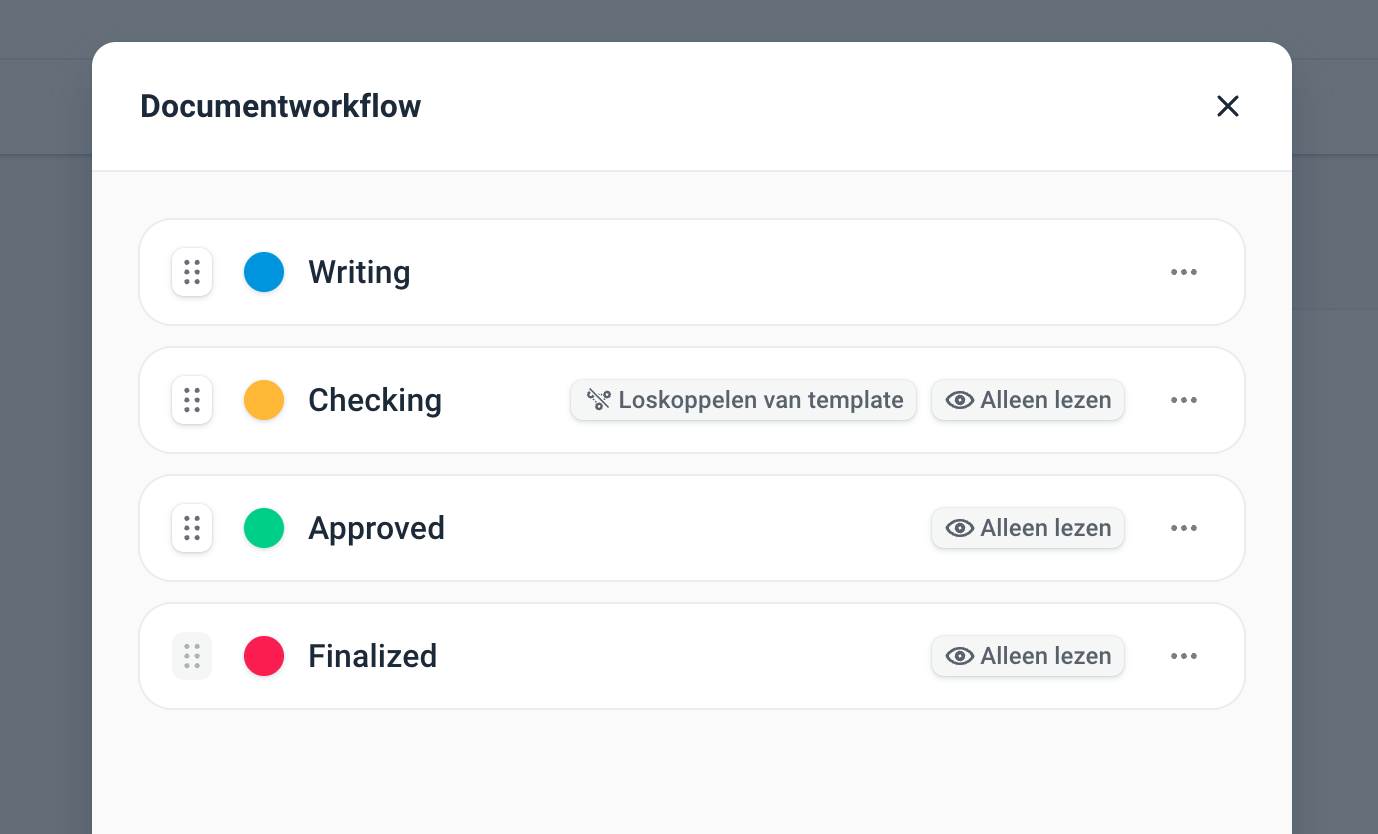
In the document you will see the Disconnect icon at the relevant workflow step. Once you complete this step, the document is disconnected and you can no longer return to an earlier workflow step.
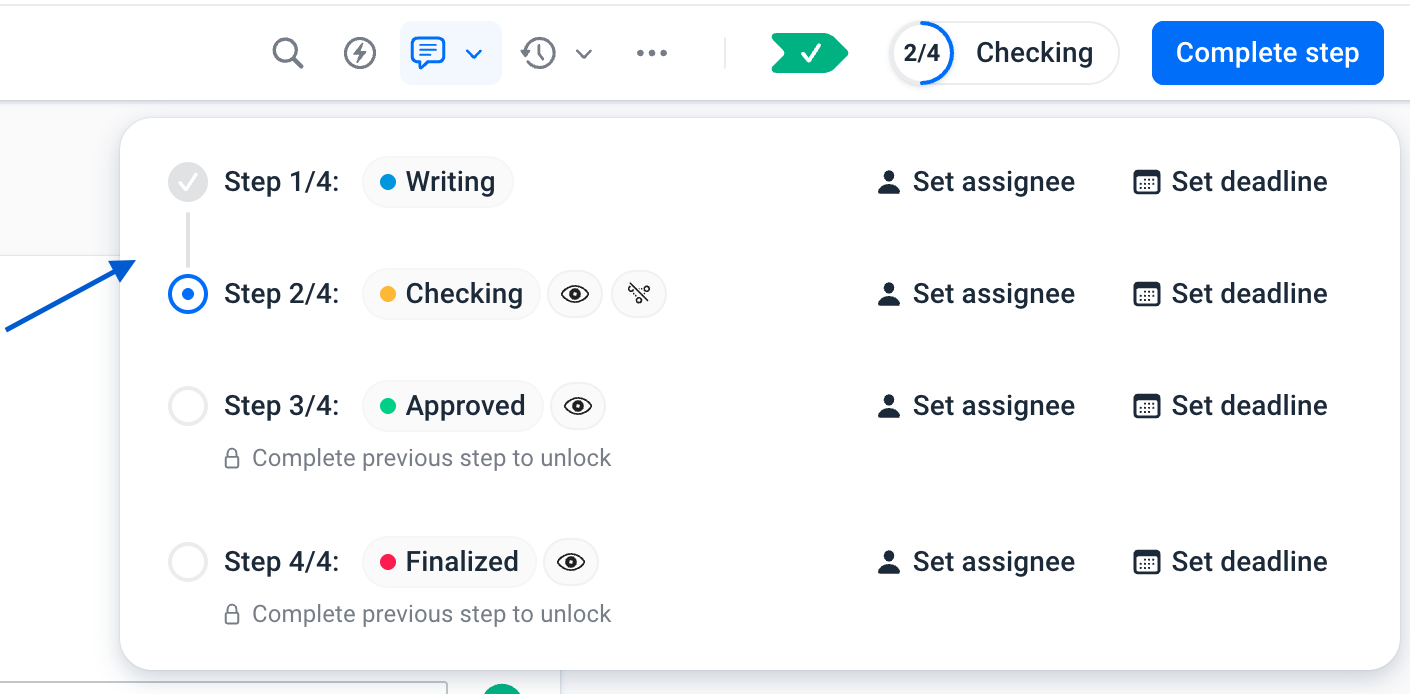
Was dit artikel nuttig?
Dat is fantastisch!
Hartelijk dank voor uw beoordeling
Sorry dat we u niet konden helpen
Hartelijk dank voor uw beoordeling
Feedback verzonden
We stellen uw moeite op prijs en zullen proberen het artikel te verbeteren