In Docfield, you can determine which users have access to each folder, template, or document. Owners and users with Full Access can invite users, modify access permissions, and remove access. In this guide, you will learn how to grant users access and manage existing permissions.
In this guide
Grant access to a template or document
Available roles
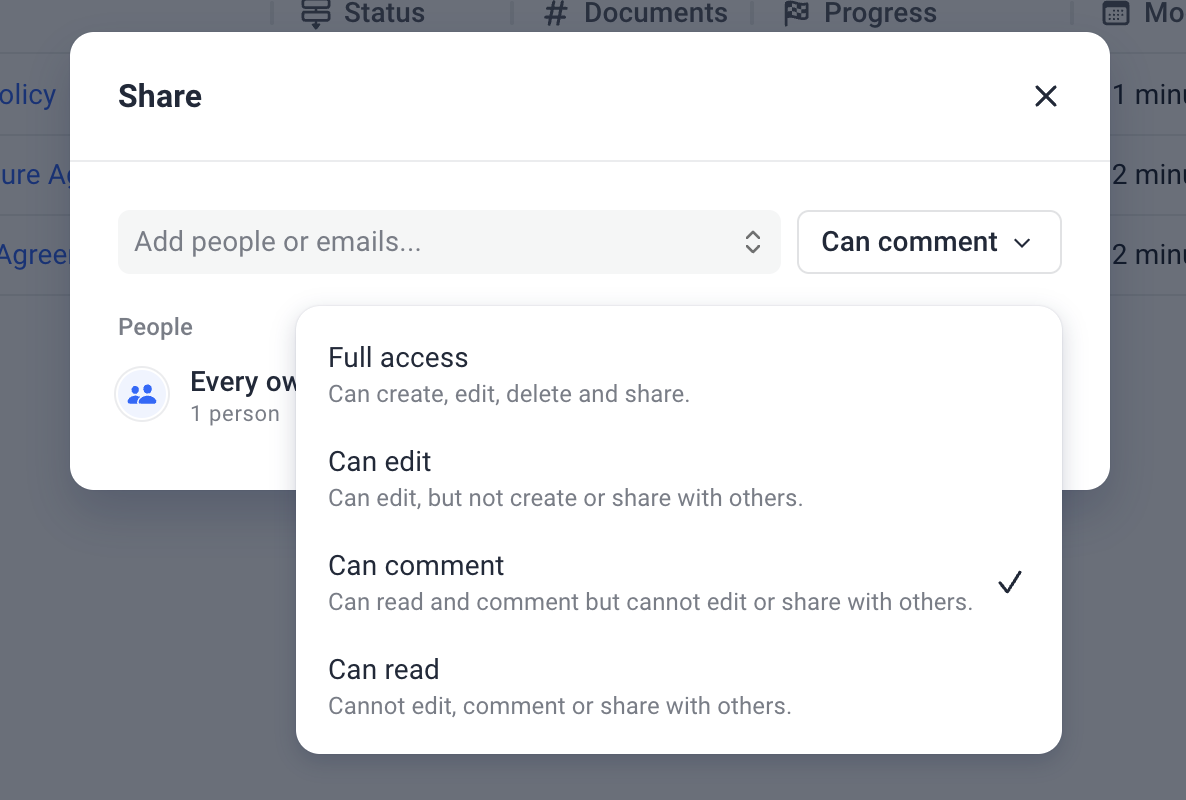
When sharing a folder, template, or document, you must assign a role to the user. You can choose from Full Access, Can Edit, Can Comment, and View Only. The actions a user can perform depend on the assigned role. A detailed description of all roles and permissions can be found in the user roles guide.
Grant access to a folder
To grant a user access to a folder, open the relevant folder and click Share in the top-right corner. Then enter the user's email address and choose the desired access level.
After saving, the user immediately gains access to the folder. This also gives the user access to all templates and documents in that folder, as well as all subfolders of the shared folder.
Grant access to a template or document
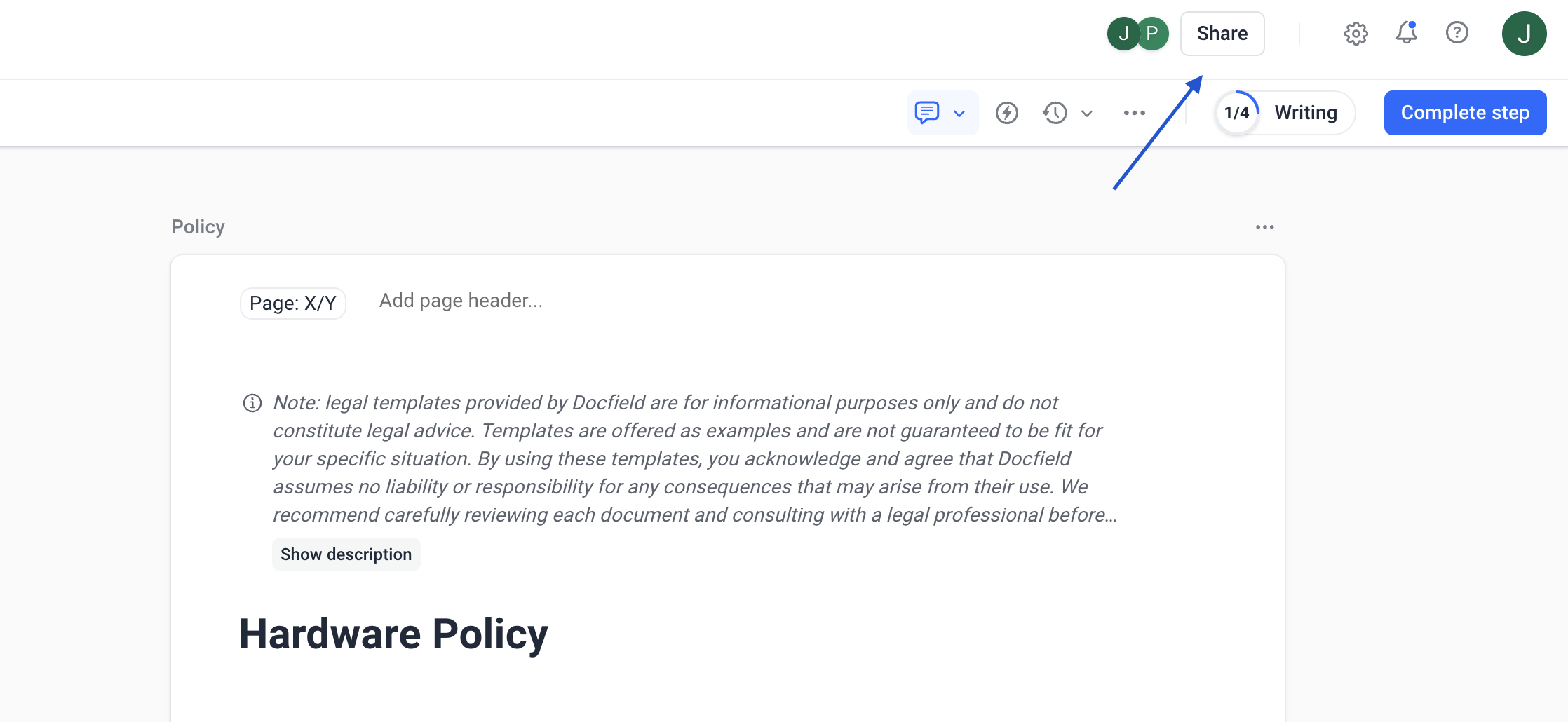
For a template or document, the process works the same way. Open the desired template or document and click Share in the top-right corner. Then enter the user's email address and select the desired access level.
Email invitation
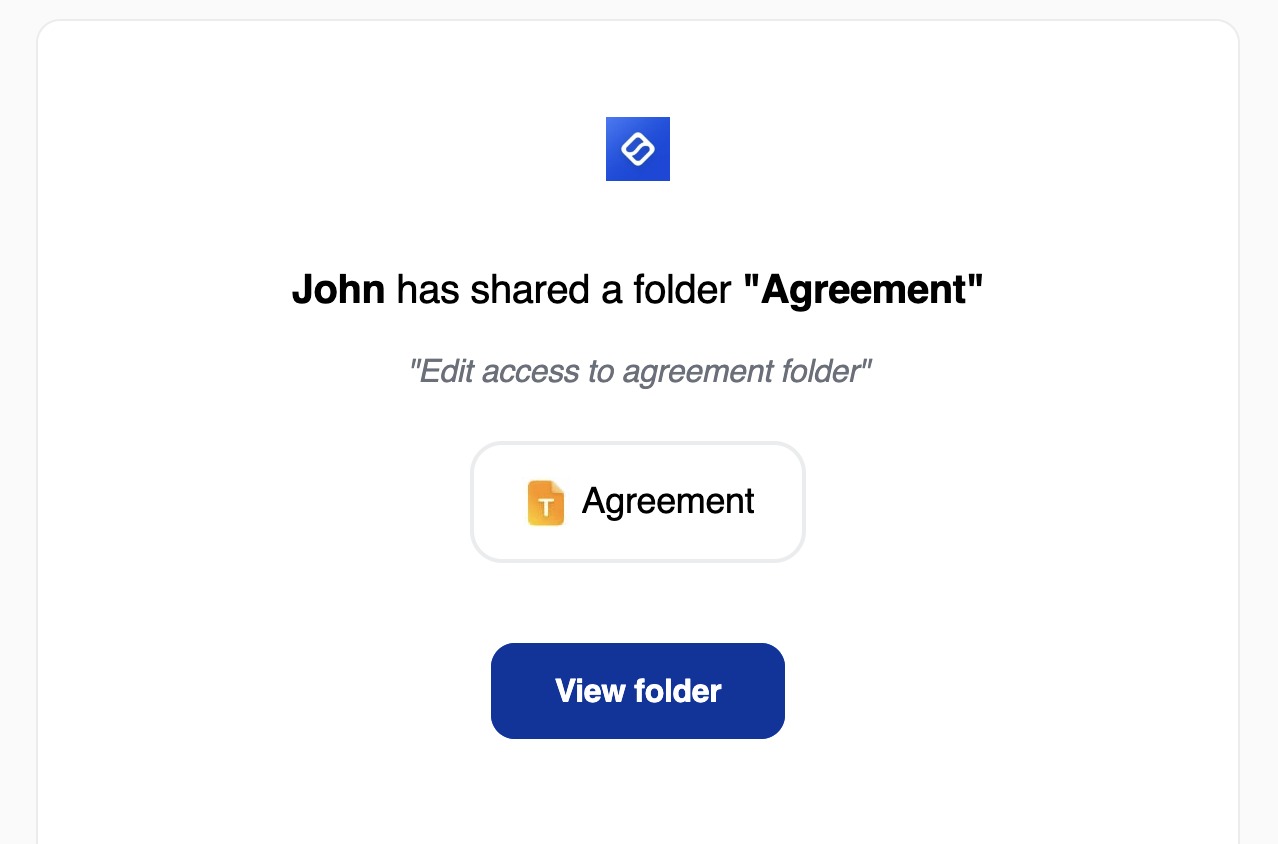
When you grant a user access to a folder, template, or document, they automatically receive an email invitation. Using the button in the email, the user can access the shared item in Docfield.
If the invited user is a guest, they receive direct access to the shared item and do not need to create an account. Guests receive a magic link that is valid for 24 hours. If the invitation is used after 24 hours, a new link is automatically sent.
If the invited user is a member, they will first be asked to create an account (unless SSO has been configured for that user). Users who already have an account can log in directly to continue to the item.
Change or remove access
You can change or remove access permissions in two ways.
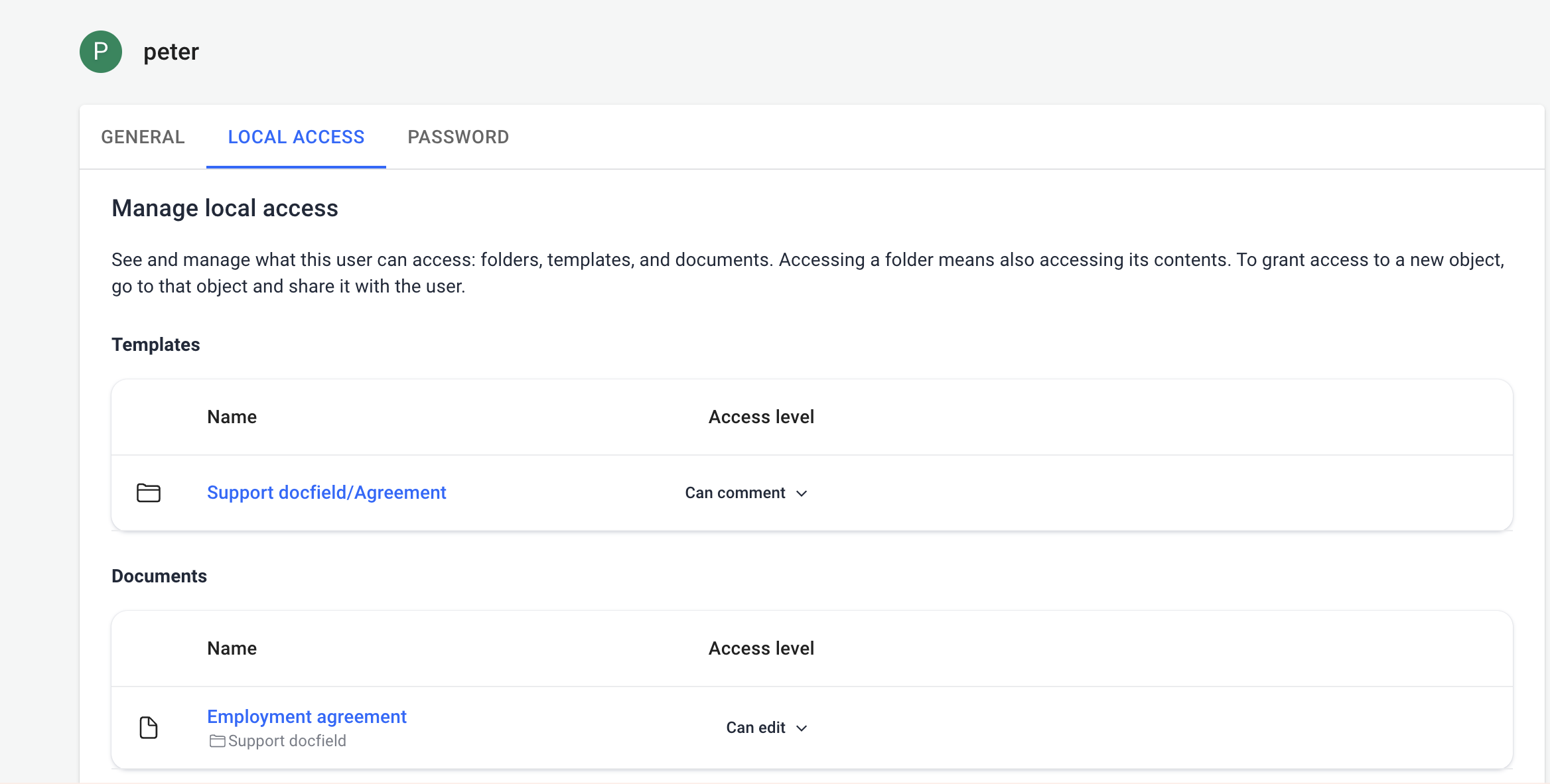
- As an owner of the environment, you can do this via Users. Open the user's profile and go to Object Access. Here you will see an overview of all folders, templates, and documents the user has access to. Select the desired item and change the access level or remove access completely. Changes are saved immediately.
- Users with Full Access to a folder, template, or document can also manage permissions directly from the item itself. Open the folder, template, or document and click Share. You can then change existing users' access levels or remove their access.
Was dit artikel nuttig?
Dat is fantastisch!
Hartelijk dank voor uw beoordeling
Sorry dat we u niet konden helpen
Hartelijk dank voor uw beoordeling
Feedback verzonden
We stellen uw moeite op prijs en zullen proberen het artikel te verbeteren