This manual explains what Global Blocks are, when to use them, and how to manage them in Docfield. The manual is intended for template administrators and workspace owners.
In this manual
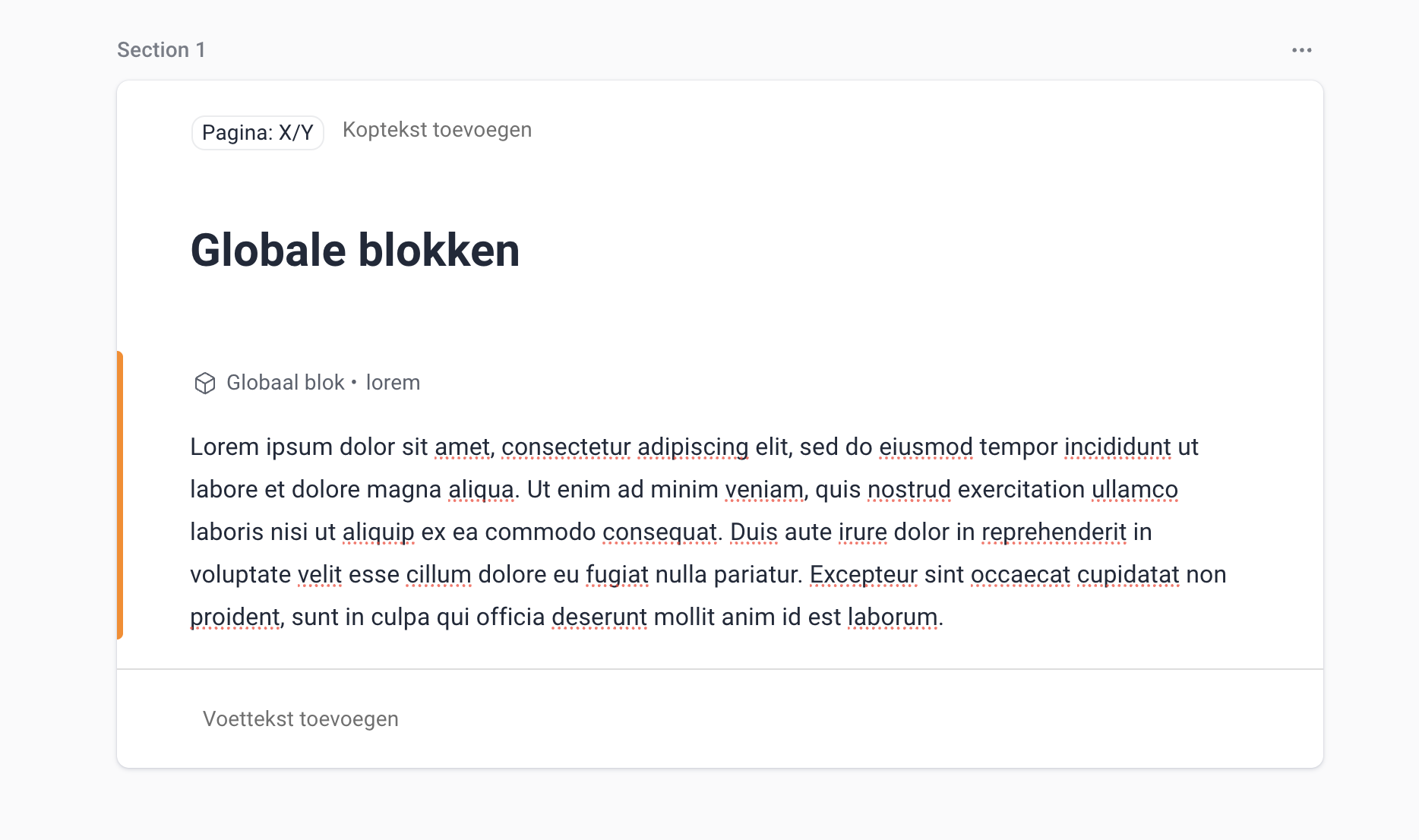
Convert text blocks to a Global block
Revert a Global block to a text block
Insert Global blocks into a template
What are Global blocks?
Global blocks are reusable content blocks that you create once and then use in multiple templates. The content of a Global block is synchronised: a change is automatically applied in all templates (and documents) where this block is used.
Use Global blocks when:
Content must stay exactly the same in multiple places
Changes need to be managed centrally
You want to reduce maintenance and prevent errors
Examples of use:
- Faculty information (such as dean or faculty name)
- Standard definitions or clauses
- Legal texts that must be identical everywhere
Convert text block to a Global block
You can add a Global block in two ways:
By first creating a new Global block, or
By converting existing content into a Global block.
With Global blocks you can easily reuse content across multiple templates.
Step-by-step
- Open a template with a fixed or editable text block, or create a new template.
- Click the three dots (⋮) to the right of the block.
- Select ‘Convert to Global block’.
- The border of the block turns orange; this indicates it is now a Global block.
- Give the Global block a clear title above the block so that it is easy to recognise in other templates.
- Add the Global block to other templates where needed.
Insert Global blocks into a template
Step-by-step:
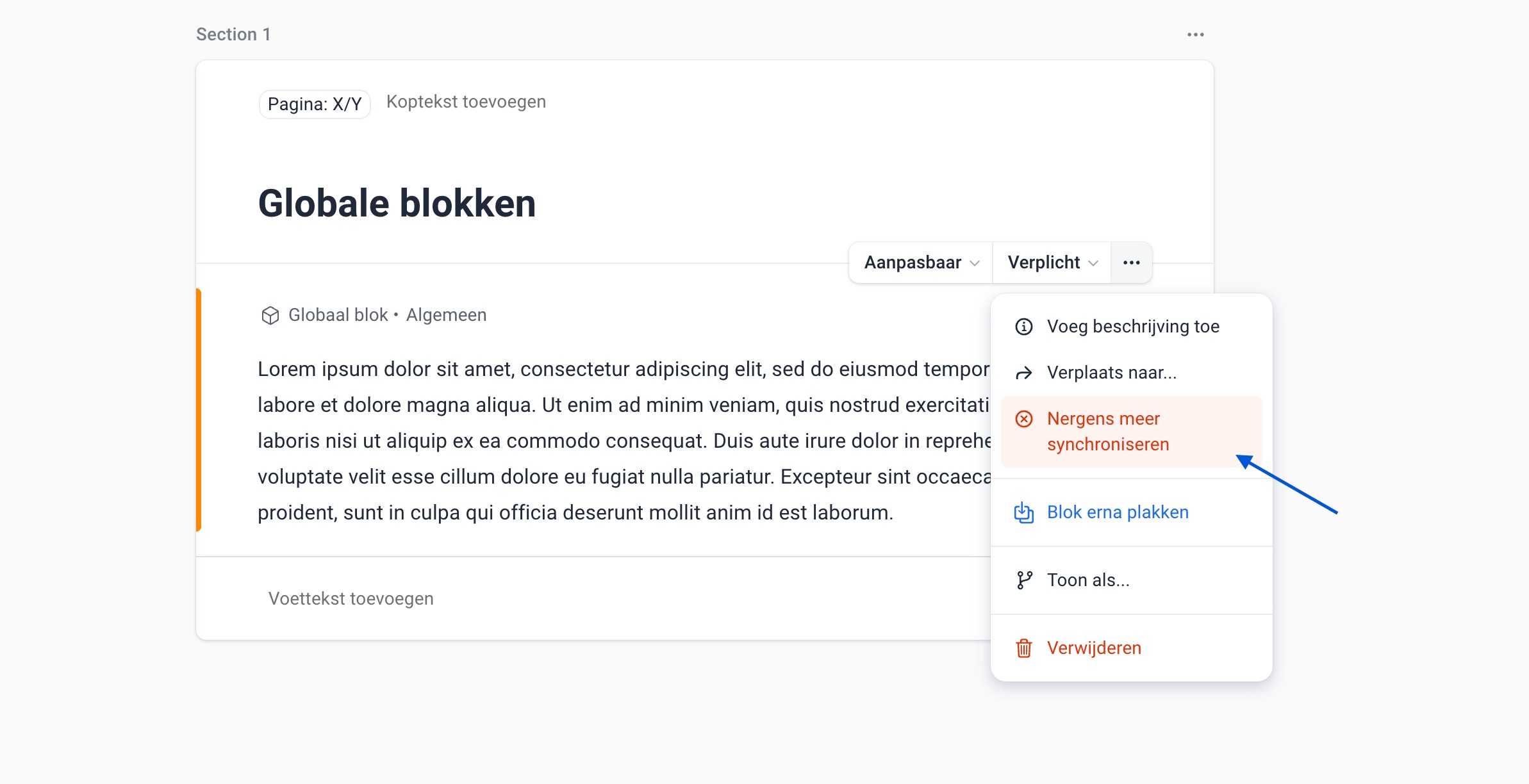
Open a template.
Click the + icon to add a new block.
Choose ‘Global block’
Search by name
View a preview of the content by hovering over it
Add the block to your template
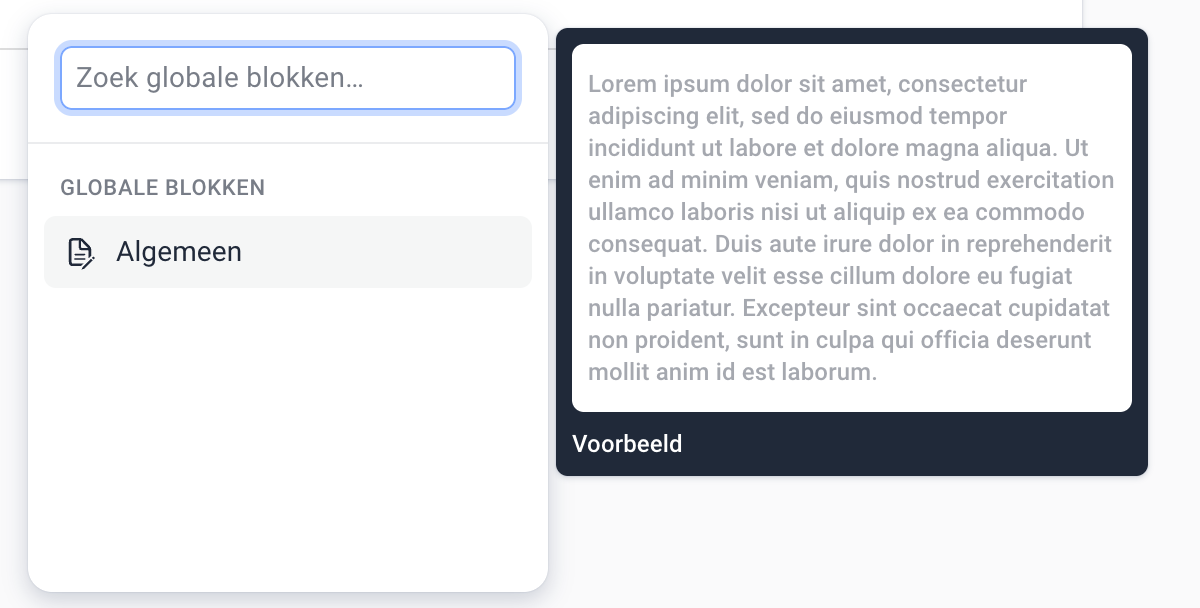
You can recognise a Global block by the orange border on the side. If you want to know whether the block is editable or fixed, hover your mouse over the block. Above the text block it will indicate whether it is editable or mandatory.
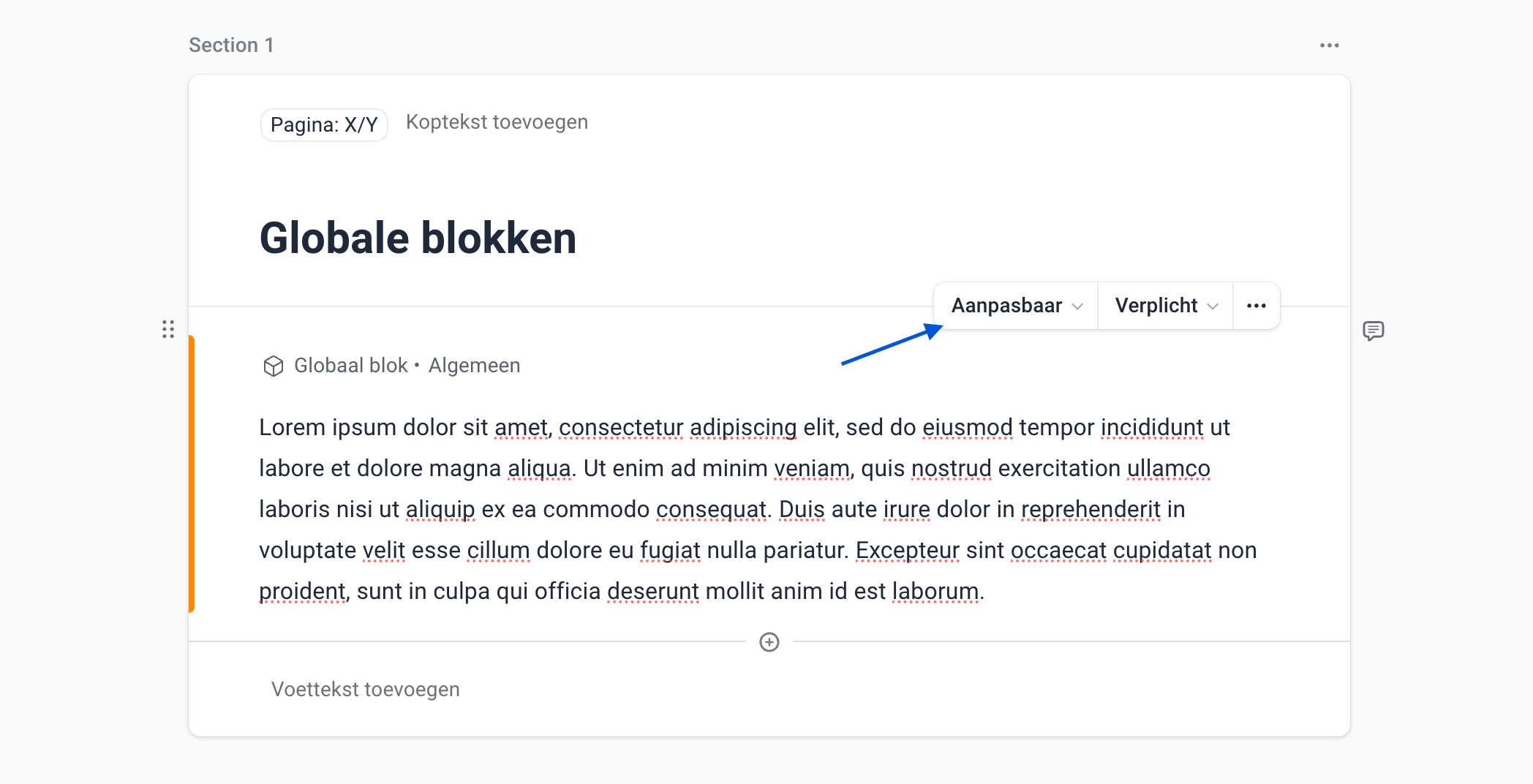
Update Global blocks
Delete a Global block
You can delete a Global block from a specific template. To do this, click the three dots next to the block and choose ‘Delete’. The Global block will then only be removed from that single template.
When you remove the Global block from the last template, the block is automatically also removed from the list of Global blocks.
Smartfields in Global blocks
In Global blocks you can only use Global Smartfields. You can find more information about this in the documentation on Global blocks. If you want to add an existing Global Smartfield, this works the same as with regular Smartfields. Click the Smartfield icon in the text and then choose from the available Global Smartfields or automatic Smartfields.
If you want to add a new Smartfield, you can do this via the settings (owners only) or by creating a Smartfield via the Smartfield tab and then making it Global.
Roles and permissions
| Roles | Permissions |
Owner | Can create, edit, rename and delete Global blocks Can manage all Global blocks |
Member | Can search and insert Global blocks into templates Can remove instances of Global blocks from a template Cannot change the content |
Guest | Can only read Global blocks when they have access to a template or document in which the block is used |
Frequently asked questions
Are comments shared between templates?
No. Comments are always local to a template or document.
What happens to numbering?
Numbering is per template and is not synchronised.
Can I edit a Global block without affecting other templates?
No. To do that you need to detach the block (if available) or use a local block.
Was dit artikel nuttig?
Dat is fantastisch!
Hartelijk dank voor uw beoordeling
Sorry dat we u niet konden helpen
Hartelijk dank voor uw beoordeling
Feedback verzonden
We stellen uw moeite op prijs en zullen proberen het artikel te verbeteren