With version history, you can view previous versions of a template or document and, if necessary, restore their content. This allows you to easily undo changes made by mistake or return to an earlier version.
In this guide
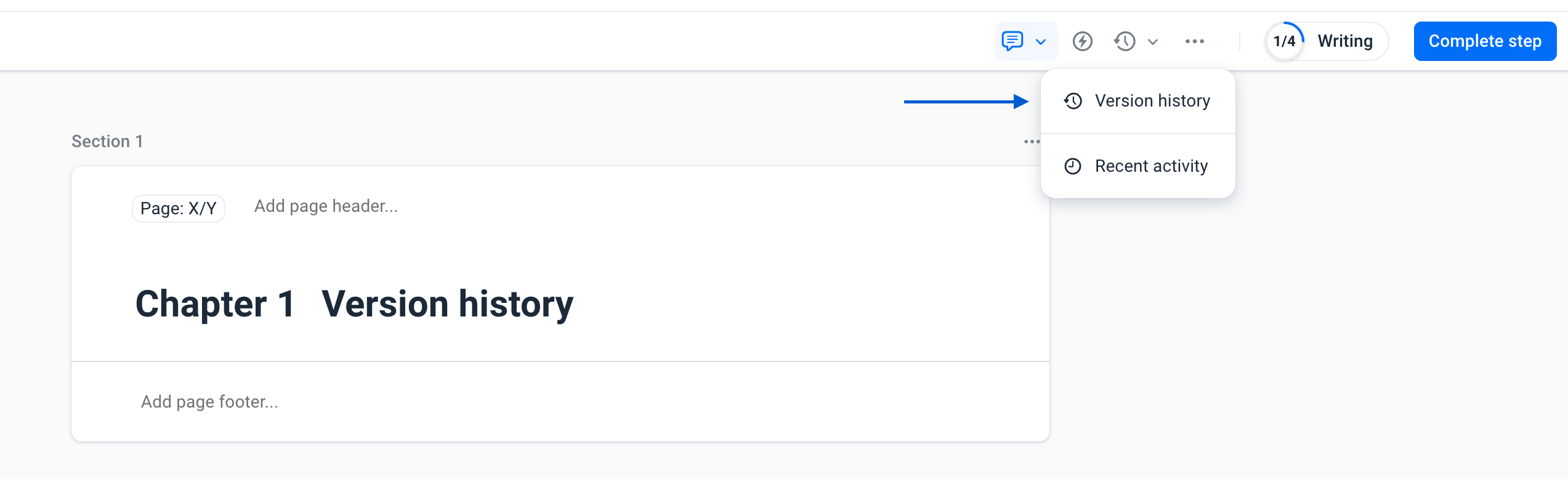
Open Version History
You can open version history from both a template and a document. Open the desired template or document and select Version History. Here you will see an overview of all saved versions. For each version, the following information is shown:
- who made the change (in Documents);
- when the change was saved;
- the content of the version;
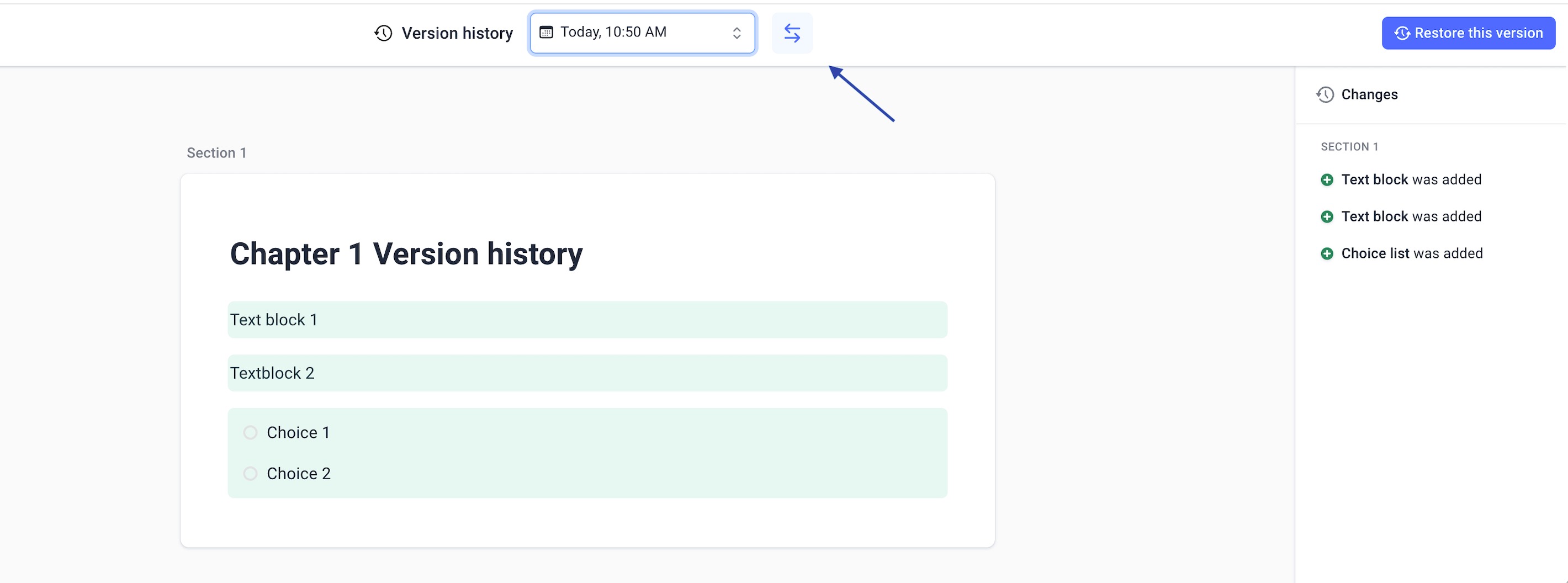
Compare Changes
When you select an earlier version, you can see which changes have been made since that version. Afhankelijk van de wijziging zie je bijvoorbeeld:
- modified text;
- added or removed blocks;
- modified sections;
- updated logic or settings within blocks.
This allows you to easily see exactly what has changed since a specific date.
Restore a Previous Version
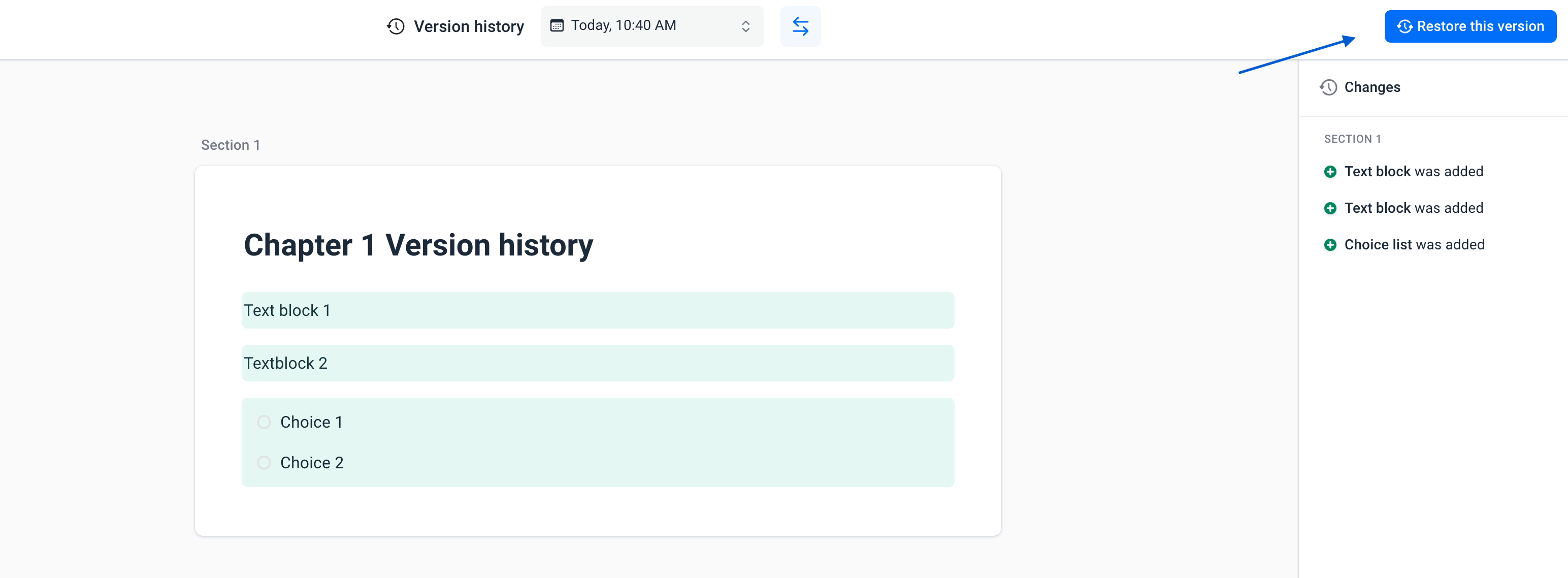
Want to return to an earlier version of a template or document? You can restore it.
- Open Version History.
- Select the desired version.
- Click Restore Version.
- Confirm the action.
When you restore a version, the existing version is not deleted. Instead, Docfield creates a new version containing the same content as the selected historical version. This means the restore action can also be undone later.
Note
Restoring a version replaces the entire current content of the template or document with the content of the selected version.
View Block History in a Template
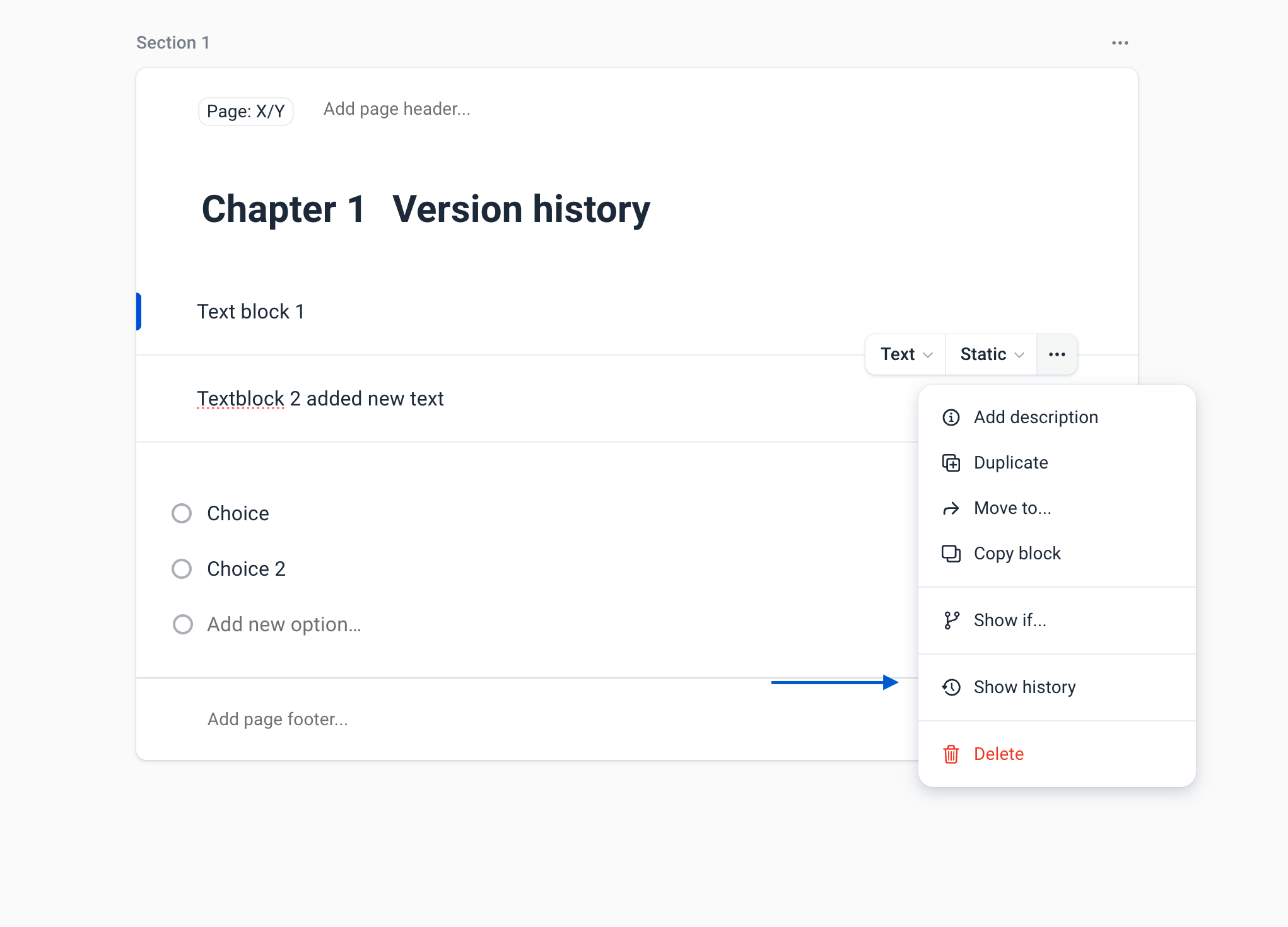
You can also view the history of an individual block. This is useful when you want to see which changes have been made to a specific block. Go to the desired block, click the three dots in the top-right corner, and select Show History. You will then see all previous versions of that block, including when the change was made and by whom.
Restore a Block in a Document
In a document, you can view the history of editable blocks. If you have changed a block and want to restore the original content from the template, you can easily restore it. Go to the desired block and click Last modified. In the history, select Restore Block. Only the content of that block is restored to the selected version; the rest of the document remains unchanged.
What Is and Isn't Restored
When restoring, the following items are restored, among others:
| Restored | Not Restored |
|---|---|
| Text blocks | Comments and suggestions |
| Sections | Approvals |
| Selection lists | Workflow status |
| Conditional logic | Document and template settings |
| Images | Sharing settings |
| Smartfields | Attachments |
| Position of blocks and sections | Global blocks and global smart fields |
Some items, such as global blocks and global smart fields, always use the most recent version and are therefore not restored.
Was dit artikel nuttig?
Dat is fantastisch!
Hartelijk dank voor uw beoordeling
Sorry dat we u niet konden helpen
Hartelijk dank voor uw beoordeling
Feedback verzonden
We stellen uw moeite op prijs en zullen proberen het artikel te verbeteren