Notifications keep you informed of important changes and tasks in Docfield. You receive notifications by email and can also view them directly within the application.
In this guide
Enable or disable notifications
View notifications
When do you receive notifications?
Enable or disable notifications
You can choose which notifications you want to receive. Follow the steps below to enable or disable notifications:
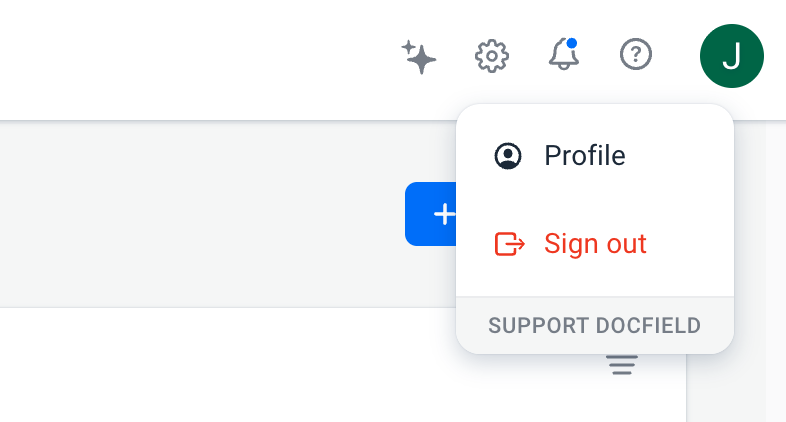
Click your profile icon.
Select Profile.
Scroll down to the Notifications.
Select the notifications you want to receive or disable them.
Click Save to save your changes.
View notifications
You can receive notifications in two ways:
- By email.
- Via the bell icon at the top of Docfield.
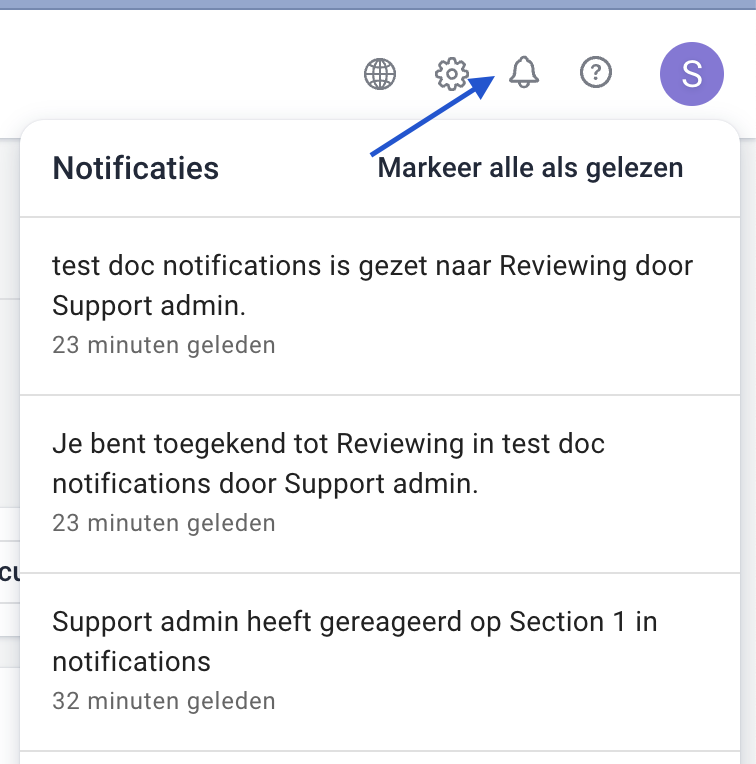
Click the bell icon to open an overview of all your notifications. Clicking a notification takes you directly to the related document, template, folder, or comment.
You can also choose to mark all notifications as read. The blue indicator on the bell icon will disappear. As soon as a new notification arrives, the indicator will appear again.
When do you receive notifications?
You receive a notification when:
- someone tags you in a comment;
- you are invited to a template, document, or folder;
- a signing request is started;
- everyone involved has signed a document;
- a workflow step assigned to you is changed;
- you are assigned to or removed from a workflow step;
- you are configured as the recipient of a document's expiration notifications.
Was dit artikel nuttig?
Dat is fantastisch!
Hartelijk dank voor uw beoordeling
Sorry dat we u niet konden helpen
Hartelijk dank voor uw beoordeling
Feedback verzonden
We stellen uw moeite op prijs en zullen proberen het artikel te verbeteren