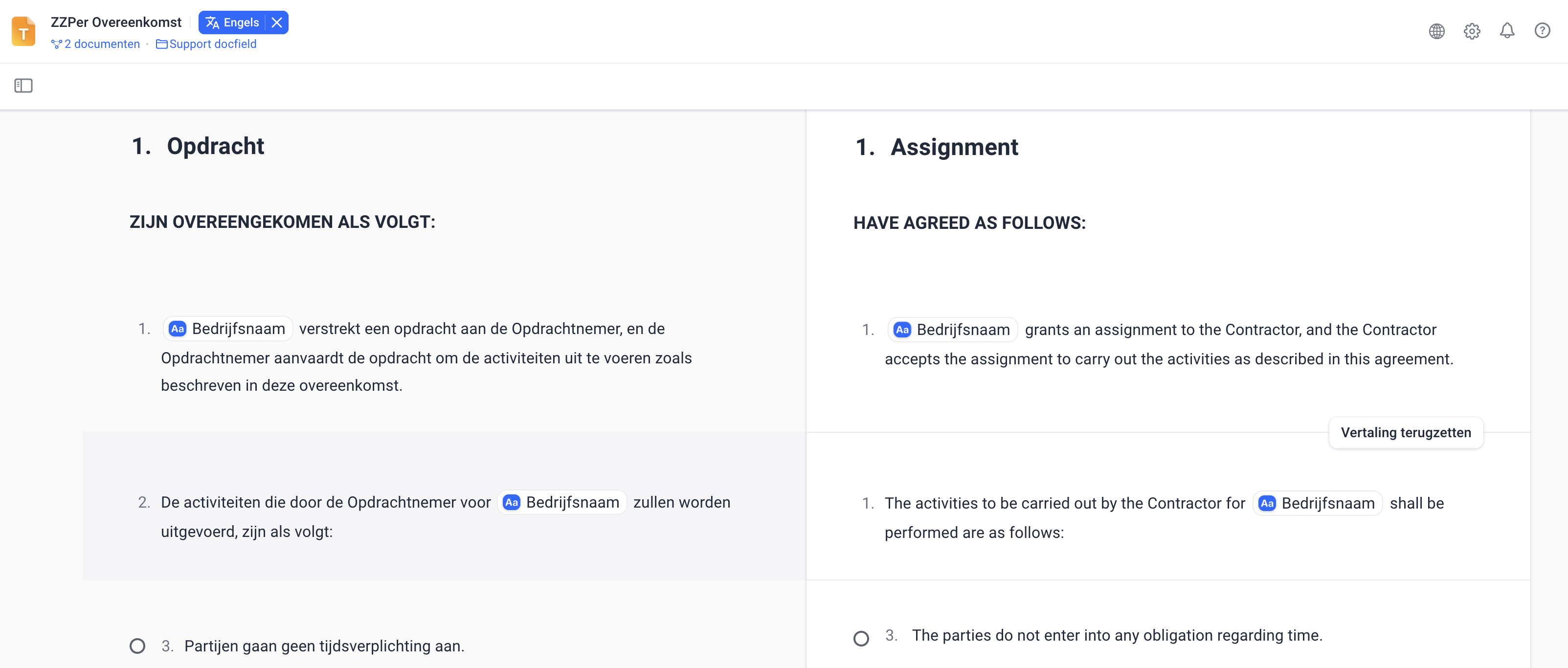
With the Multilingual templates feature, you manage one template in multiple languages. This makes it easier to create and maintain documents in different languages. In the editor, you see the original text next to the translation field for each block. With the Translate button, you can have the text translated automatically. This keeps everything organized and means you no longer need to use separate templates.
In this guide
Getting started with multilingual templates
Translating in the Template Editor
Overview: automatic and manual translation
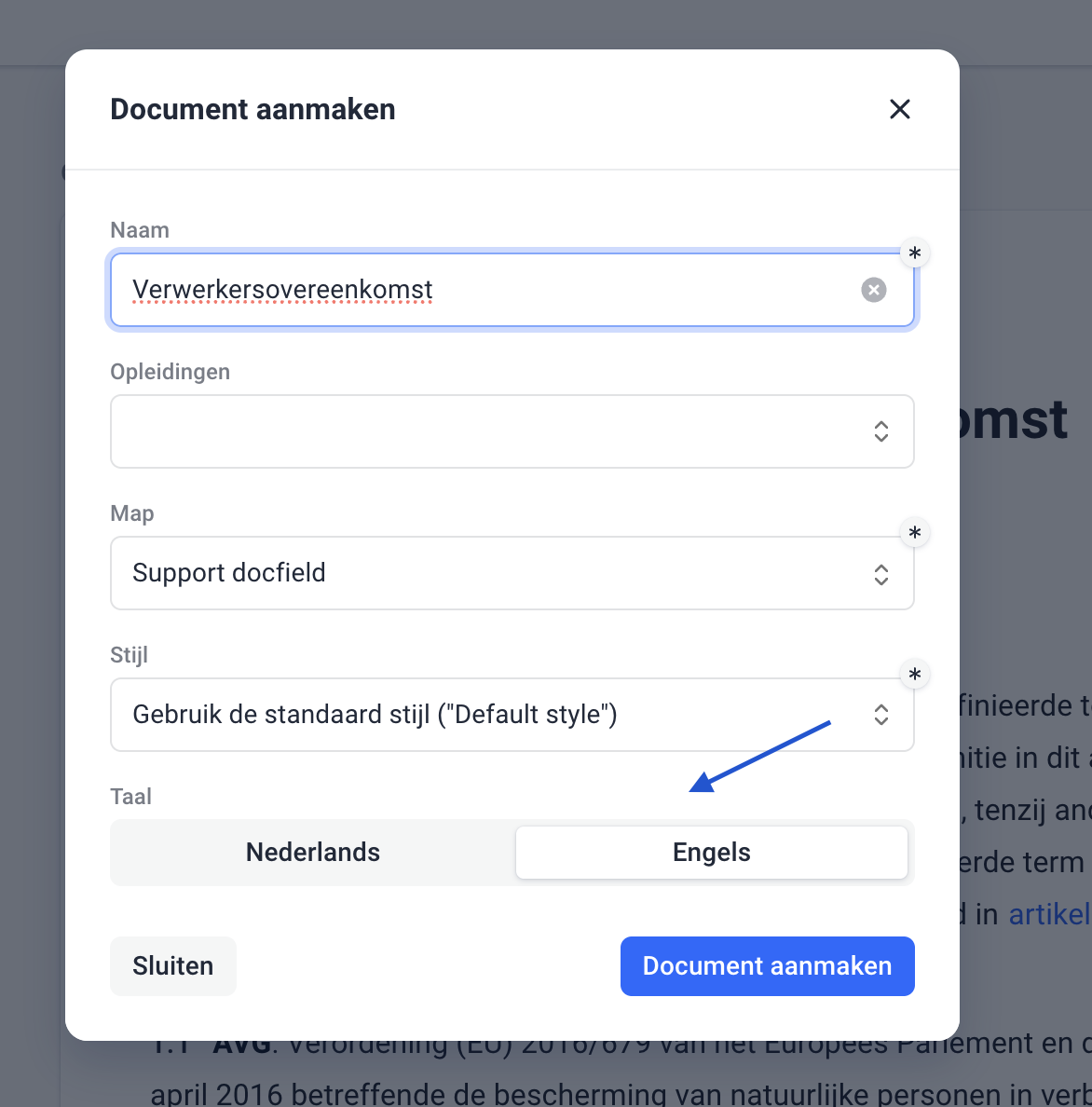
Creating documents in multiple languages
Getting started with multilingual templates
This feature is only available if it has been enabled for your organization. Don’t see the option, but would like to use it? Contact the support team or your Docfield account manager.
Setting the main language
When creating a Template, you first choose the main language as usual. This is the base language of your template and serves as the starting point for all your other translations. Before you start translating, make sure your main language is set correctly.
Adding a new language
Do you want to add a translation to your template? Follow these steps:
- Open the template
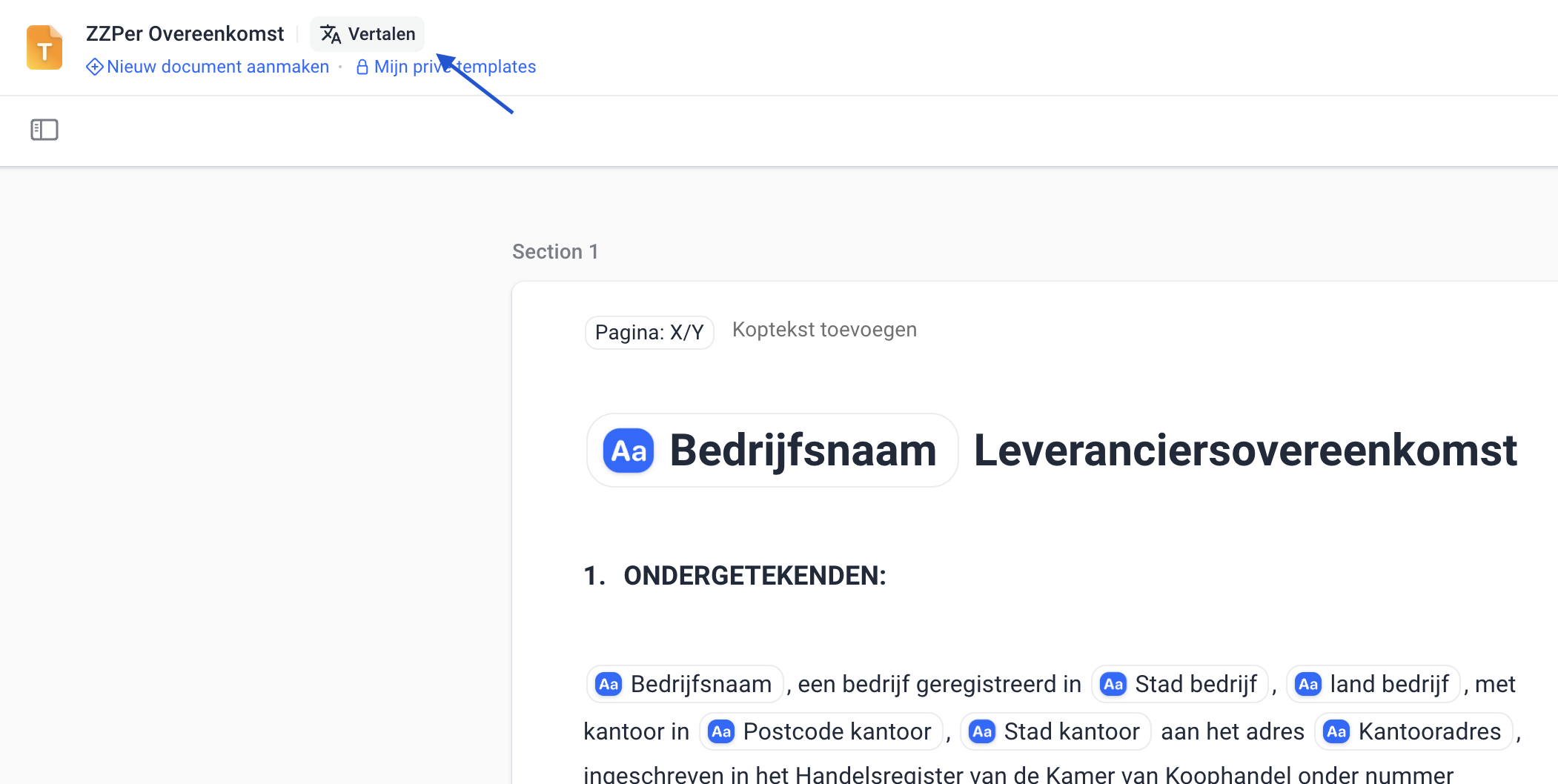
- Click the "Translate" button in the top left corner
- Choose “Add translation”
- Select the desired language, for example “English”
Please note: the main language is always leading and can only be changed as long as no translations have been added yet.
Translating in the Template Editor
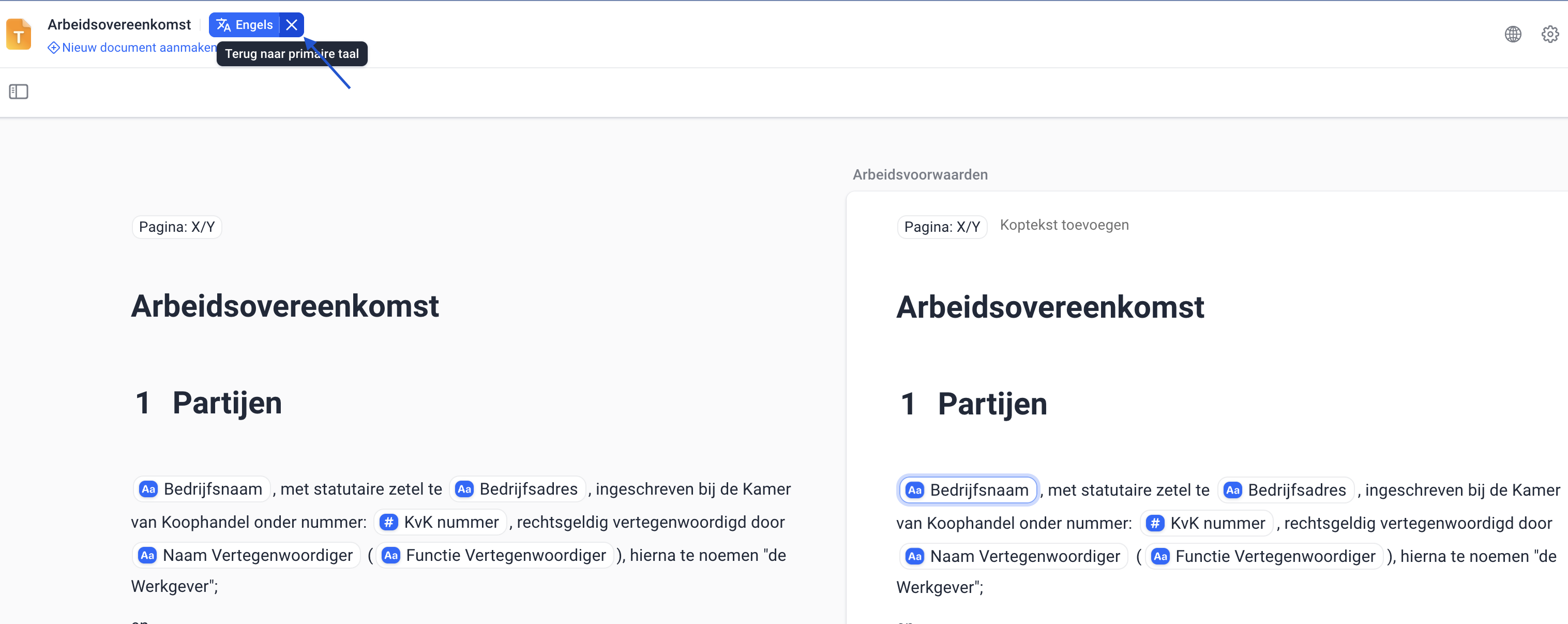
Once you have added a language, you can easily switch between languages in the Template Editor.
In each block, you see the original text on the left and the translation field on the right. You can only translate the content. The structure, block order and logic always remain the same as the main language.
Opening the translation view
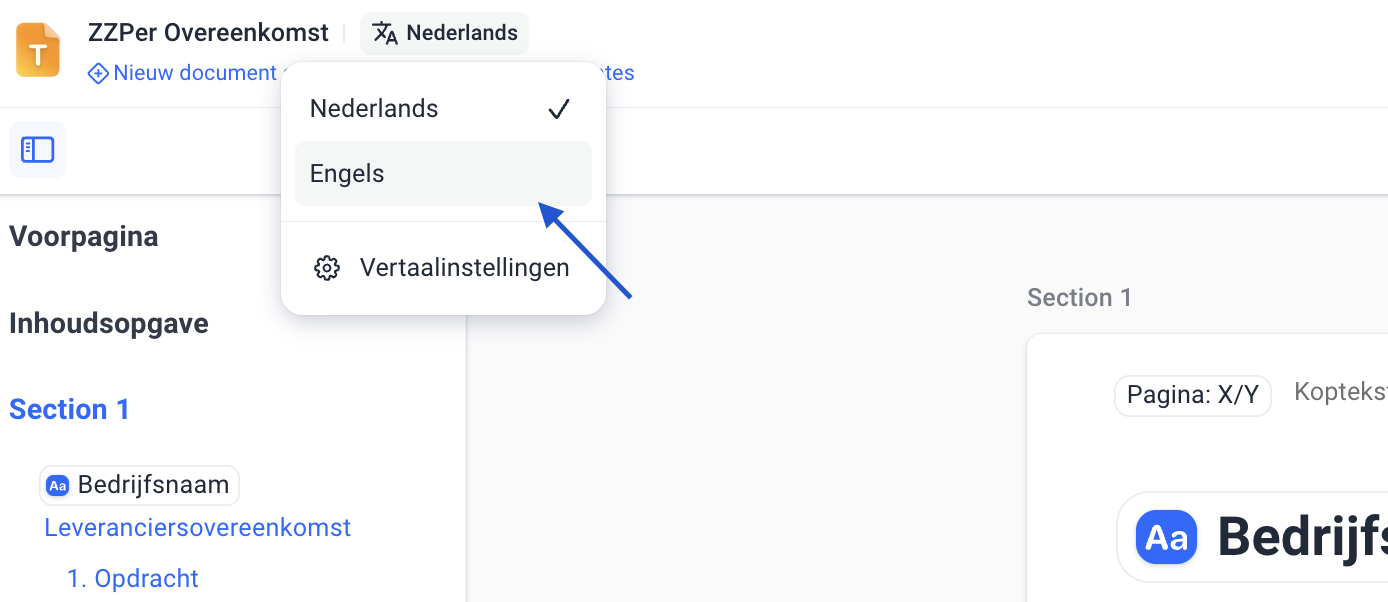
- Click the language button in the top left corner.
- A dropdown menu with the available languages appears.
- Select the language you want to translate into.
Headers and text blocks
You can translate text per block by clicking Translate in the top right corner of the block. The content is then translated automatically. Do you want to restore the original text from the main language? Click Reset translation in the top right corner of the block. To the right of the block, you will see an orange triangle. This symbol indicates that the block has not yet been translated. Once the translation is complete, it disappears automatically.
Was dit artikel nuttig?
Dat is fantastisch!
Hartelijk dank voor uw beoordeling
Sorry dat we u niet konden helpen
Hartelijk dank voor uw beoordeling
Feedback verzonden
We stellen uw moeite op prijs en zullen proberen het artikel te verbeteren