Use a fill-in table when a document writer needs to enter data in a table with a fixed format. The table structure is set in the template. The content is then entered in the document. At template level, you decide which columns the table has. These column headers cannot be changed in the document. The document writer can only fill in the cells under these headers.
In this guide
Difference between a fill-in table and a normal table
Add a fill-in table to a template
Make a fill-in table required or optional
Fill in a fill-in table in the document
Difference between a fill-in table and a normal table
Fill-in table
The columns of a fill-in table are defined in advance in the template, so every document writer uses the same table structure. A fill-in table does not have formatting options. You mainly use this table when you want users to provide data in a specific fixed format in a document.
Normal table
A normal table can be fully customized. This means it can be used in fixed text when you want to show a fixed table from the template, or in an editable block when you want users to create a table in a document without a fixed format. With a normal table, the formatting can be fully adjusted, such as alignment, bold text or cell color.
Add a fill-in table to a template
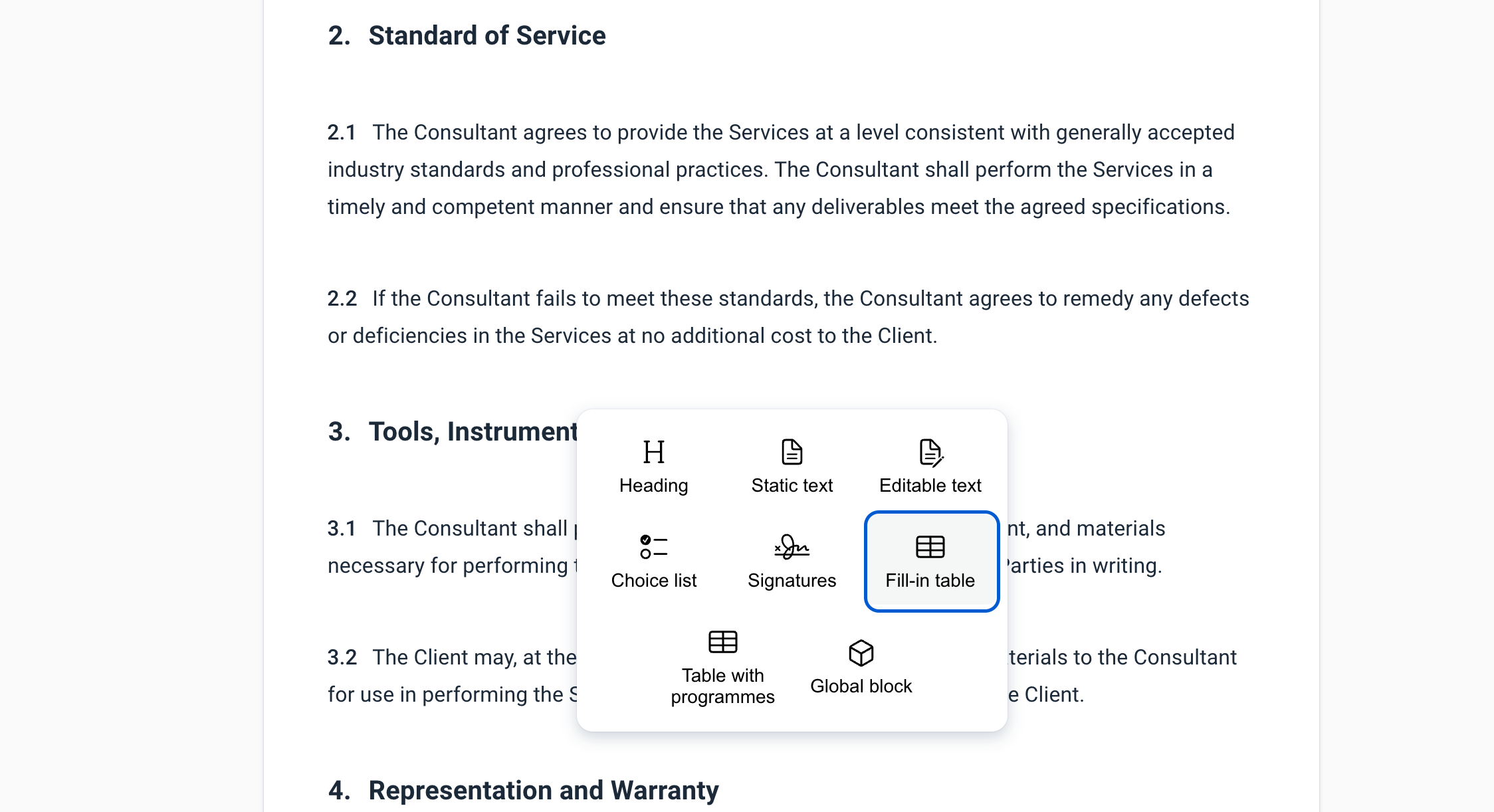
A fill-in table can be added from a text block in the template.
- Click the plus sign + under a text block.
- Choose Fill-in table.
- The fill-in table is added to the template.
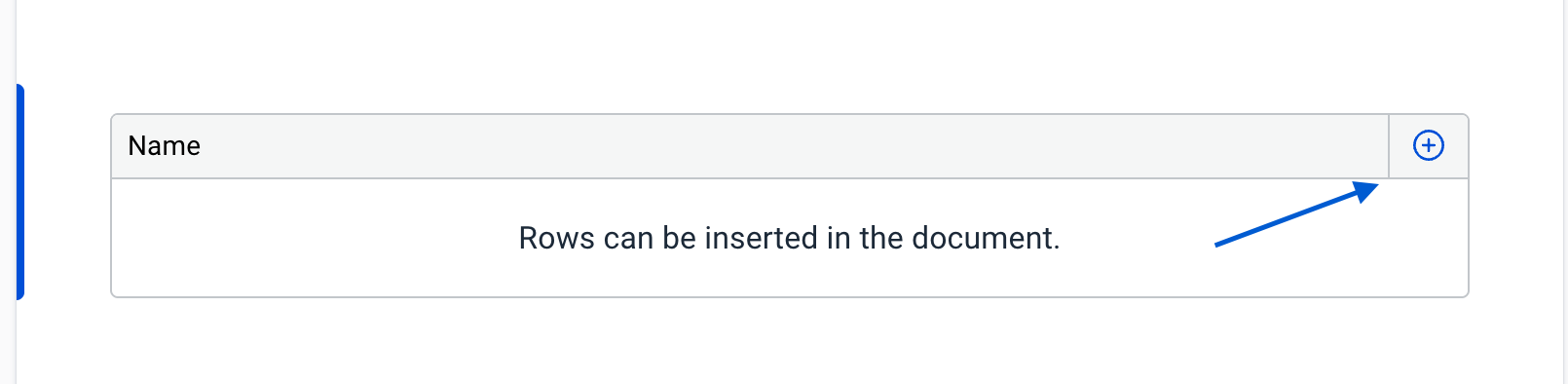
Set up columns
After you have added the fill-in table, you can set up the columns. Click the + icon to add a new column. Then enter the name of the column header. These column headers will later be shown in the document. The document writer cannot change the headers and can only fill in the cells under these headers. To delete a column, click the cell of the column and delete it.
Make a fill-in table required or optional
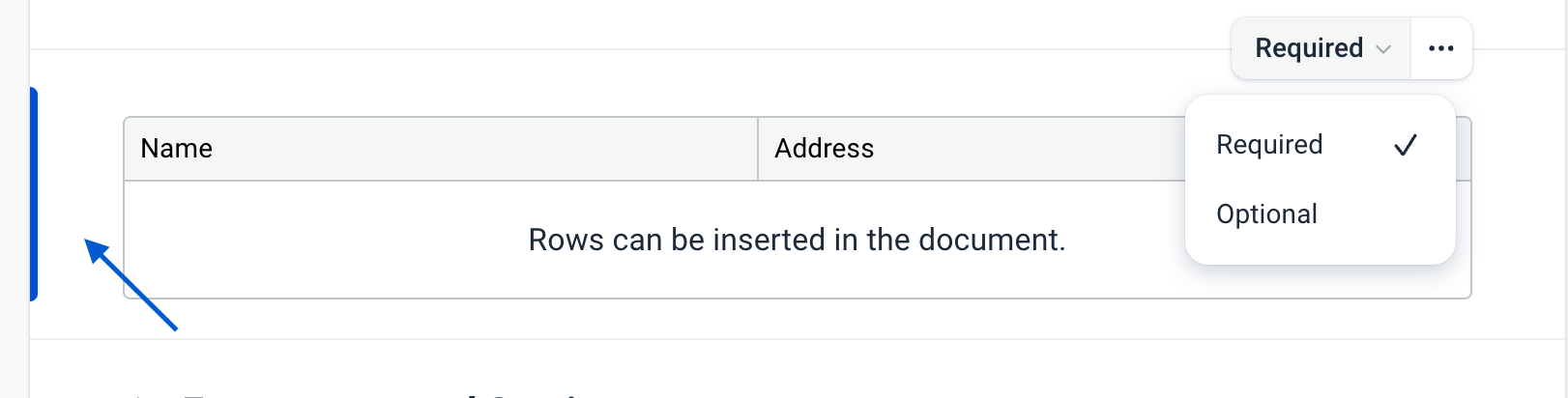
Above the fill-in table, you can choose whether the table is required or optional.
- If the table is required, the document writer must fill it in before the document can be completed. You can recognize a required fill-in table by the blue side line.
- If the table is optional, the document writer does not always have to fill it in. An optional fill-in table has a grey side line.
Fill in a fill-in table in the document
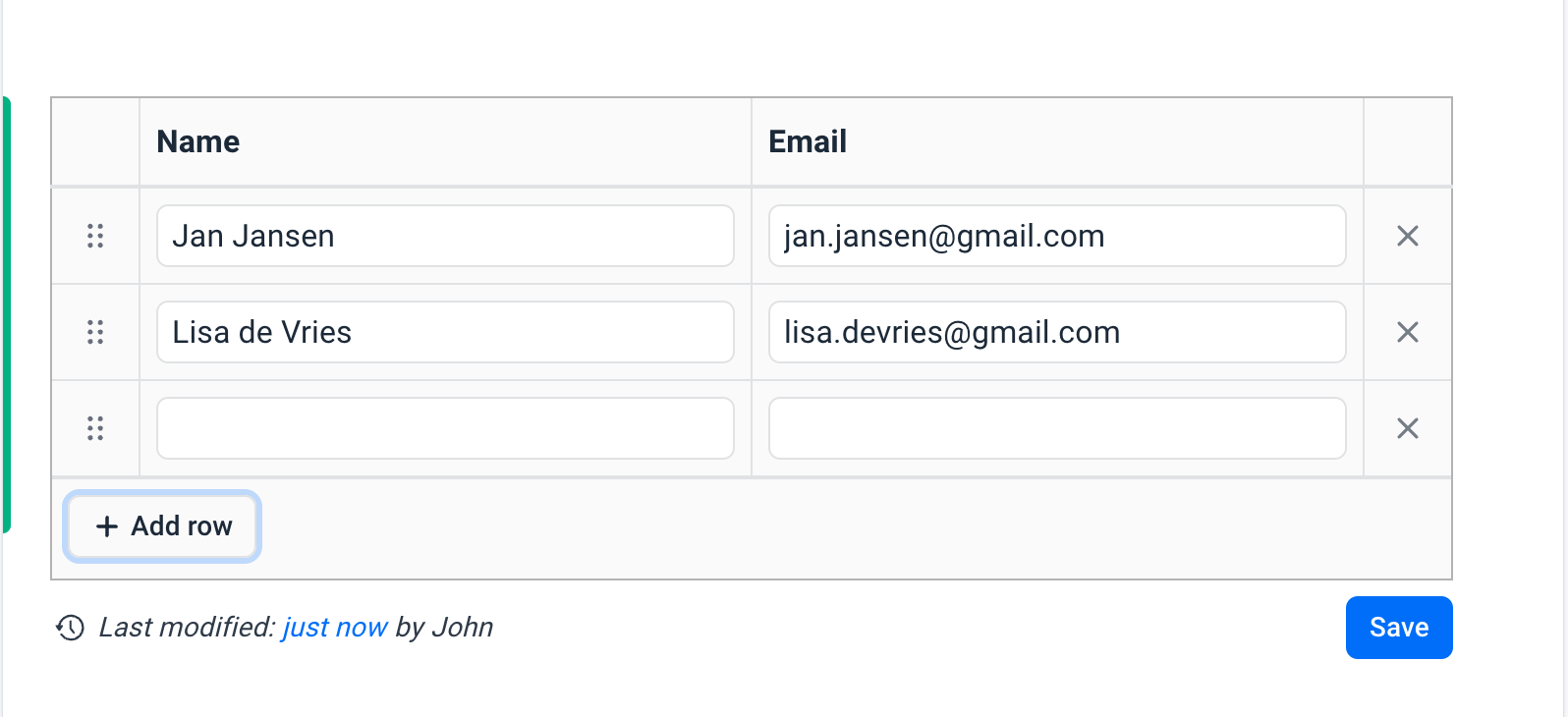
In the document, the document writer can fill in the fill-in table. The column headers have already been defined in the template and cannot be changed. The document writer only fills in the cells in the table. The content can then be saved.
Was dit artikel nuttig?
Dat is fantastisch!
Hartelijk dank voor uw beoordeling
Sorry dat we u niet konden helpen
Hartelijk dank voor uw beoordeling
Feedback verzonden
We stellen uw moeite op prijs en zullen proberen het artikel te verbeteren