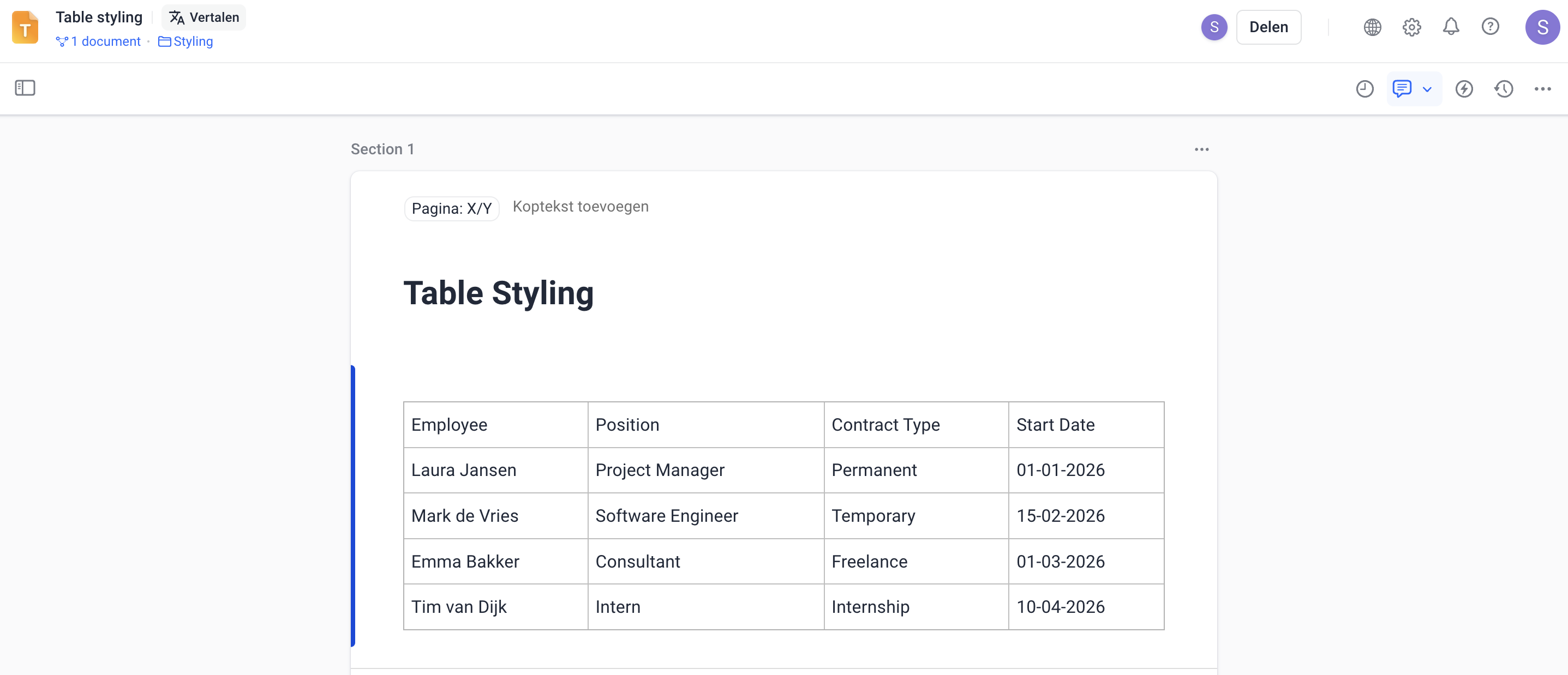
In Docfield, you can adjust table formatting using styling. This styling can be configured in templates and in documents. If you adjust the table formatting in a template, the change is automatically applied to all linked documents. If you only want to adjust the formatting for one specific document, you can do this directly in that document.
In this guide
Apply styling to table or cell
Add table
Adding a table in Docfield is possible in both a template and a document
Add table in a template
- Open a text block in the template.
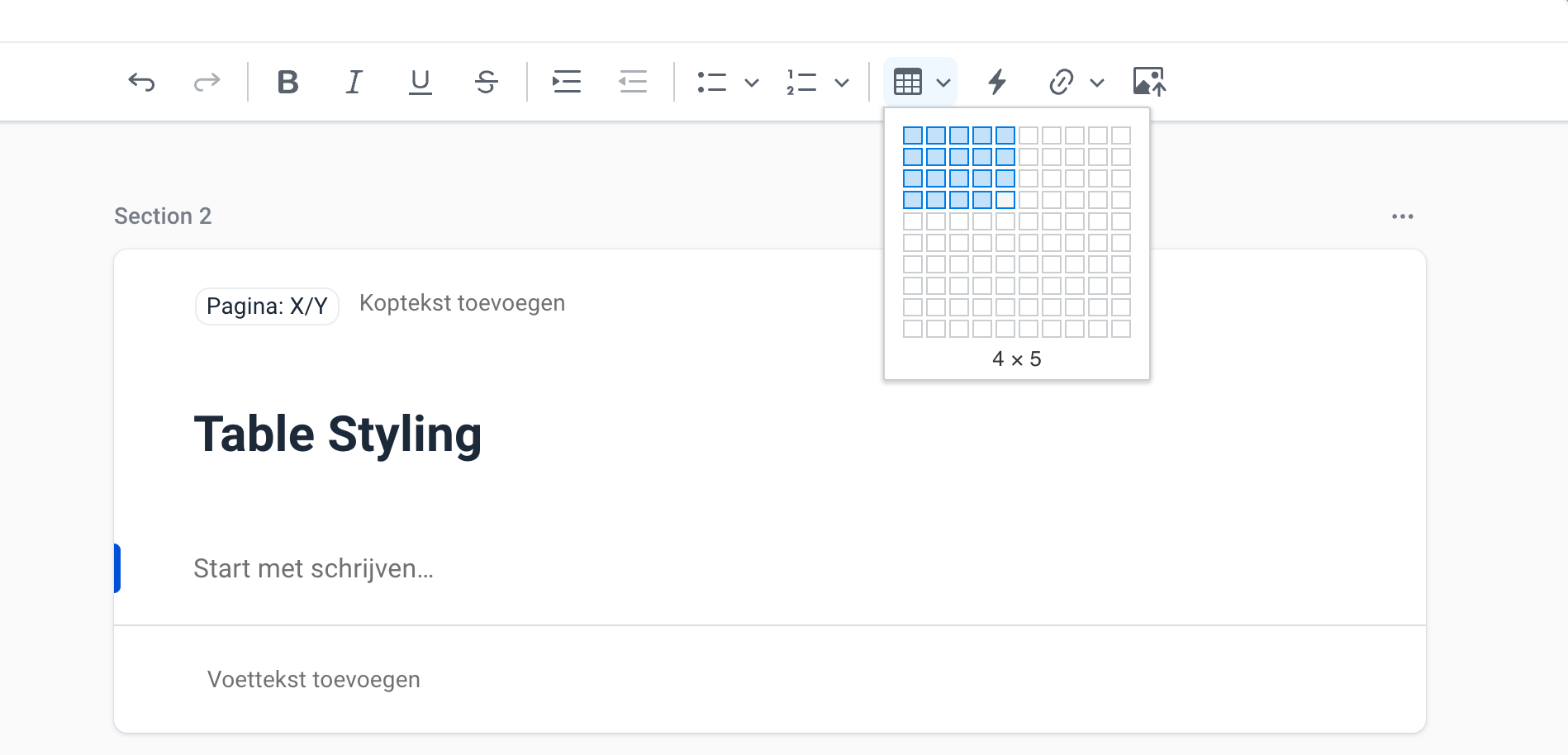
- Click the table icon in the navigation bar.
- Select the desired number of rows and columns. You can always add extra rows or columns later.
Add table in a document
Adding a table in a document is only possible within an editable text block. The table is added to the linked template and can then be edited in the same way as in a template.
Paste table from Excel
Do you already have a table in Excel and want to use it in Docfield?
- Copy the table in Excel.
- Paste the table into Docfield.
The table is automatically converted into an editable table.
Apply styling to table or cell
You can apply styling to both an entire table and specific cells.
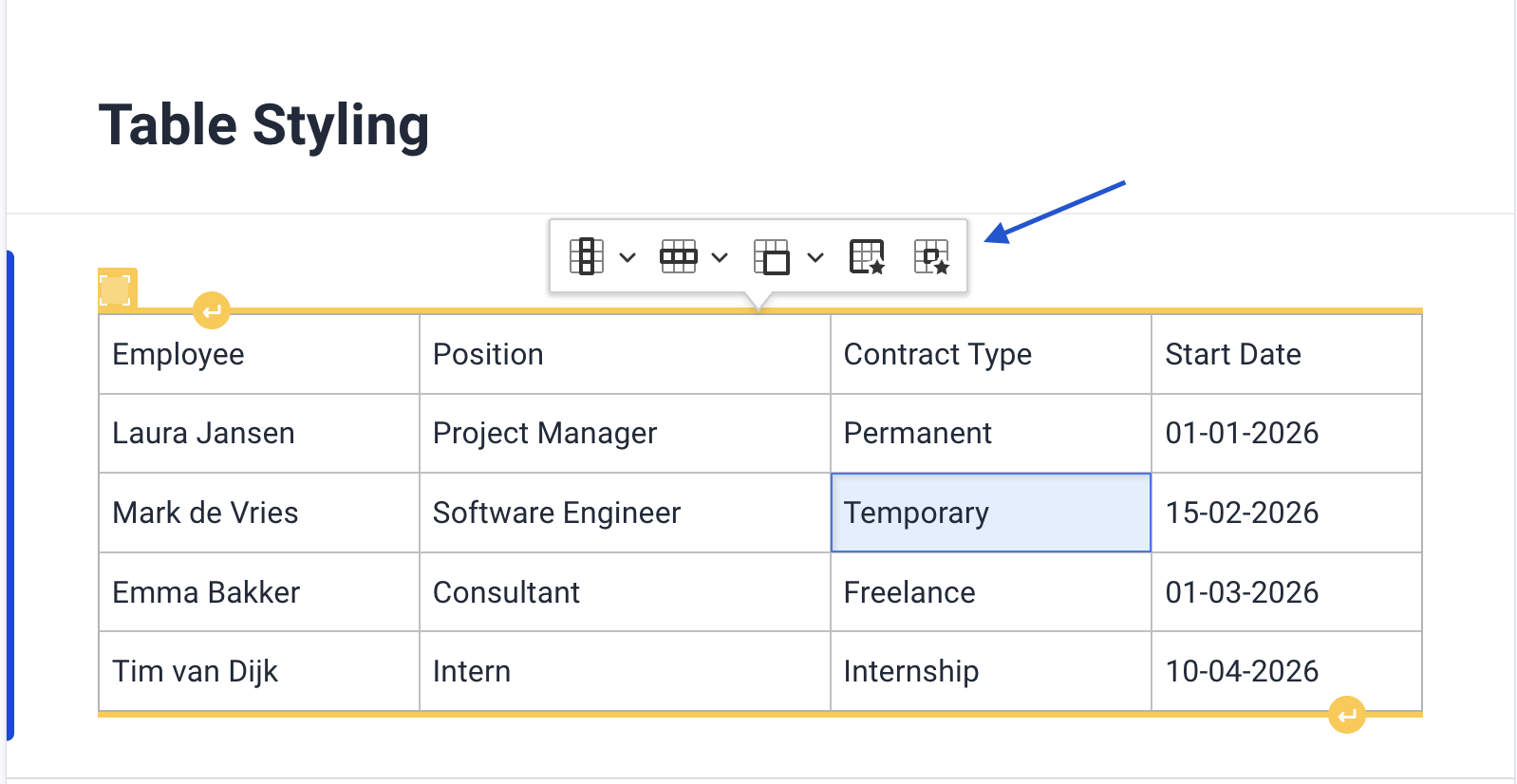
- If you want to apply a change to the entire table, first click the table and then select the fully black outlined table (second option from the right) in the menu.
- Do you want to adjust the formatting for one specific cell, first click the relevant cell and then choose the option where only one cell is outlined in black (rightmost option) to apply the desired styling.
- You can also select multiple cells at once and then use the cell option to, for example, give these cells the same formatting.
Customizable table elements
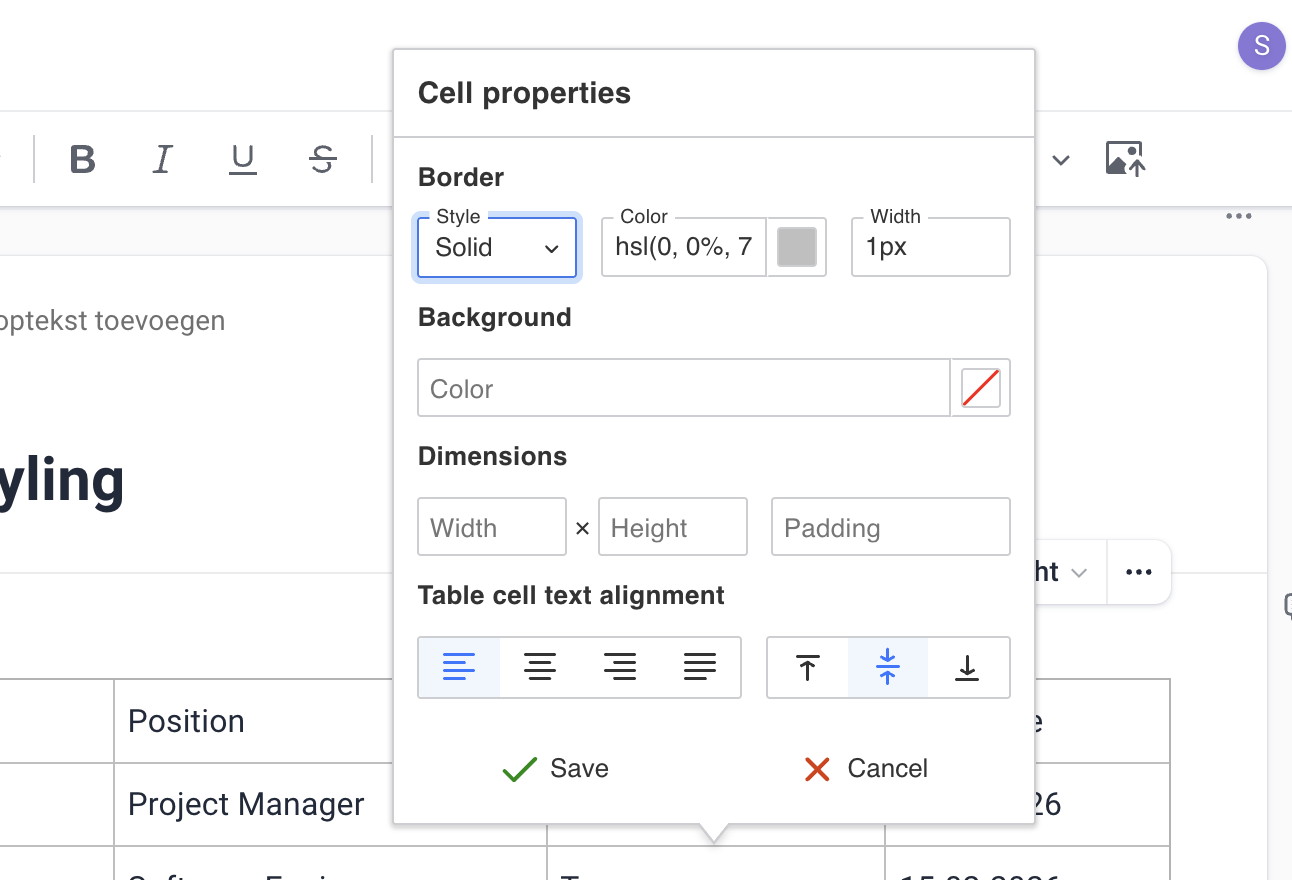
You can adjust the following parts of a table. This can be done per cell, row, column or for the entire table:
- Border settings
- border style
- border color
- border width
- border type
- Background color
- Width, height and padding
- Text alignment within table cells
Tip: Do you want the table to use the full width of the page?
Choose the second option from the right and set the width to 100%.
Set table header
You can set a row as a table header. When a row is set as a header, it is automatically repeated on the next page. This is especially useful for long tables that span multiple pages. For example, if a table starts on page 1 and continues on page 2, the table header remains visible at the top of page 2. This keeps the table content clear and easy to read.
Merge or split cells
Was dit artikel nuttig?
Dat is fantastisch!
Hartelijk dank voor uw beoordeling
Sorry dat we u niet konden helpen
Hartelijk dank voor uw beoordeling
Feedback verzonden
We stellen uw moeite op prijs en zullen proberen het artikel te verbeteren