To collaborate securely in Docfield, you not only decide who has access, but also what someone is allowed to do. This is managed with user types and roles. A user is first assigned a user type: Owner, Member or Guest. Next, you determine which role this user gets for each folder, template or document. The combination of the user type and the role ultimately determines which actions a user can perform. In this guide, you will learn how user types and roles work together and what each level makes possible.
In this guide
How do these permissions work together?
User types and roles
Within Docfield, there are two levels that affect permissions:
- User type: describes which roles the user can have.
- Role: determines what someone is allowed to do within a specific folder, template or document.
For example, a user can be a Member with read-only access to one document, while the same user has edit rights for another document. Owners are the exception to this. They always have access to all objects within the environment.
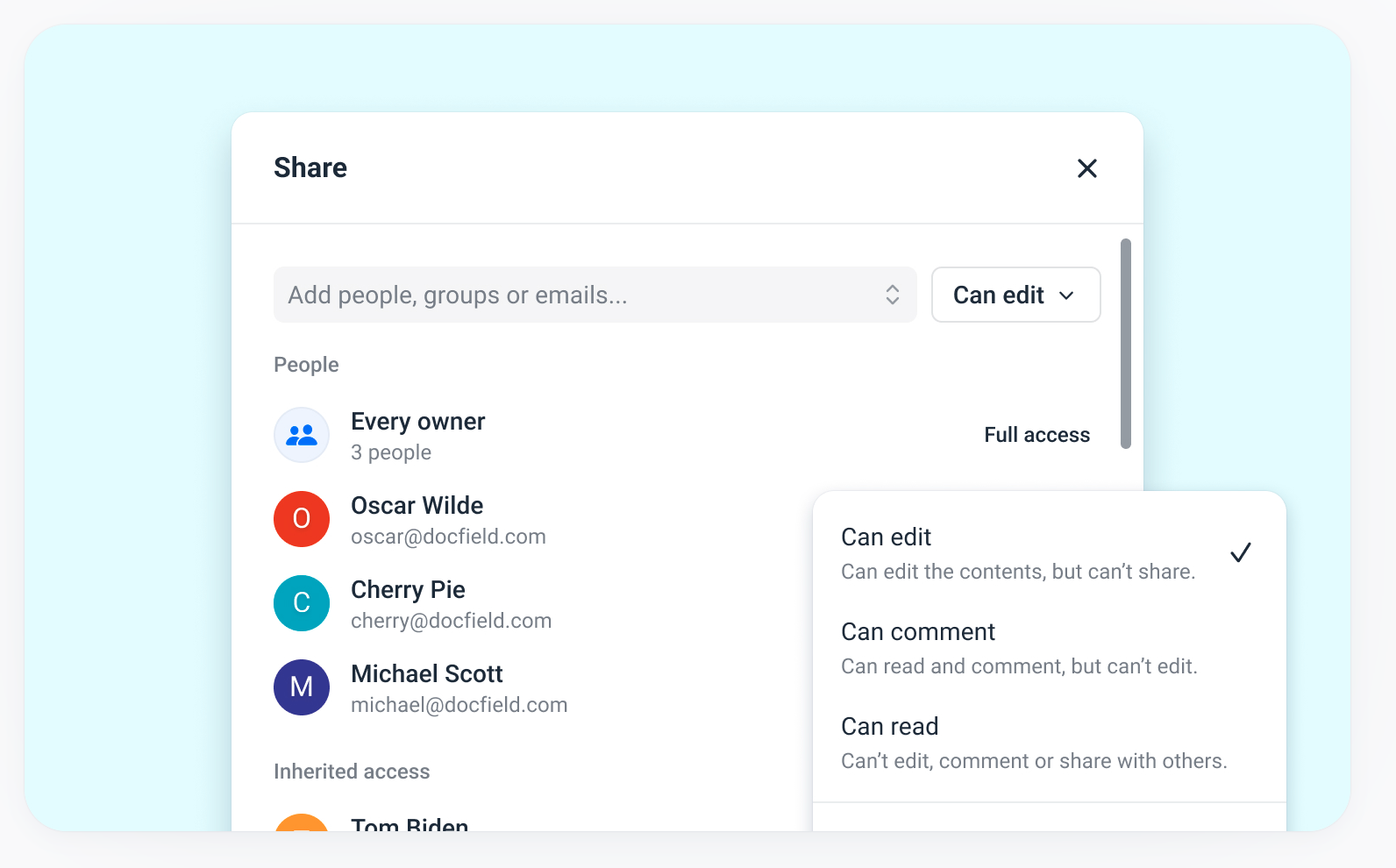
You can give users access using the Share button at the top right of a folder, template or document. Want to learn more about inviting users and managing access rights? Read the guide Grant and manage user access.
User types
Every user in Docfield is assigned a user type. Docfield has three user types:
- Owners
- Members
- Guests
The user type determines which general permissions a user has within the environment.
| Owner | Member | Guest | |
| Edit settings | Yes | No | No |
| Manage users | Yes | No | No |
| Global elements | Manage | Use | Use* (contracts only) |
| Default access to objects | Full | None | None |
| Can be assigned roles on objects | N/A | Read Comment Edit Full access | Read Comment Edit* (contracts only) |
Owners
Owners have the most permissions within the environment. Their permissions apply to the entire environment, including all folders, templates, documents, settings and the training page. An owner can:
- View and manage all objects
- Add, remove and manage users
- Adjust access rights
- Manage settings
- Manage the programme list
- Invite other users as an owner
Owners always retain access to all objects. This access cannot be revoked. In addition, the last owner of an environment cannot be removed. You can invite someone as an owner by going to the user list and clicking Invite user there.
Members
Members are internal users who get access to objects for which they have received permissions. When you add a member via the users page, this user does not get access to folders, templates or documents by default. These objects only become visible to the user after you have assigned permissions. Members can't access:
- Settings
- The programme list
- User list
Their options within documents, templates and folders depend entirely on the access level they receive.
Guests
Guests are intended for external users who need temporary or limited access.
Unlike members, guests are not added to the entire environment. You invite a guest to a specific folder, template or document using the Share button. Guests can, for example, review documents or give feedback without getting access to other parts of the environment. Guests can't:
- Change settings
- Invite other users
- Create new folders, templates or documents
- Get full admin rights
By default, guests receive access through a magic link. When Single Sign-On (SSO) is used within the organization, guests can also log in using that method.
Roles
For every folder, template or document, you can assign an access level. This determines which actions a user may perform within that object. Docfield has four roles:
| Role | Options |
|---|---|
| Full access | Invite and manage users, adjust access rights, create, move, duplicate, archive and delete objects. |
| Can edit | Edit content, fill in Smartfields, perform workflow steps, and manage blocks and sections. |
| Can comment | Add, reply to and resolve comments. Also view the version history. |
| Can read | View content, export documents, search within documents and read comments. |
How do these permissions work together?
The user type determines the maximum permissions a user can receive within the environment. The access level then determines what that user may do within a specific folder, template or document.
For example, a member can receive Full access, Can edit, Can comment or Can read, depending on the permissions assigned. A guest always has limited access and can only receive the permissions Can comment or Can read.
Owners are the exception to this. They always have full access to all objects within the environment and retain this access regardless of the configured access rights.
Was dit artikel nuttig?
Dat is fantastisch!
Hartelijk dank voor uw beoordeling
Sorry dat we u niet konden helpen
Hartelijk dank voor uw beoordeling
Feedback verzonden
We stellen uw moeite op prijs en zullen proberen het artikel te verbeteren