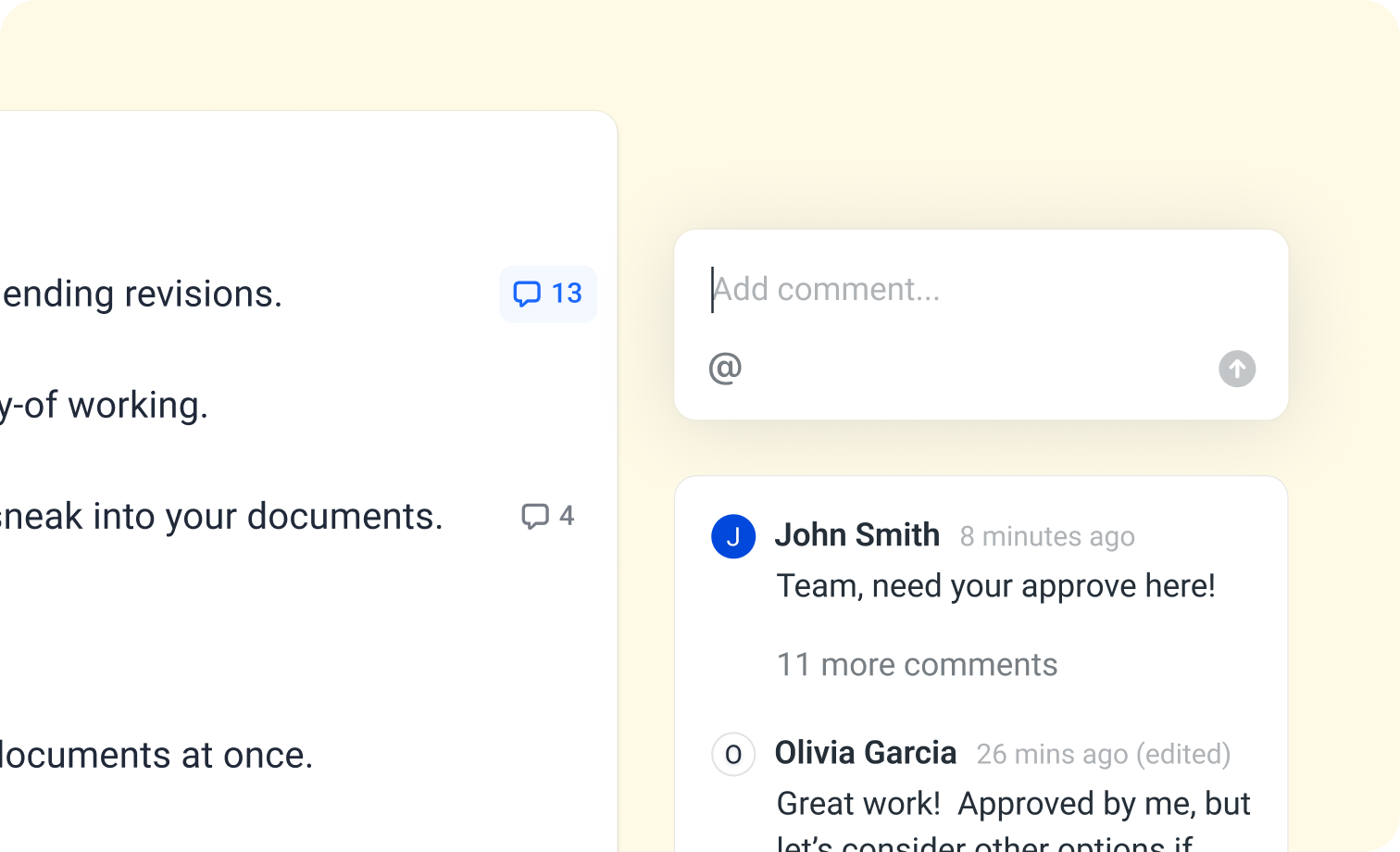
In Docfield, you can comment on content blocks in both templates and documents. This can be done for editable texts, choice sections, tables, attachments, and fixed texts. This allows you to easily provide feedback or report an error in a fixed text to the administrator.
In deze handleiding
Resolving or deleting a comment
Add a comment
You can add a comment in two ways:
- On a text block: Click the comment icon to the right of a text block. A text box will appear where you can type your comment.
- On highlighted text: Is there an error in a word or sentence, or do you want to suggest a change? First, select the text and then click the comment icon. The text box will open just like with a regular comment, but now it immediately shows which text you are referring to. This makes your feedback clearer and easier to understand.
Tagging someone in a comment
- Type or click on @ and select the name or email address of the person.
- Note: you can only tag people who have access to the document or template.
- Tagged people will receive an email.
Setting visibility
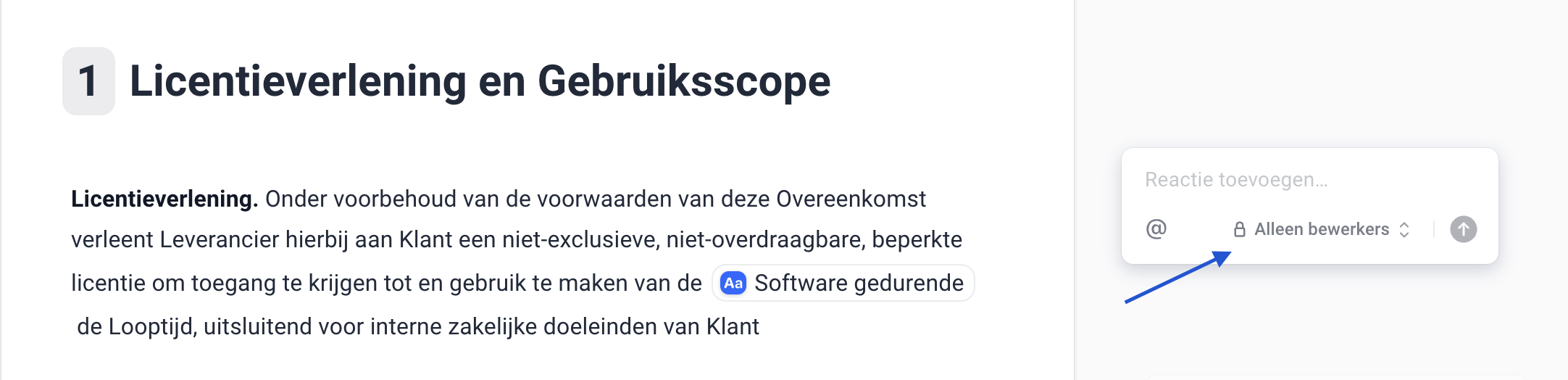
Comments are visible to everyone by default. If you want only editors to see the comment, click the button labeled Public. It will change to Editors only.
Replying to comments
Click on an existing comment to reply. A text box labeled Reply will appear, where you can type your response.

Resolving or deleting a comment
When a comment is no longer relevant, you can resolve or delete it:
Resolve
- Click the checkmark at the top right of the comment.
- Resolved comments remain visible but are marked as completed.
- Want to show or hide resolved comments? Click the arrow next to the comment icon in the navigation bar
Delete
- Click the three dots at the top right of the comment and select Delete conversation.
- Deleted comments cannot be recovered, so make sure before doing this.
Comments overview
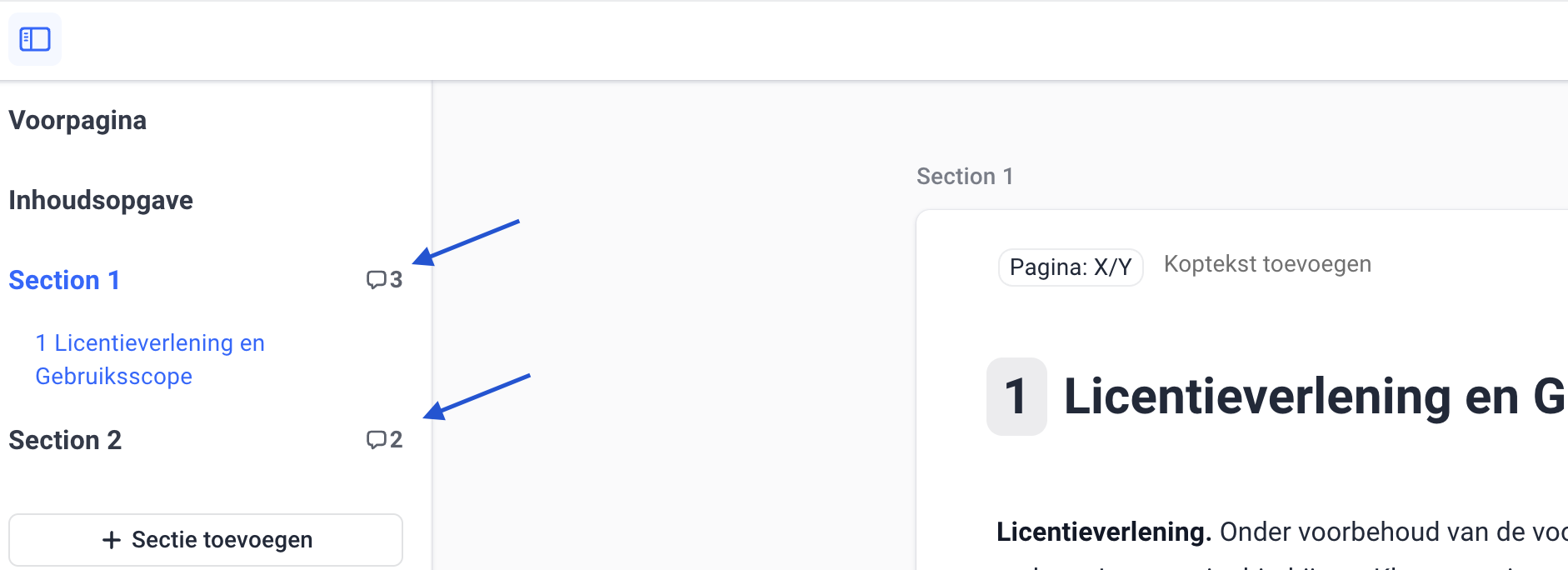
To see the total number of comments, check the left sidebar of the page. It shows the number of comments per section, so you can quickly identify where feedback is still pending. When you open a section and click on a comment, you can easily navigate through the comments. Click in the top-left corner of the comment and use the downward arrow to move to the next comment. This only works within the same section. If you want to view comments in other sections, you’ll need to open that section first.
Was dit artikel nuttig?
Dat is fantastisch!
Hartelijk dank voor uw beoordeling
Sorry dat we u niet konden helpen
Hartelijk dank voor uw beoordeling
Feedback verzonden
We stellen uw moeite op prijs en zullen proberen het artikel te verbeteren