In Docfield, you can easily generate a PDF from any template or document. This is useful for sharing or storing a template/document outside the system. You can choose between two types of PDFs: a standard PDF and a marked PDF. Both versions can include a “Draft” watermark.
In deze handleiding
Export PDF
Follow these steps to export a document:
Open the template/document you want to export
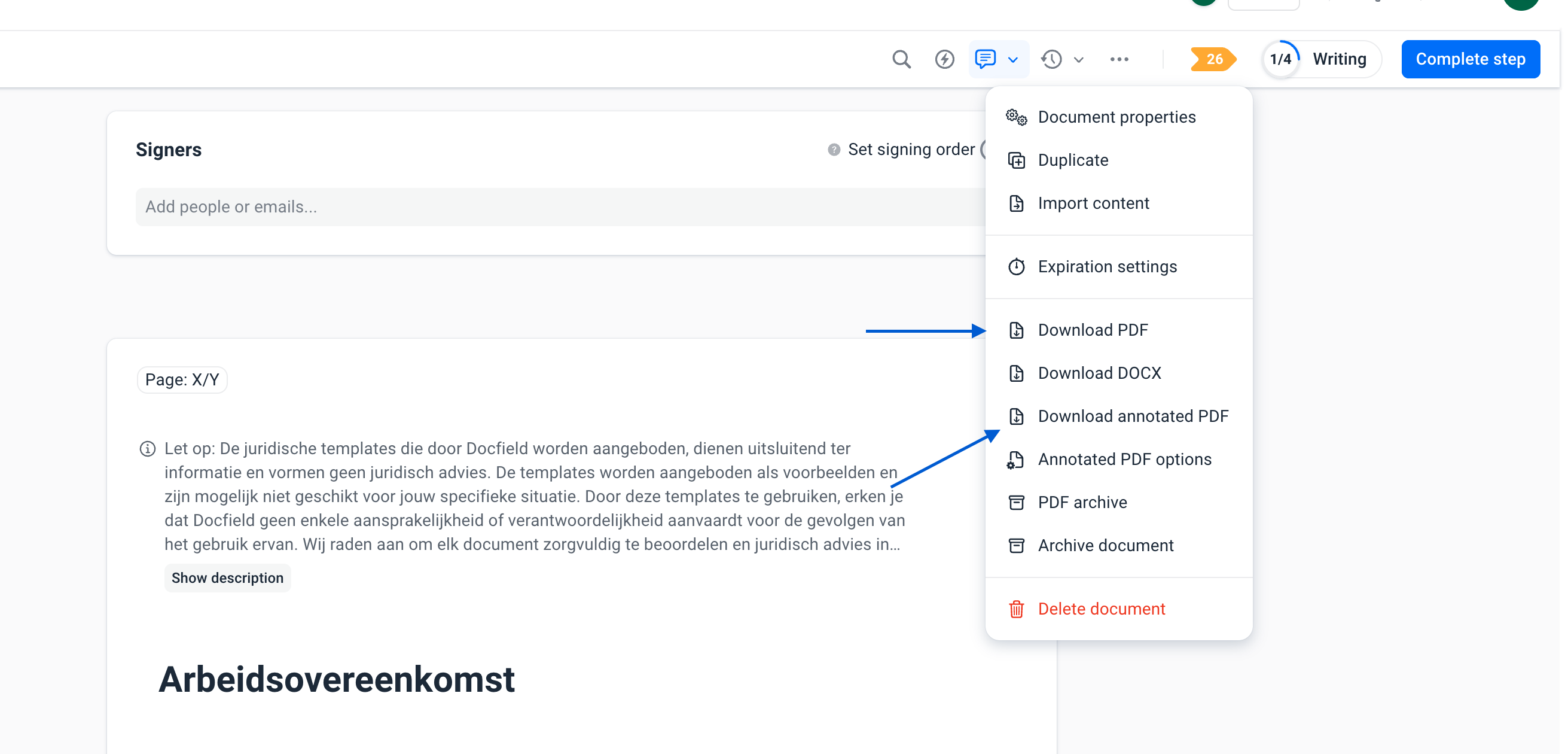
Click the three dots (...) in the top-right corner
Choose one of the following options:
Download PDF
Download Marked PDF
The PDF will then be downloaded immediately.
Types of PDFs
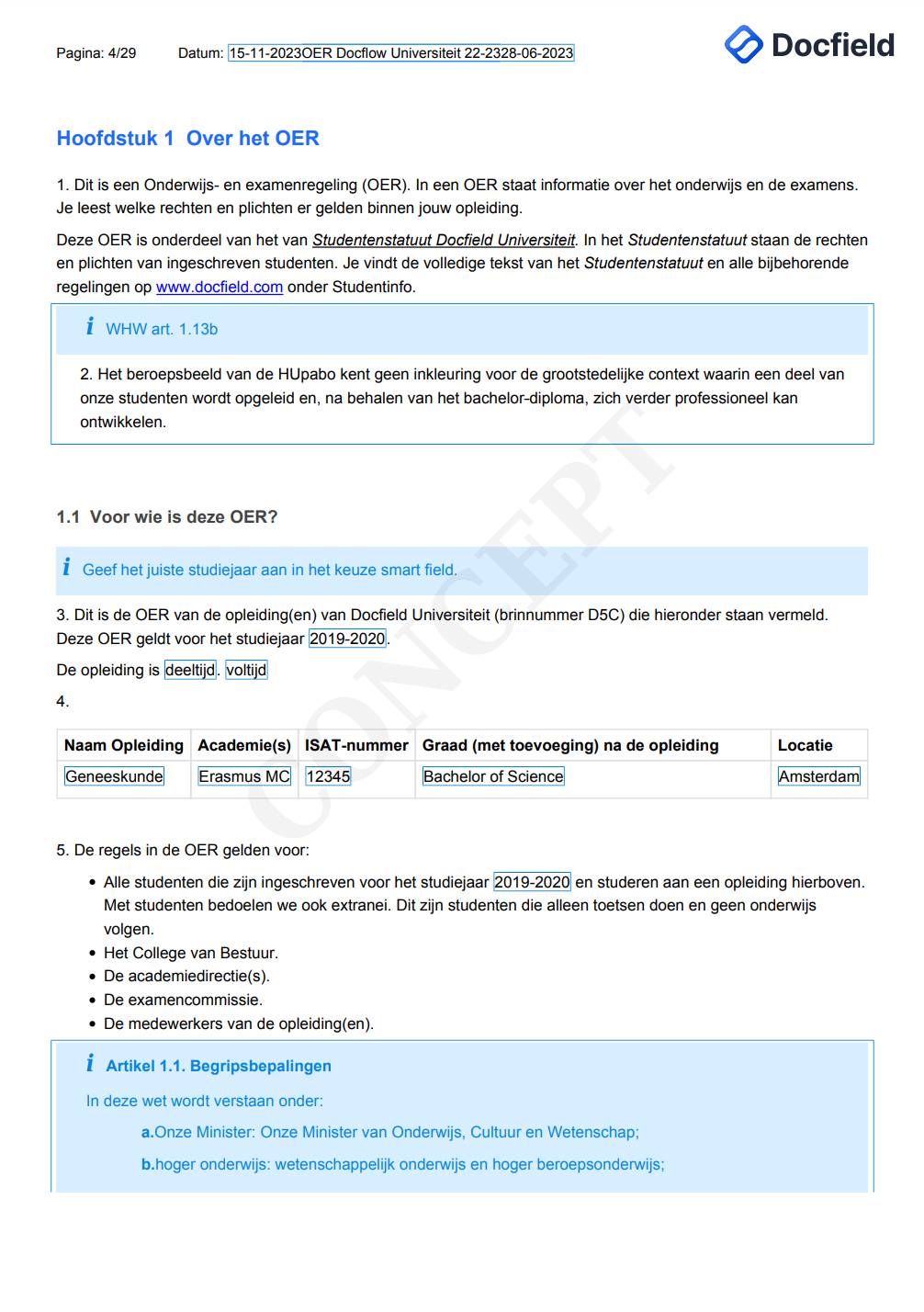
Standard PDF
The standard PDF provides a clean, final version of your document. It can be downloaded with or without the “Draft” watermark. The watermark is automatically removed once the document reaches the final workflow step. This export format is suitable for sharing with clients or other external parties and is primarily used for final documents.
Marked PDF
The marked PDF shows which parts of the template/document are editable. In this version, editable text is clearly highlighted, making it useful for review or collaboration. This PDF always includes the “Draft” watermark. Text that is not editable can only be changed through the associated template.
Use a marked PDF when you want to see or show which parts can still be edited.
Marked PDF Settings
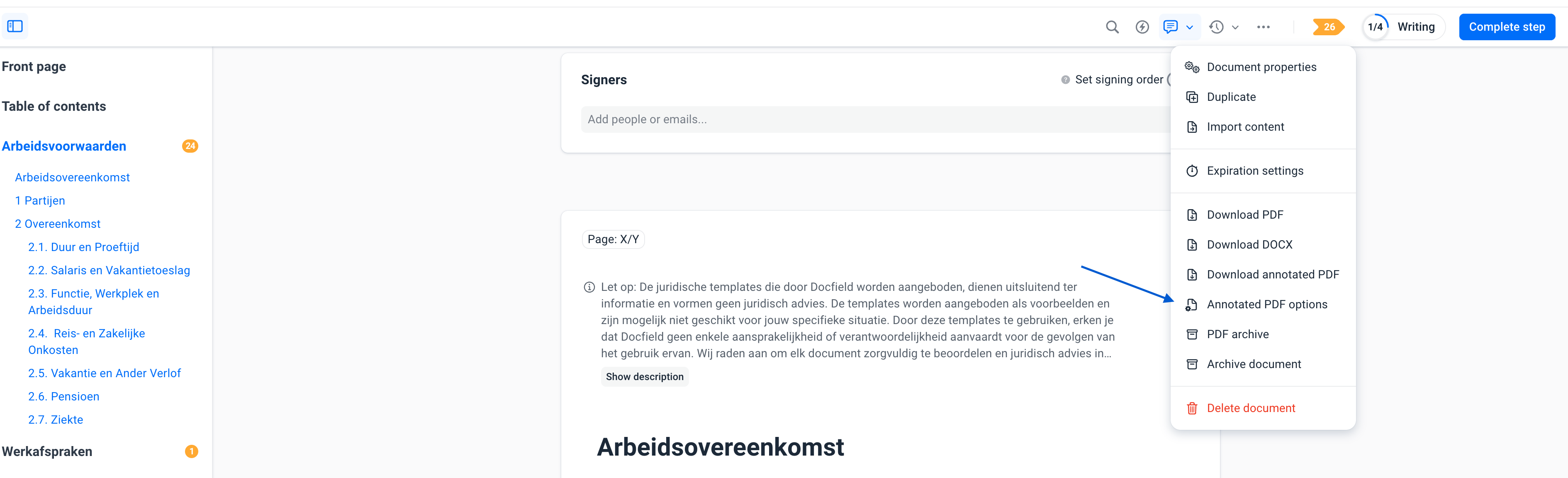
You can customize how a marked PDF is displayed through the settings. To do this, click the three dots (...) in the top-right corner of the navigation bar and select “Marked PDF Options.”
Within these options, you can configure the following:
Show Description: When enabled, the marked PDF will also display the help text added by the template creator.
Show Unselected Options (Documents Only): When enabled, the marked PDF will also display unselected options within selection lists.
“Draft” Watermark
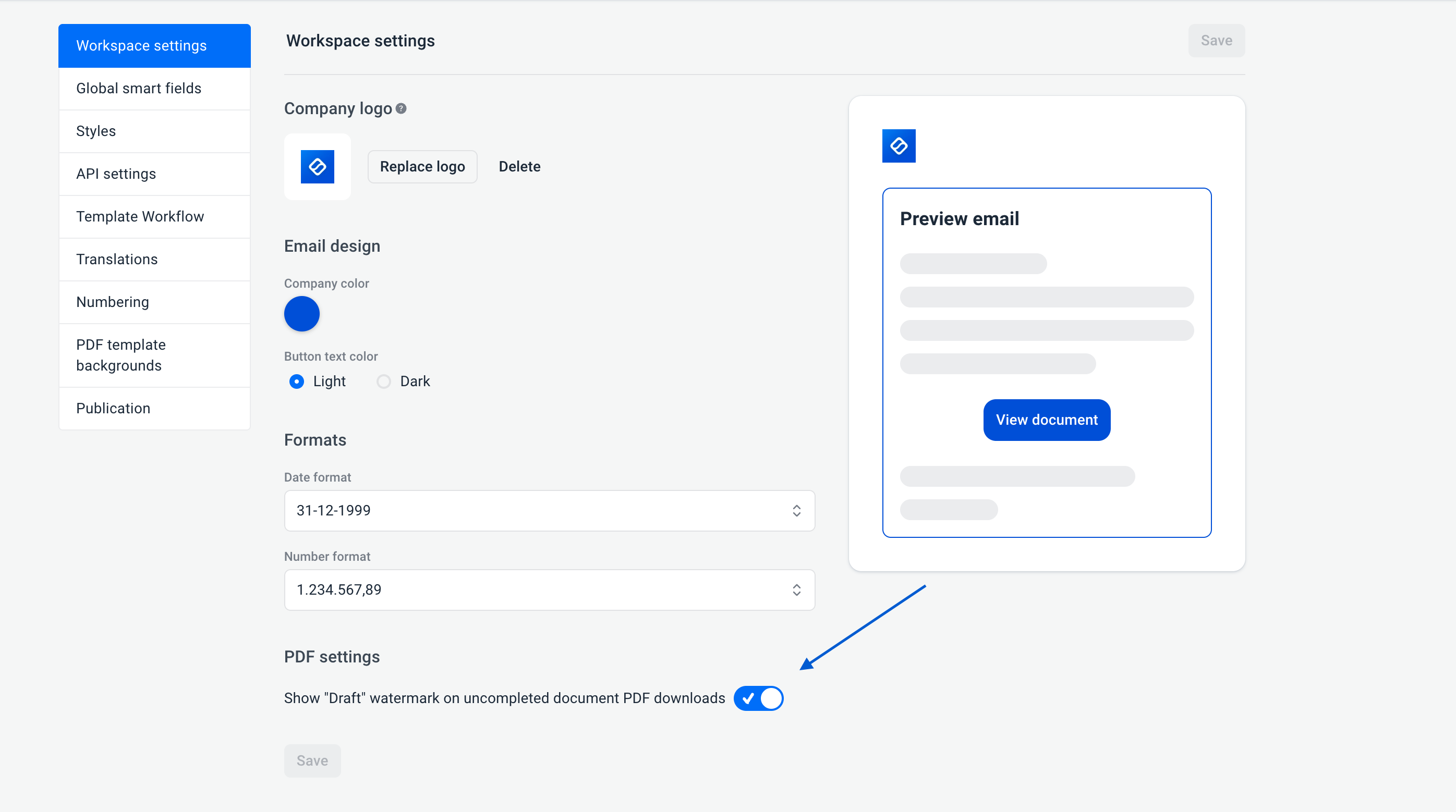
By default, the “Draft” watermark is added to a PDF. This helps indicate that a document is not yet final. The watermark is automatically removed in the final workflow step. Administrators can disable the watermark entirely via Settings → Workspace Settings → PDF Settings, and re-enable it later in the same location if needed.
Was dit artikel nuttig?
Dat is fantastisch!
Hartelijk dank voor uw beoordeling
Sorry dat we u niet konden helpen
Hartelijk dank voor uw beoordeling
Feedback verzonden
We stellen uw moeite op prijs en zullen proberen het artikel te verbeteren