With sections, you can structure a template clearly. This is especially useful for long documents with many blocks, chapters, or fixed components. In Docfield, you can find the sections in the left sidebar of a template. From this sidebar, you can view, add, edit, and move sections.
In this guide
Conditionally hiding a section
Using sections
Sections help you build a template clearly. You divide the document into parts, so document writers can navigate to the right part of the document more quickly. Each new section automatically starts on a new page. Sections are therefore also the way to manually add a page break in Docfield. Within a section, Docfield manages the page layout automatically. If the content no longer fits on one page, a new page is created automatically. Docfield also takes the readability of the document into account. This prevents, for example, a single title or short sentence from being left at the bottom of a page.
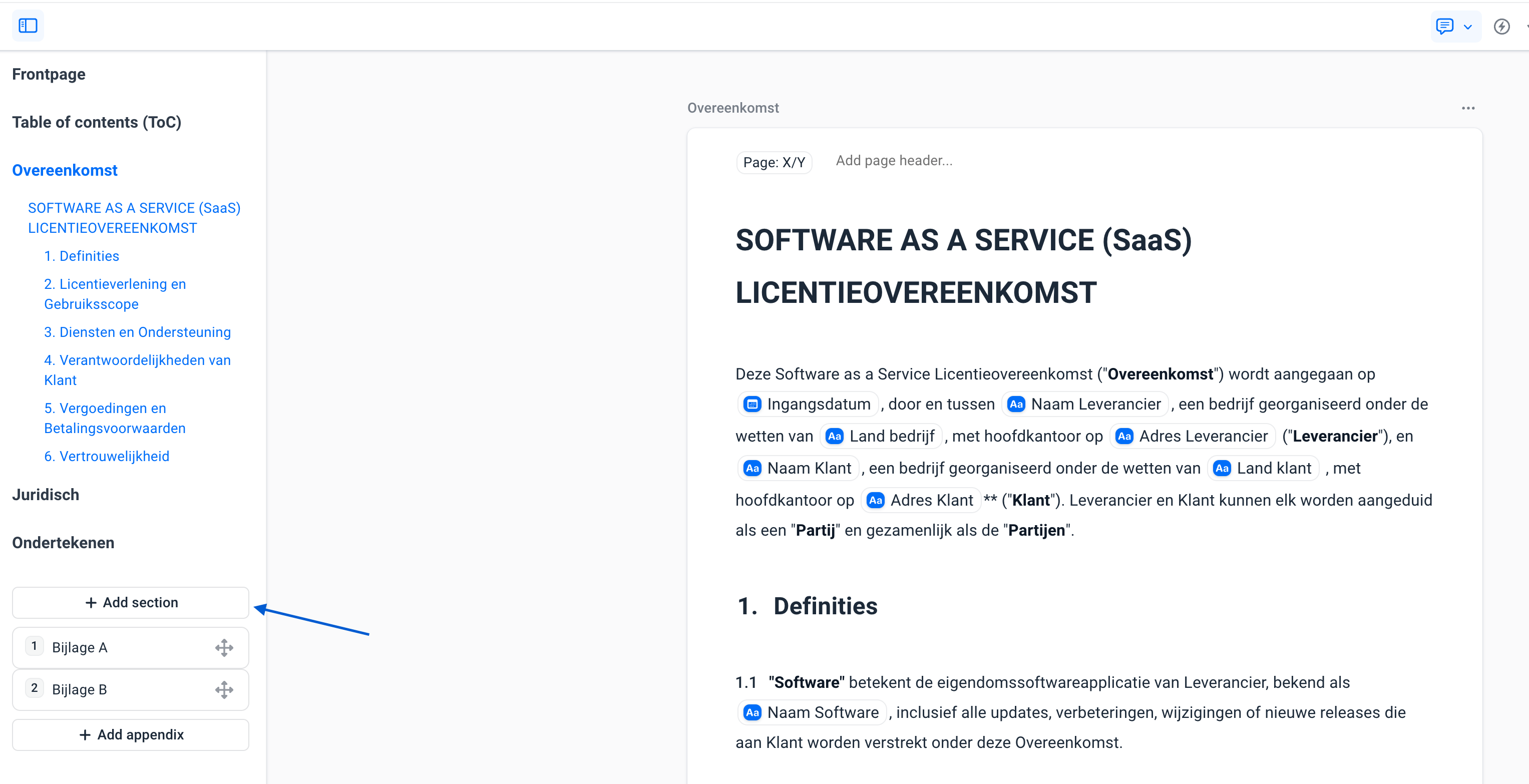
Adding a section
You can add a new section from the left sidebar of a template.
- Open the template.
- Go to the left sidebar.
- Click Add section.
- Give the section a clear name.
- Then add the desired blocks to the section.
You can change the order of sections in the left sidebar. Hover over the section and use the arrows to move the section up or down. The order of the sections also determines the order in which the content is displayed in the document and in the PDF.
Managing sections
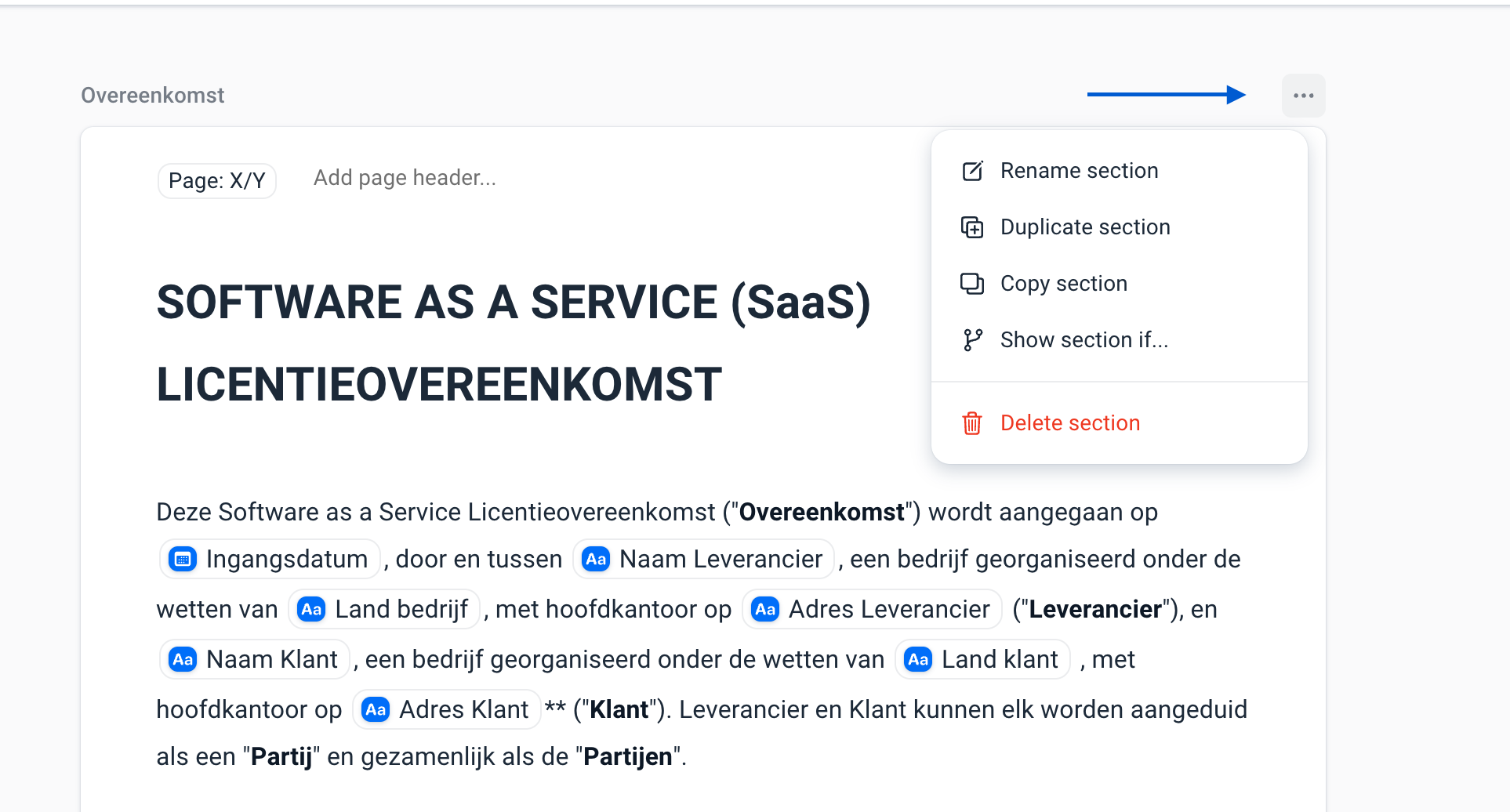
You can edit a section using the three dots at the top of the section. Here you will find several options for managing the section. For example, you can:
Conditionally hiding a section
Sometimes a section is not needed for every document. In that case, you can conditionally hide the section. The section is then only shown when the set condition is met. This is useful for chapters or components that only apply in specific situations. Read more about conditional logic here
Was dit artikel nuttig?
Dat is fantastisch!
Hartelijk dank voor uw beoordeling
Sorry dat we u niet konden helpen
Hartelijk dank voor uw beoordeling
Feedback verzonden
We stellen uw moeite op prijs en zullen proberen het artikel te verbeteren